Roles and permissions
Before you onboard a team, check what each Optimizely Analytics role can do and who needs admin access. Analytics combines two controls. A role decides who administers the organization. An access level on each object decides who can view, edit, and share that object.
Grant a role or an access level to a group to set up a whole team in one step. Every member of the group receives the role or access level. To assign roles in Analytics, you need the Org Admin role. When your organization uses Opti ID, assign roles in the Opti ID Admin Center instead. To share an object, you need Full access on it.
Default roles
Analytics has two roles. Use them to keep organization settings with a few admins while everyone else works with shared content.
- Org Admin – Manages users, groups, applications, and settings for the organization. An Org Admin has Full access to every object in every application.
- User – Works with the applications and objects shared with them. User is the default role and includes no administrative privileges. What a User can do with an object depends on their access level for it. See Access levels.
In Settings > Users & Groups, the user and group lists label these roles Admin and User.
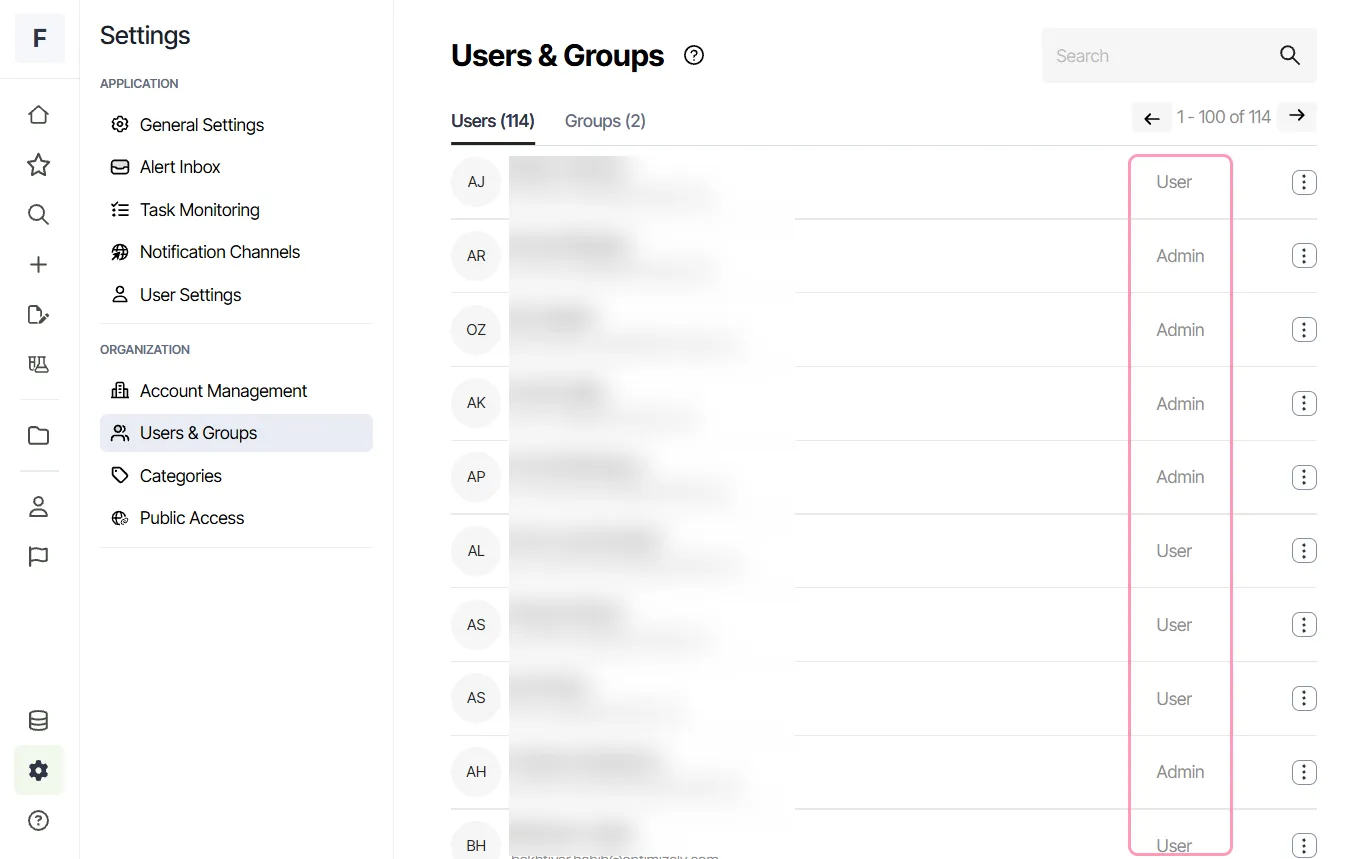
Role assignment
Give the Org Admin role only to the people who run the organization, because it grants access to everything. Analytics assigns the role in the following ways:
- Through Opti ID – When your organization signs in with Opti ID, an administrator assigns the Analytics role in the Opti ID Admin Center. Users with the Admin role for the Analytics instance become Org Admins. Everyone else becomes a User unless they receive admin access through a group. See Roles in Opti ID.
- By an Org Admin – An Org Admin gives admin access to a user or a group in Settings. Every member of the group receives the role. When your organization uses Opti ID, admin access from Settings applies only to users and lasts until the next sync. See Assign or unassign a role.
Roles in Opti ID
Manage access to Analytics and other Optimizely products in one place when your organization uses Opti ID. Assign Analytics users and roles in the Opti ID Admin Center. Analytics keeps its users and Org Admins in sync with the Admin Center.
Who can assign roles in the Admin Center
The Admin Center has its own administrator roles, separate from the Analytics roles. Your Admin Center role decides which users you can manage and which roles you can assign. The Analytics Org Admin role does not grant access to the Admin Center. To assign Analytics roles, you need one of the following Admin Center roles:
- Super Admin – Manages every user in the organization on the Users page, including group access.
- Product Admin – Manages the users of one product, such as Analytics, on the Product Access page.
- Instance Admin – Manages the users of one product instance on the Product Access page.
Without one of these roles, ask a Super Admin in your organization to assign the role. For details on each administrator role, see Manage users.
User and role sync
Opti ID sends Analytics an update when a user's access changes. At each update, Analytics adds or removes the user to match their access to the Analytics instance. Analytics also resets the role assigned directly to the user to match their Opti ID role.
Admin access that you give a user in Settings lasts only until the next update. To keep a user's admin access, give the user the Analytics Admin role in the Admin Center. See Roles and permissions.
Groups from the Admin Center
Give a whole team the same Analytics role by managing its group in the Admin Center. When your instance syncs groups from Opti ID, Analytics matches the following group details to the Admin Center:
- Name and description – Match the group in the Admin Center.
- Members – Match the users in the Admin Center group.
- Admin access – Matches the Analytics Admin role of the Admin Center group. Every member of a group with this role becomes an Org Admin.
In Settings, a synced group displays Managed by Optimizely's Admin Center in its More menu. Rename, delete, or change the members of a synced group in the Admin Center, not in Analytics.
Analytics does not offer Give admin access for groups when your organization uses Opti ID. To give a team admin access, give their Admin Center group the Analytics Admin role. Without group sync, give each team member the Analytics Admin role instead.
Access levels
Access levels let you share content with the people who need it without granting the Org Admin role. Give each user or group the level of control their work needs on an application, folder, or object. An object has one of the following access levels for each user or group:
- Can view – View the object, but not edit or share it.
- Can edit – Edit the object, but not share it with others.
- Full access – View, edit, and share the object.
- No access – Cannot open the object.
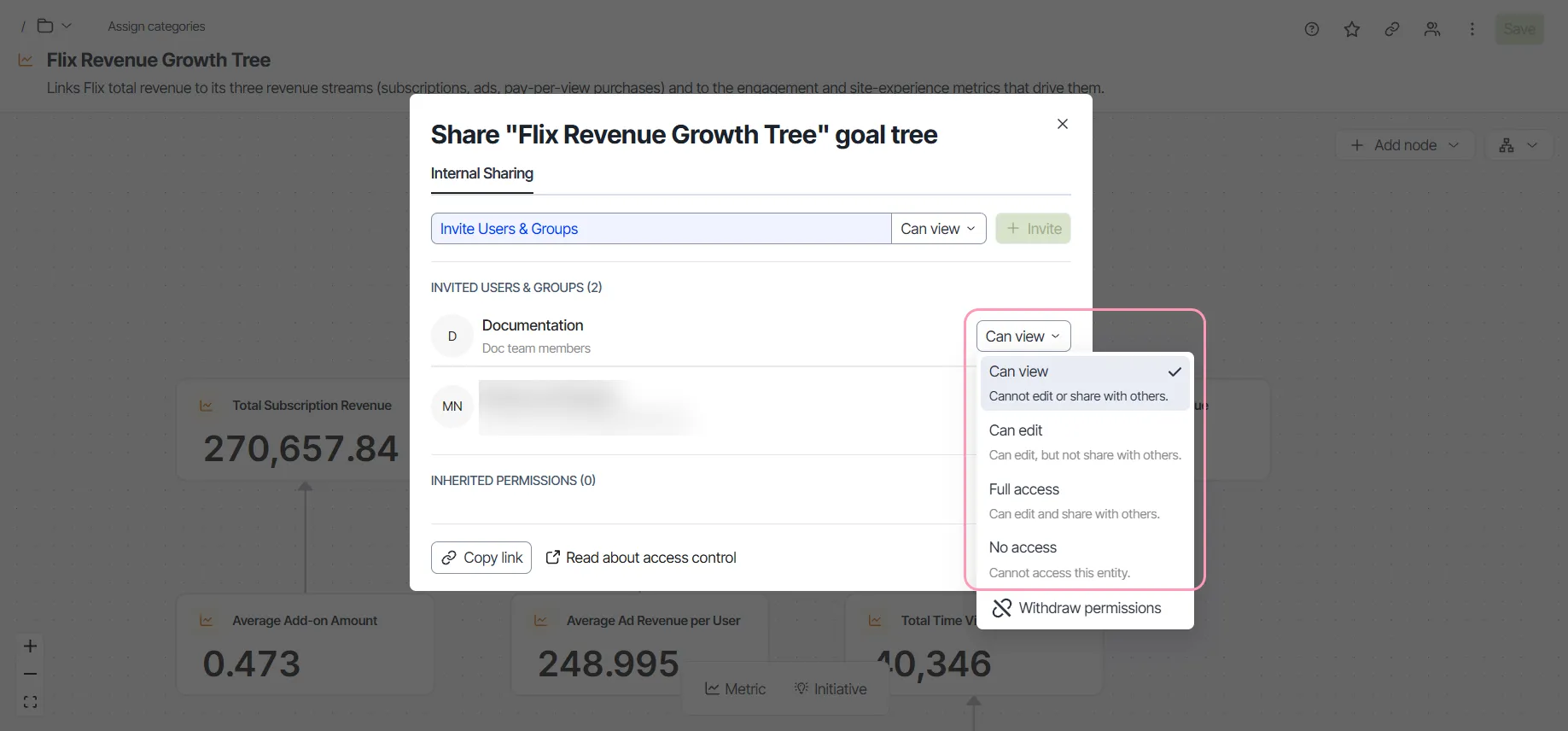
A user receives an access level directly, through a group they belong to, or through that group's parent group. When a user receives several access levels for the same object, the highest level applies. Objects inside a folder inherit the folder's access level. An object's own access level overrides the folder's level, even when it is lower, such as No access. For an example, see Folder-based access levels.
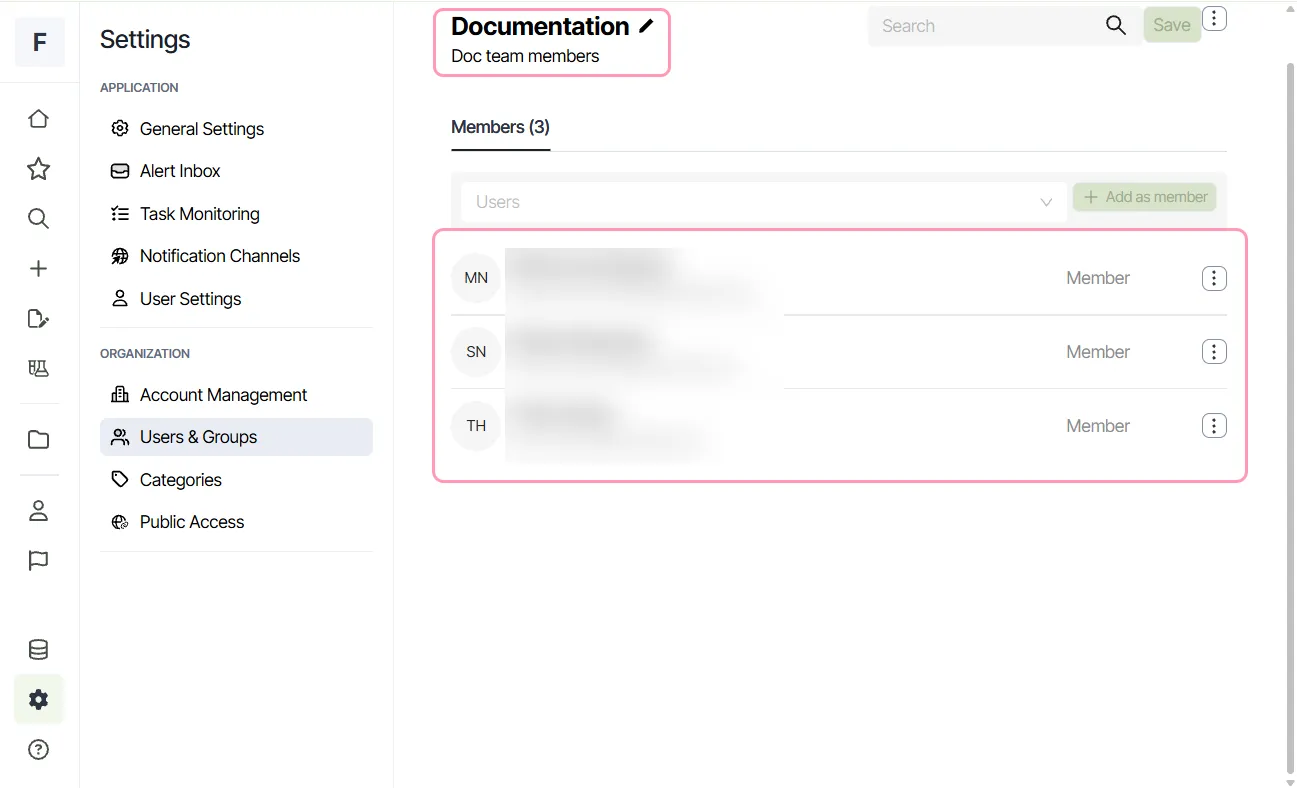
To check who can open sensitive content, do not rely on the Share dialog alone. The dialog lists the users and groups that have an access level assigned to the object. The list leaves out the individual members of each group. In Settings > Users and groups > Groups, review the members of each listed group.
Default access to applications
Default sharing decides what a User can do in an application before anyone changes its access settings. Review this default before you add sensitive content to an application. When an Org Admin creates an application, Analytics shares it with the All Users group at Full access. The application's root folder receives the same access level, and the folders and objects inside it inherit that level.
As a result, every User can view, edit, and share the content of the application. Later changes to the application's access level do not update the root folder or its content. To limit access to the content, change the access level of the root folder, a folder, or an object. See Share an application.
Permissions by role
Grant each person only the access their work needs. The following tables show whether a task needs the Org Admin role or an access level on an object. An Org Admin can perform every task in the tables. For a User, the User column names the access level the task needs.
Organization administration
Organization administration tasks shape the organization for everyone. Only an Org Admin can perform the following tasks:
- Open the Settings page
- Add and remove users
- Create, edit, and delete groups, and manage group members
- Give and remove admin access
- Create and delete applications
- Change application settings, such as the query timeout
- Create, edit, duplicate, and remove color palettes, and set the default palette
- Create, edit, and delete categories
- Add and remove warehouse connections
- Manage the public links of an application on the Public access page
You cannot change or delete the All Users group. When your organization uses Opti ID, add users and give admin access in the Opti ID Admin Center.
Applications and content
A User's access level on an application, folder, or object decides what they can do with it. Grant access levels to match each team's responsibilities.
Task | Org Admin | User |
|---|---|---|
Open an application | Yes | Can view on the application |
Edit the name, description, and color of an application | Yes | Can edit on the application |
Share an application | Yes | Full access on the application |
Create a dataset, metric, exploration, dashboard, experiment, or folder | Yes | Can edit on the destination folder |
Edit or delete a dataset, metric, exploration, dashboard, experiment, or folder | Yes | Can edit on the object |
Share an object or create a public link to it | Yes | Full access on the object. The application must also allow public links. |
Assign categories to an object | Yes | Can edit on the object and on each category |
Edit a warehouse connection | Yes | Can edit on the connection |
Event taxonomy
Curate the event taxonomy to control which events analysts see and how each event displays. A User does not need the Org Admin role to curate events on the Events page. Their access level on the event stream's dataset decides what they can do. An event stream is the set of user events, such as page views and clicks, that a dataset stores.
Editing events requires a subscription that includes event taxonomy. Without it, users can still view events and show or hide one event at a time. They cannot edit, merge, delete, or categorize events. Custom events also require a subscription that includes them. For the steps for each task, see Event taxonomy.
Task | Org Admin | User |
|---|---|---|
View events on the Events page | Yes | Can view on the event stream's dataset |
Edit the display name, description, or definition of an event | Yes | Can view on the event stream's dataset |
Show or hide events | Yes | Can view on the event stream's dataset |
Merge and unmerge events | Yes | Can view on the event stream's dataset |
Reset the changes to an event | Yes | Can view on the event stream's dataset |
Delete multiple events | Yes | Can edit on the event stream's dataset |
Assign categories to an event | Yes | Can edit on the event stream's dataset and on each category |
Create a custom event | Yes | Can view on the event stream's dataset |
Edit or delete a custom event | Yes | Can edit on the custom event |