Goal trees
A goal tree connects a business goal to the metrics and initiatives that drive it, called drivers. Use a goal tree to show how each team's metrics contribute to the outcome the business cares about most. Each connection between two metrics displays how closely the metrics move together. Use that correlation to check whether a driver tracks the goal it supports.
A goal tree is a canvas of nodes joined by arrows. Knowing the components helps you decide which metrics and initiatives to add to your tree. A goal tree contains the following components:
- Metric node – Displays a saved metric from the catalog. The node shows the current value of the metric and, optionally, a trend line and progress toward a target.
- Initiative node – Represents work that a team expects to move a metric, such as a project, campaign, or experiment. An initiative node has a title, a description, and owners.
- Connection – Points from a driver to the node it influences. A connection between two metric nodes displays the correlation between the metrics.
For example, an ecommerce goal tree has a revenue metric as its goal. Order count and average order value metrics connect to revenue. A checkout redesign initiative connects to order count.
Prerequisites
Before you create a goal tree, confirm you have the following:
- Goal trees enabled for your Optimizely Analytics instance. If Goal Tree does not display in the + New menu, contact Optimizely Support.
- A saved metric for each goal and driver you want to measure. To create metrics, see Reusable metrics.
Create a goal tree
Build a goal tree from the top down. Start with the goal metric, then add the drivers and connect them. To find metrics that relate to your goal metric before you build the tree, use the Influence exploration template.
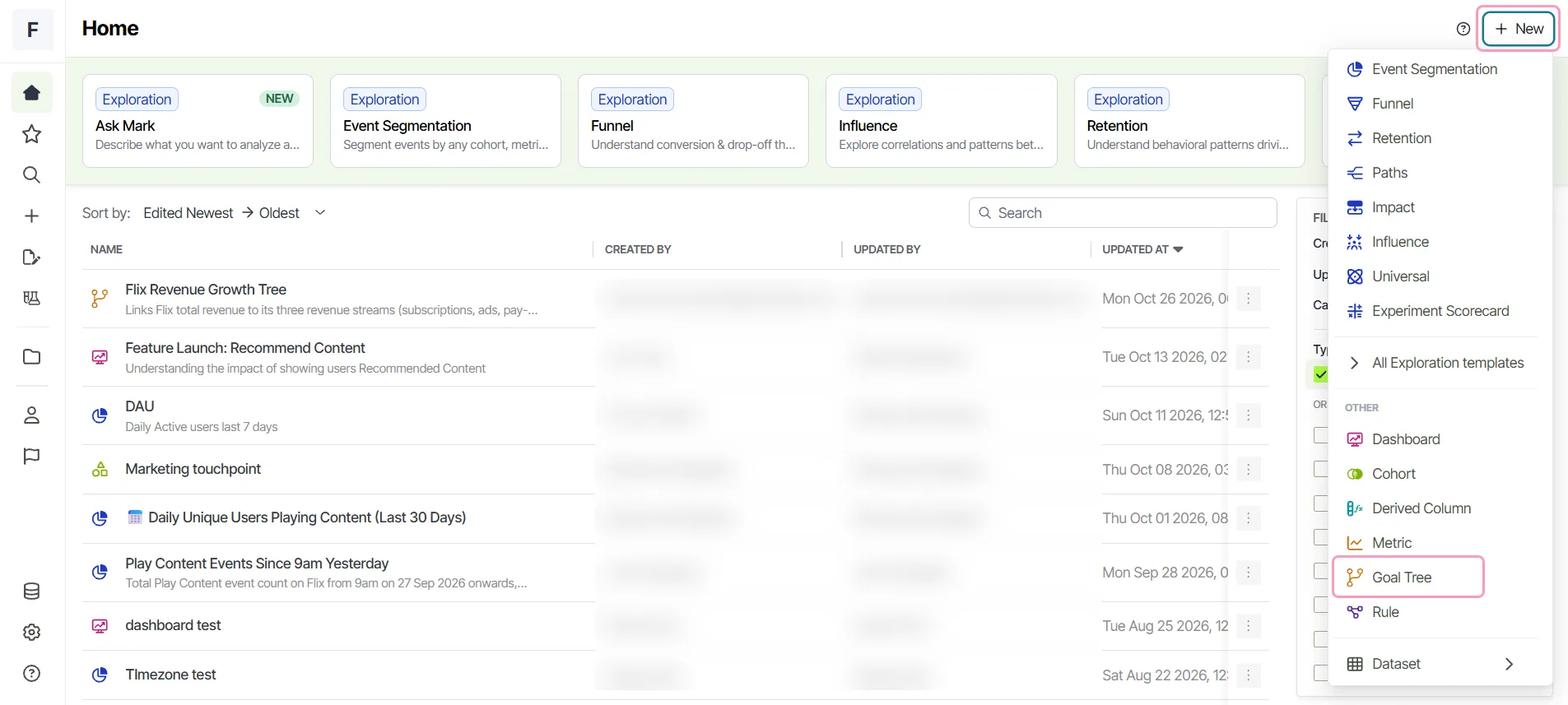
- Click + New > Goal Tree.
- Enter a name and description for the goal tree.
- Add a metric node for your top-level goal.
- Add metric nodes and initiative nodes for the drivers of that goal.
- Connect each driver to the node it influences.
- Click Save.
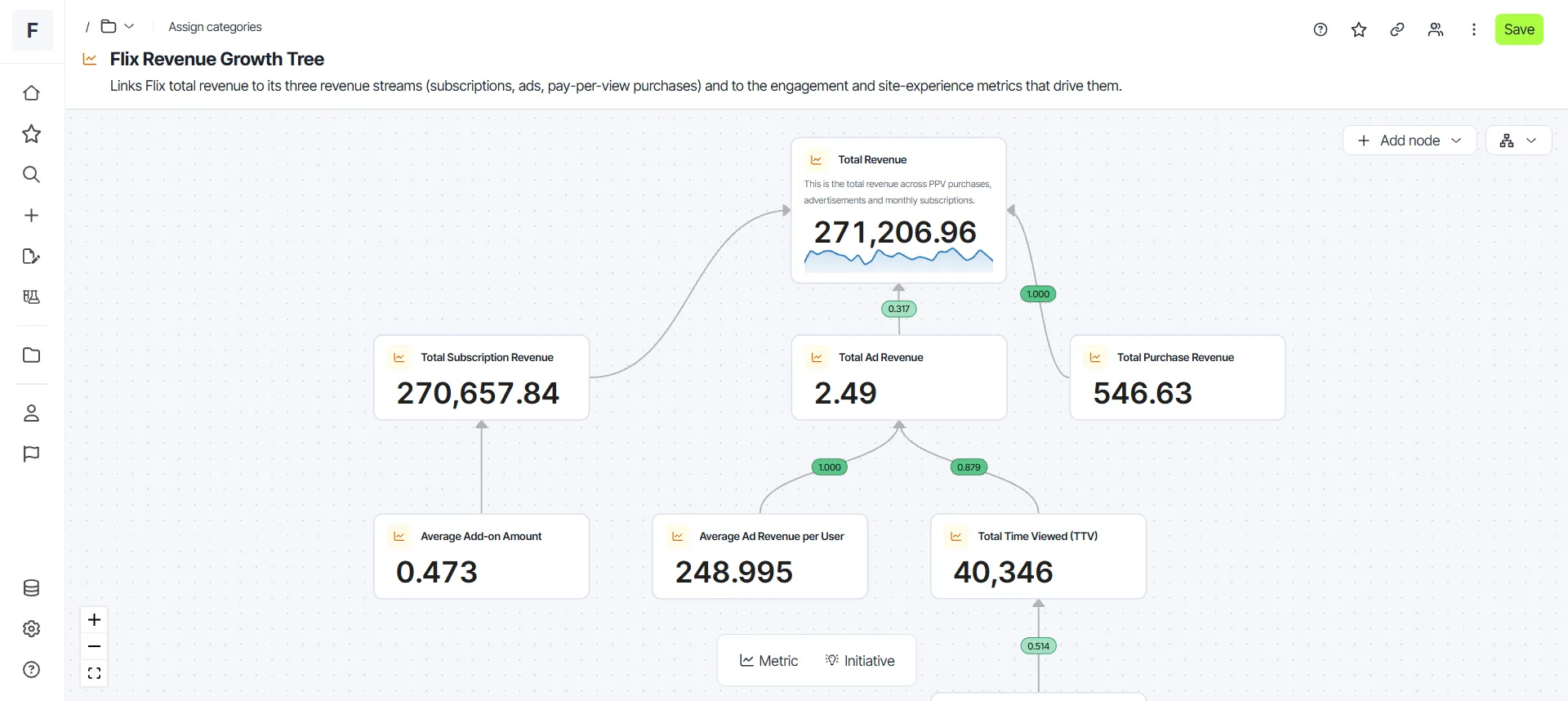
The following sections describe how to build and edit a goal tree. Click Save to keep any change to the nodes, connections, or layout.
Add a metric node
Add a metric node to display a saved metric and track its value on the canvas.
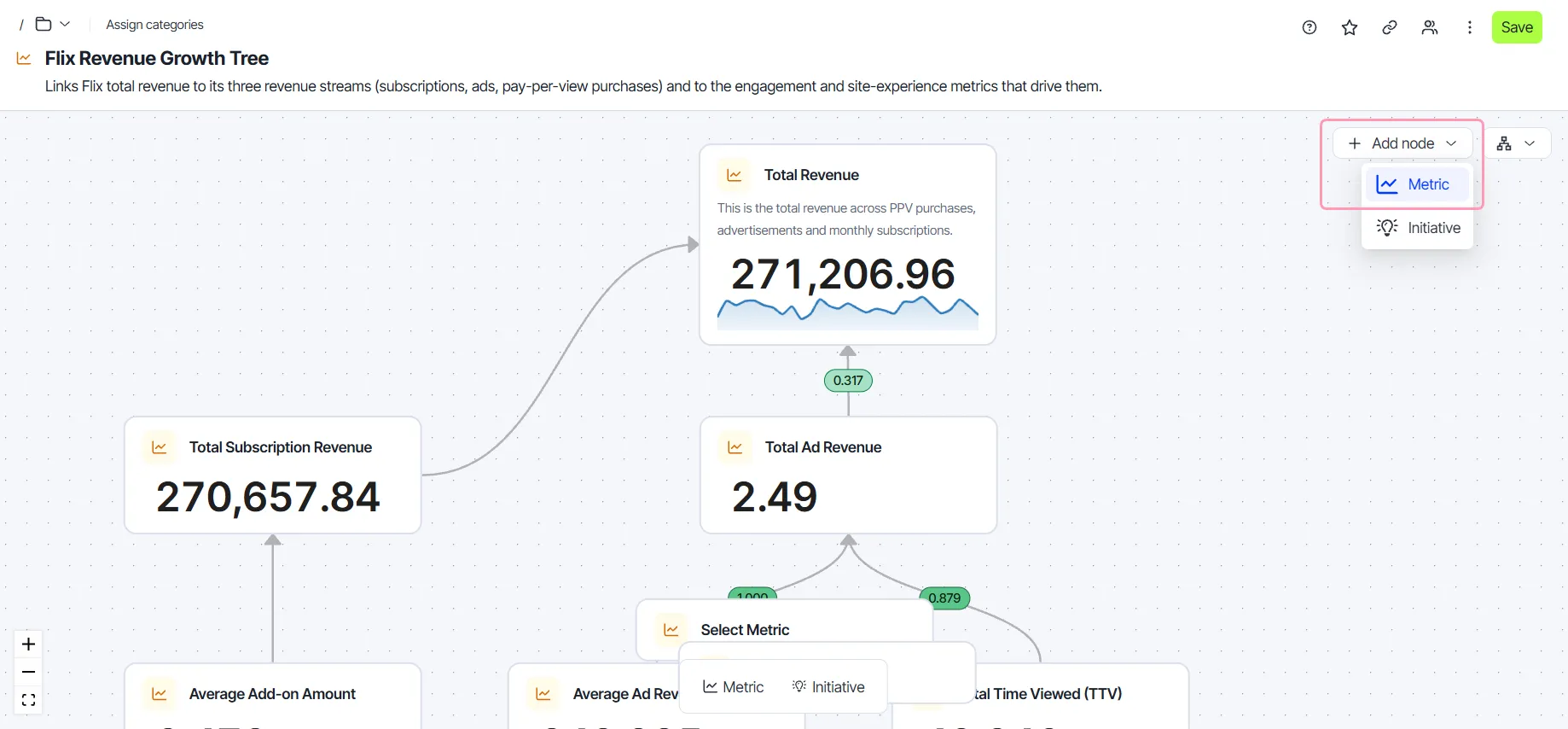
- Click Add node > Metric to open the Node Setup panel.
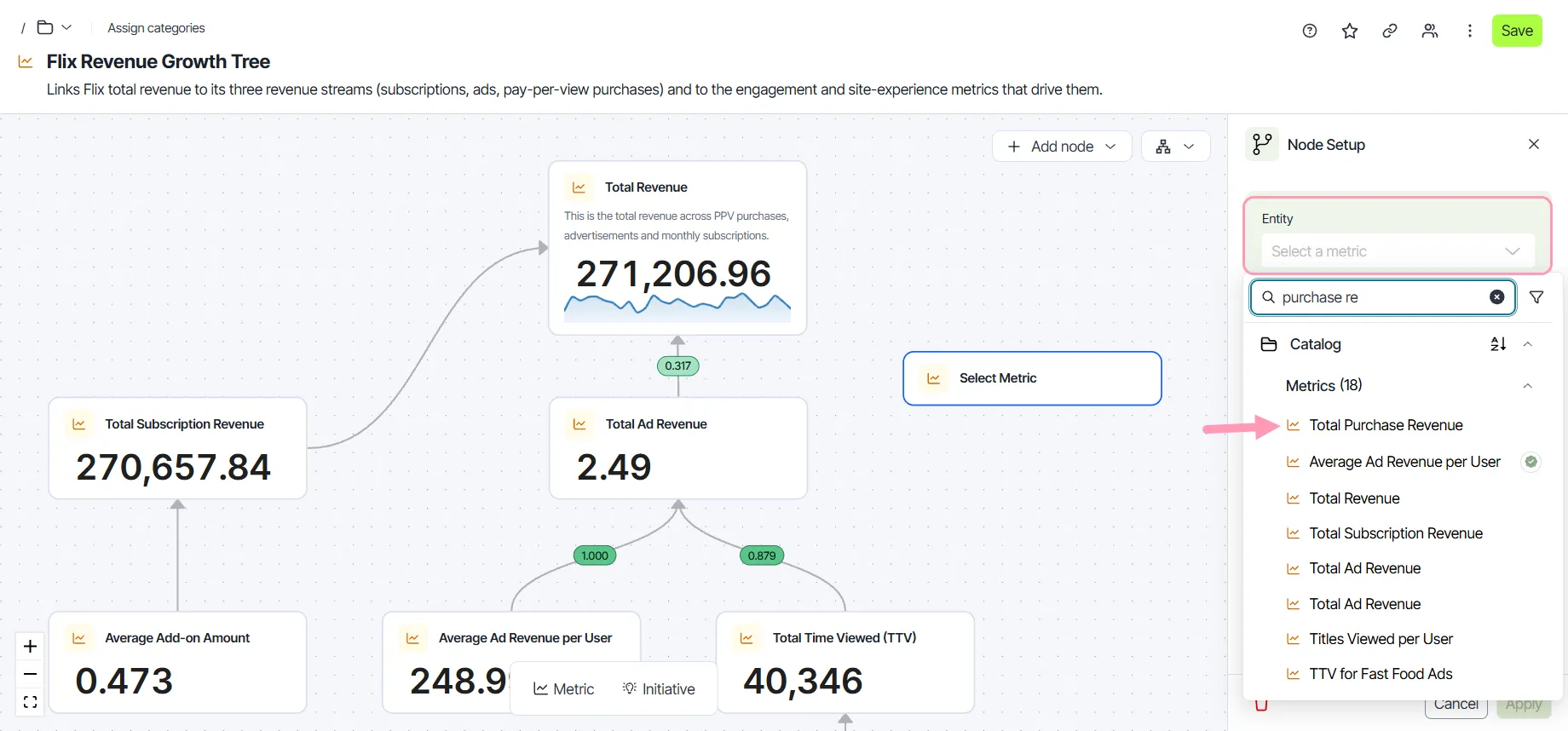
- Select a metric in the Entity field.
- (Optional) Configure the remaining settings.
- Click Apply.
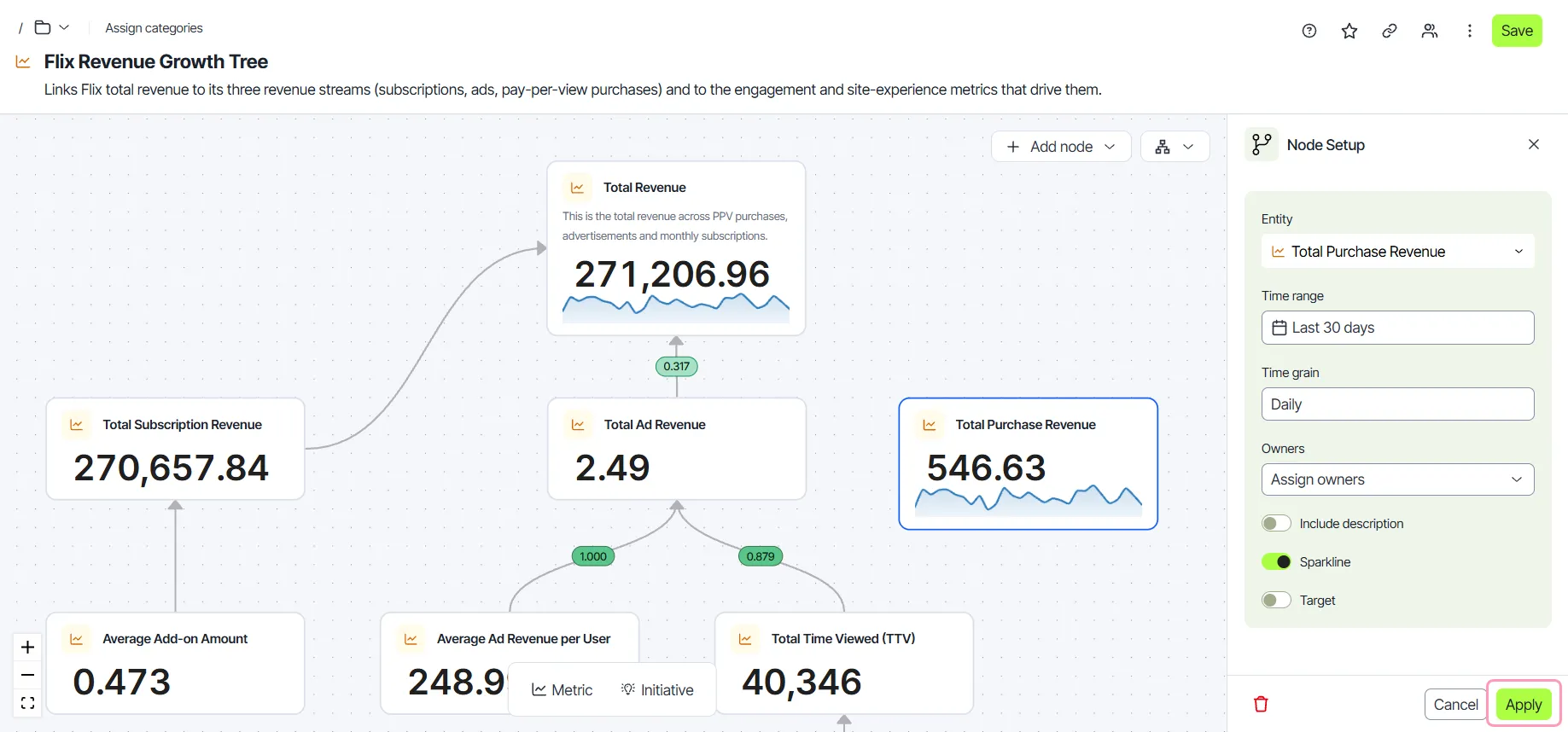
To add a metric node from the canvas toolbar, click Metric. The Node Setup panel opens, as it does from Add node.
The Node Setup panel for a metric node has the following settings:
- Entity – The saved metric that the node displays. The field lists metrics from the catalog only.
- Time range – The period the node reads the metric over. This setting works like the time range of an exploration. Clear the field to use the time range of the metric. Available when the metric has a time range.
- Time grain – The interval that groups the metric results, such as day or week. This setting works like the time grain of an exploration. Available when the metric groups its results by time.
- Owners – The people responsible for the metric, selected from the users of the app. The node displays an avatar for each owner.
- Include description – Displays the metric description on the node.
- Sparkline – Displays a trend line of the metric over the time range. Available when the metric groups its results by time.
- Target – Displays progress toward a target on the node. This setting works like a target on a visualization. Turn on Target to enter the following values:
- Value – The value you want the metric to reach. This field is required.
- Baseline – The value that progress starts from. The default is 0.
- Date – The deadline for the target. The node displays the days left until this date.
A node displays Unable to load metric when Optimizely Analytics cannot load the metric or its query fails.
Add an initiative node
Add an initiative node to show the work a team does to move a metric. Connect the initiative to the metric it targets.
- Click Add node > Initiative to open the Node Setup panel.
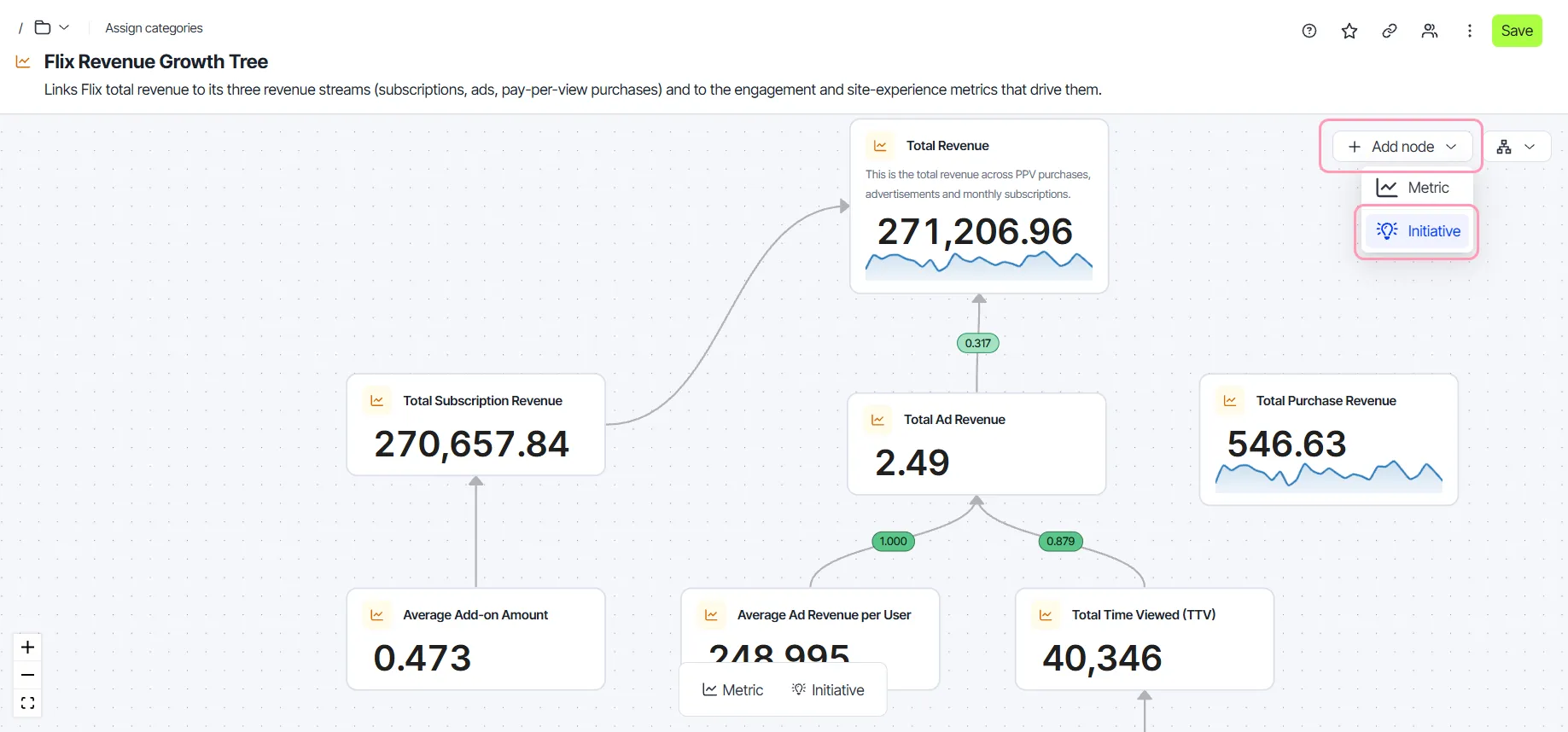
- Enter a name in the Title field.
- (Optional) Select the people responsible for the initiative in the Owners field.
- (Optional) Enter details in the Description field. The description supports links and text formatting.
- Click Apply.
To add an initiative node from the canvas toolbar, click Initiative. The Node Setup panel opens, as it does from Add node.
Connect nodes
Connect a driver to the node it influences. The arrow on the connection points to the influenced node.
- Hover over the driver node to display its connection points.
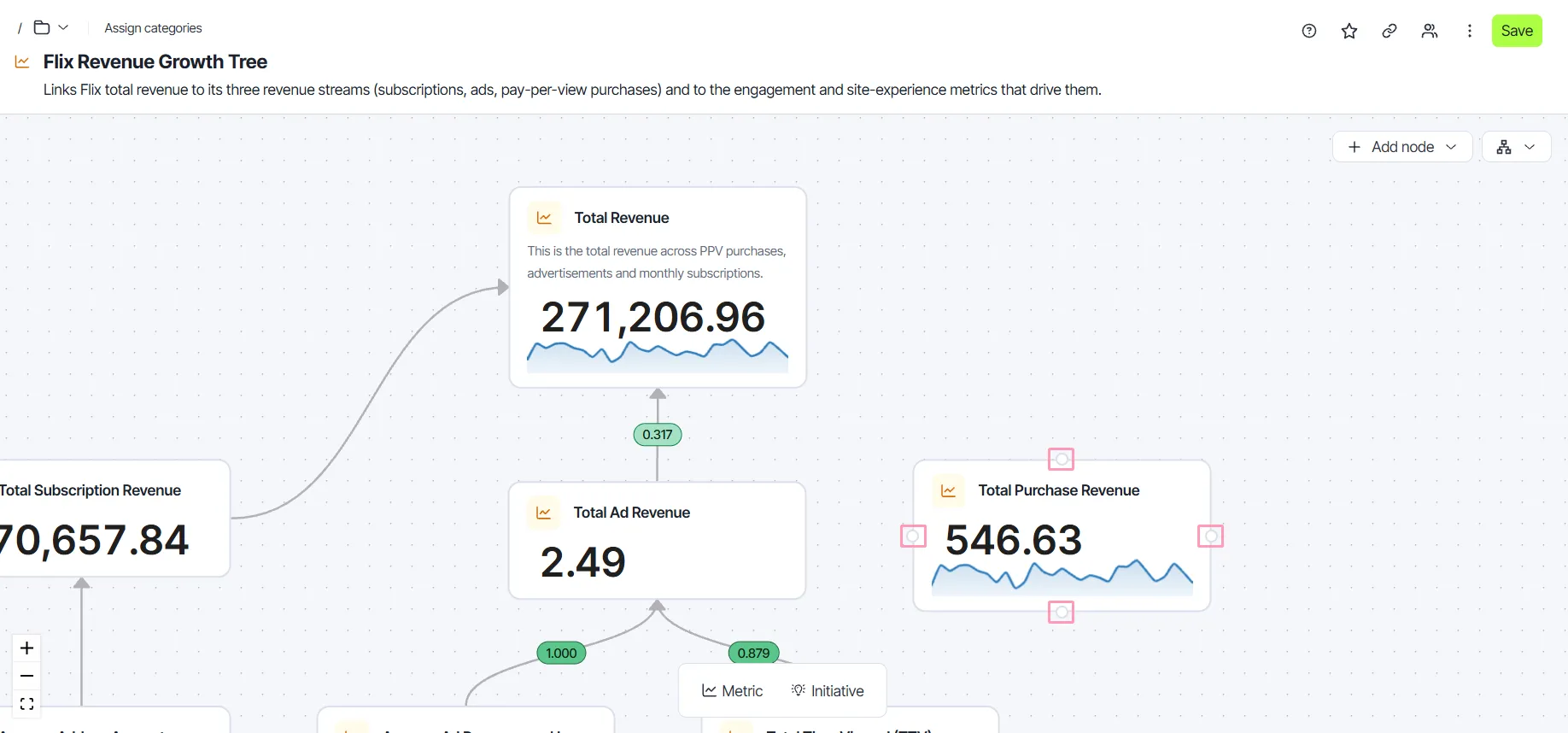
- Drag from a connection point to the node that the driver influences.
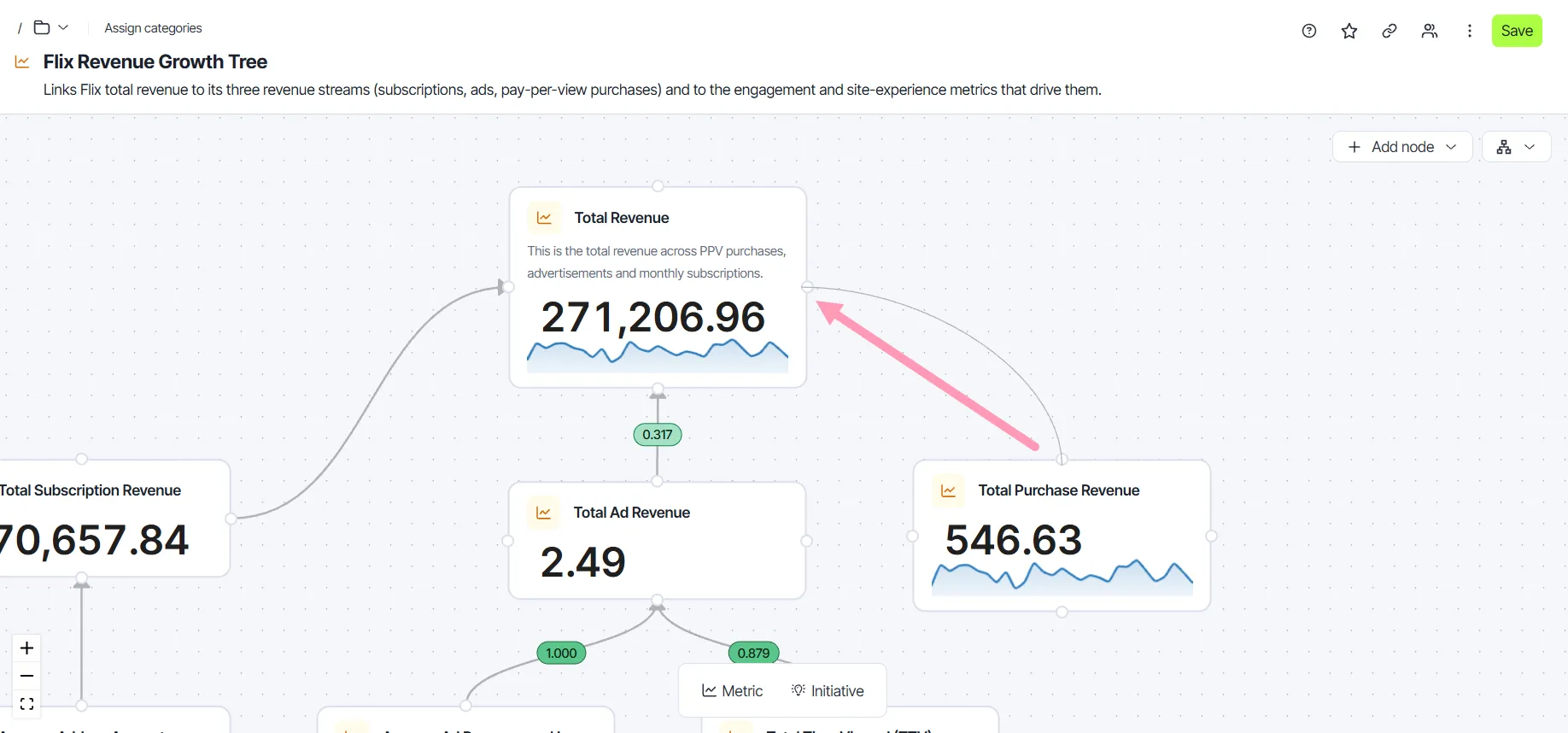
To create a node and connect it in one action, release the connection over an empty area of the canvas. In the Connect prompt, select Metric or Initiative. The editor creates a node of that type at the end of the connection.
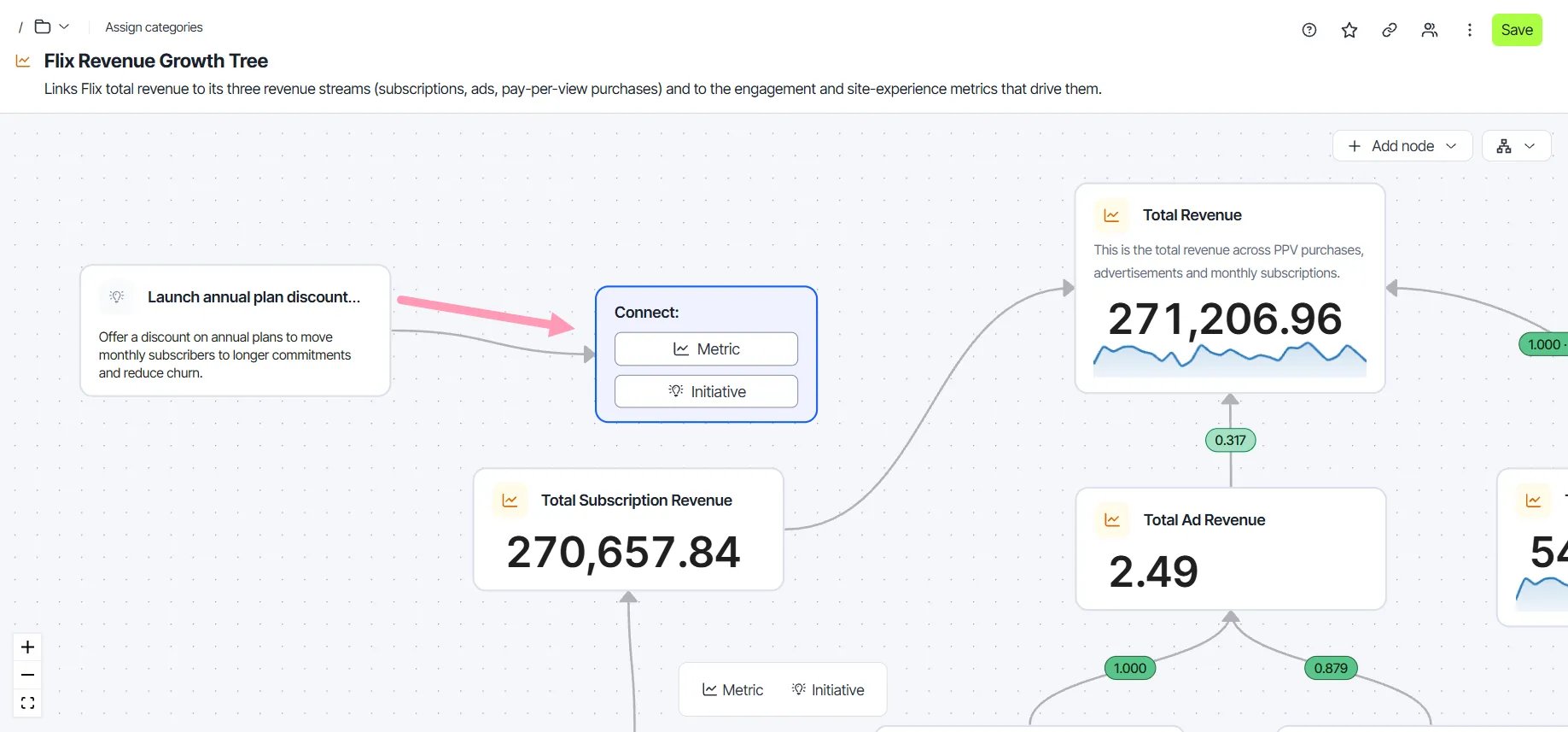
Configure a connection
Configure a connection to change its direction or choose what its label displays.
- Click the connection to open the Edge Setup panel.
- (Optional) In the Direction drop-down list, select which node influences the other.
- Turn the following display options on or off:
- Show correlation – Displays a correlation label on the connection.
- Show value – Includes the correlation coefficient in the label.
- Show label – Includes the correlation strength, such as Strong, in the label.
- Click Apply.
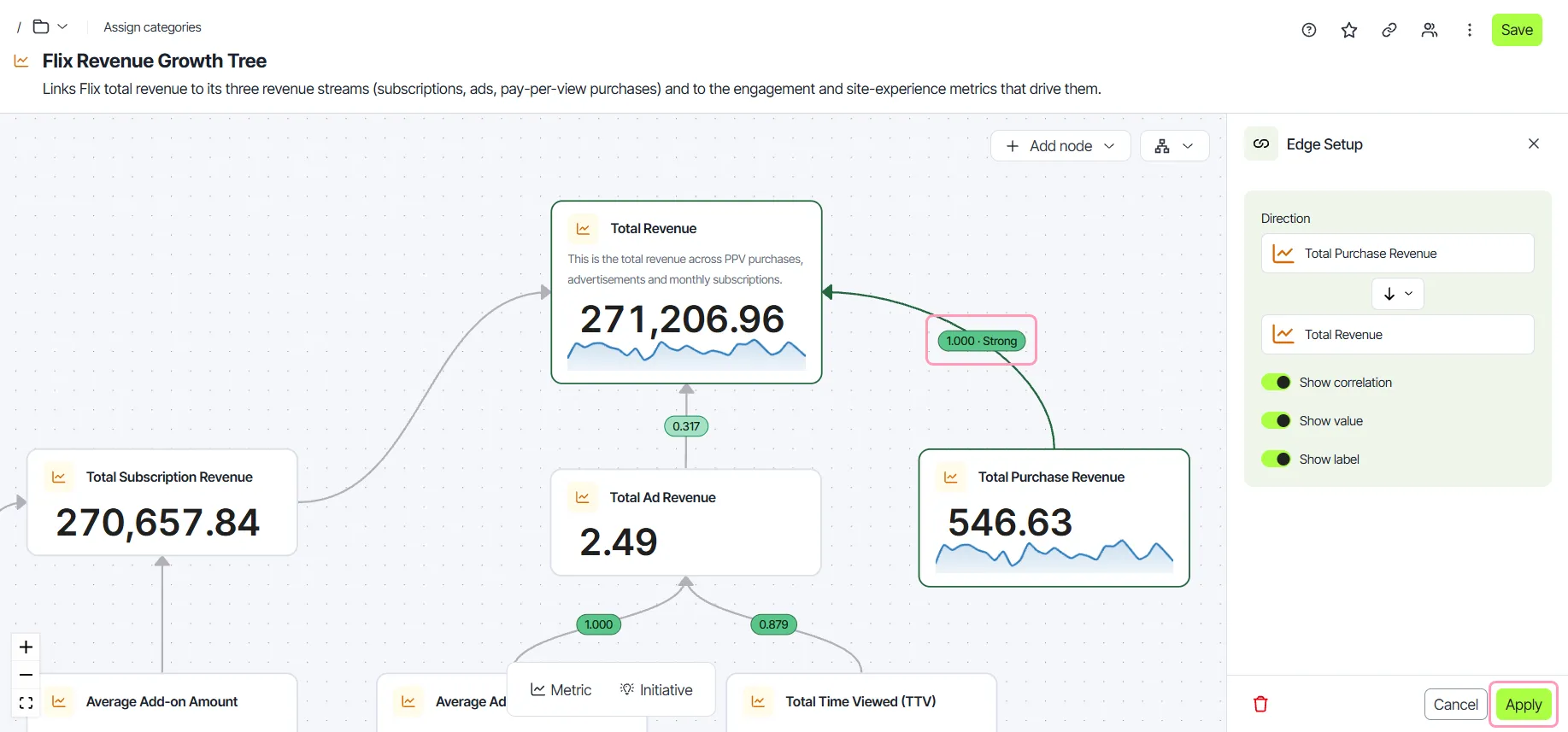
By default, a connection displays the correlation and its coefficient. The display options are unavailable when a connection has no correlation to show.
Read connection correlation
Correlation shows whether two connected metrics rise and fall together. Use it to check whether a driver moves with the goal it supports.
Optimizely Analytics calculates the Pearson correlation coefficient for the two metrics. This coefficient is a standard measure of how closely two values change together. It ranges from -1 to 1. The calculation uses the data that the metric nodes already loaded, so it runs no extra warehouse queries.
A connection displays correlation when it meets the following conditions:
- Both connected nodes are metric nodes.
- Both metrics use the same time grain.
- The two metrics share at least eight time periods within their time ranges.
- Each metric changes value at least once within those periods.
The color of the label shows the direction of the relationship. Green means the metrics move together. Red means the metrics move in opposite directions. The strength depends on the absolute value of the coefficient, as described in the following table.
Absolute coefficient | Strength | Meaning |
|---|---|---|
0.6 to 1 | Strong | The metrics closely track each other. |
0.3 to less than 0.6 | Moderate | The metrics often track each other. |
0.1 to less than 0.3 | Weak | The metrics loosely track each other. |
Less than 0.1 | None | The metrics move independently of each other. |
Hover over a correlation label to display a description of the relationship.
Important
Correlation does not prove that one metric causes a change in another. Run an experiment to test whether a driver causes the goal metric to change. Analyze the results in an experiment scorecard.
Arrange nodes
Arrange nodes so the tree reads clearly from each driver up to its goal. Drag a node to move it on the canvas. The editor moves nodes and labels apart so they do not overlap.
Use Auto-arrange when a goal tree becomes crowded or when you want to change its orientation. It lays out every node at once.
- Click Auto-arrange.
- Select one of the following options:
- Align Vertically – Arranges the tree top to bottom, from each goal down to the metrics and initiatives that drive it.
- Align Horizontally – Arranges the tree left to right, from the drivers to the goals they drive.
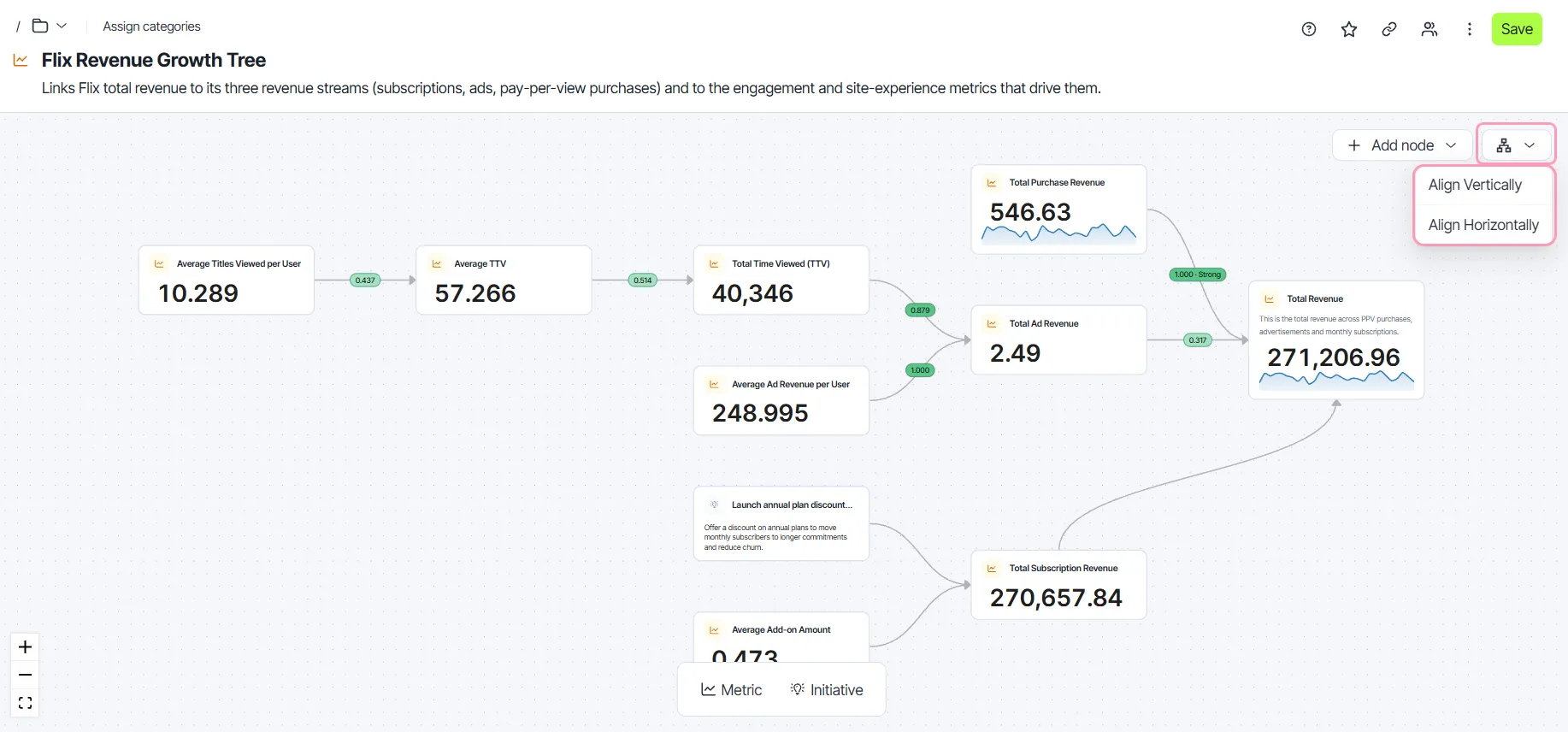
- Click Save.
Auto-arrange moves every node and fits the whole tree in view. It also resets each connection to join the facing sides of its two nodes. The editor counts the arrangement as an unsaved change.
Auto-arrange is unavailable until the goal tree has at least one node.
Delete a node or connection
Delete a node or connection when it no longer applies to the goal.
- Click the node or connection to open its setup panel.
- Click Delete.
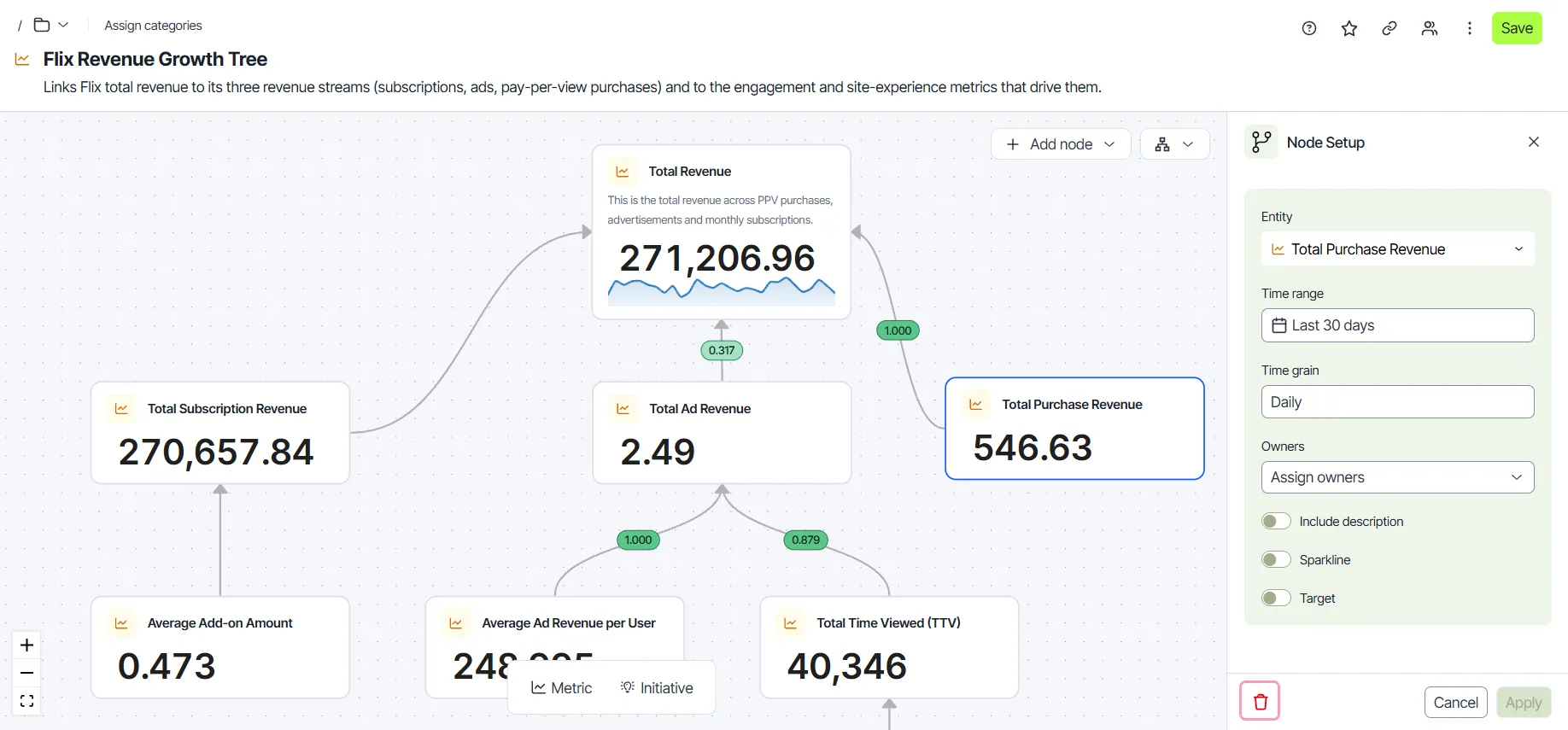
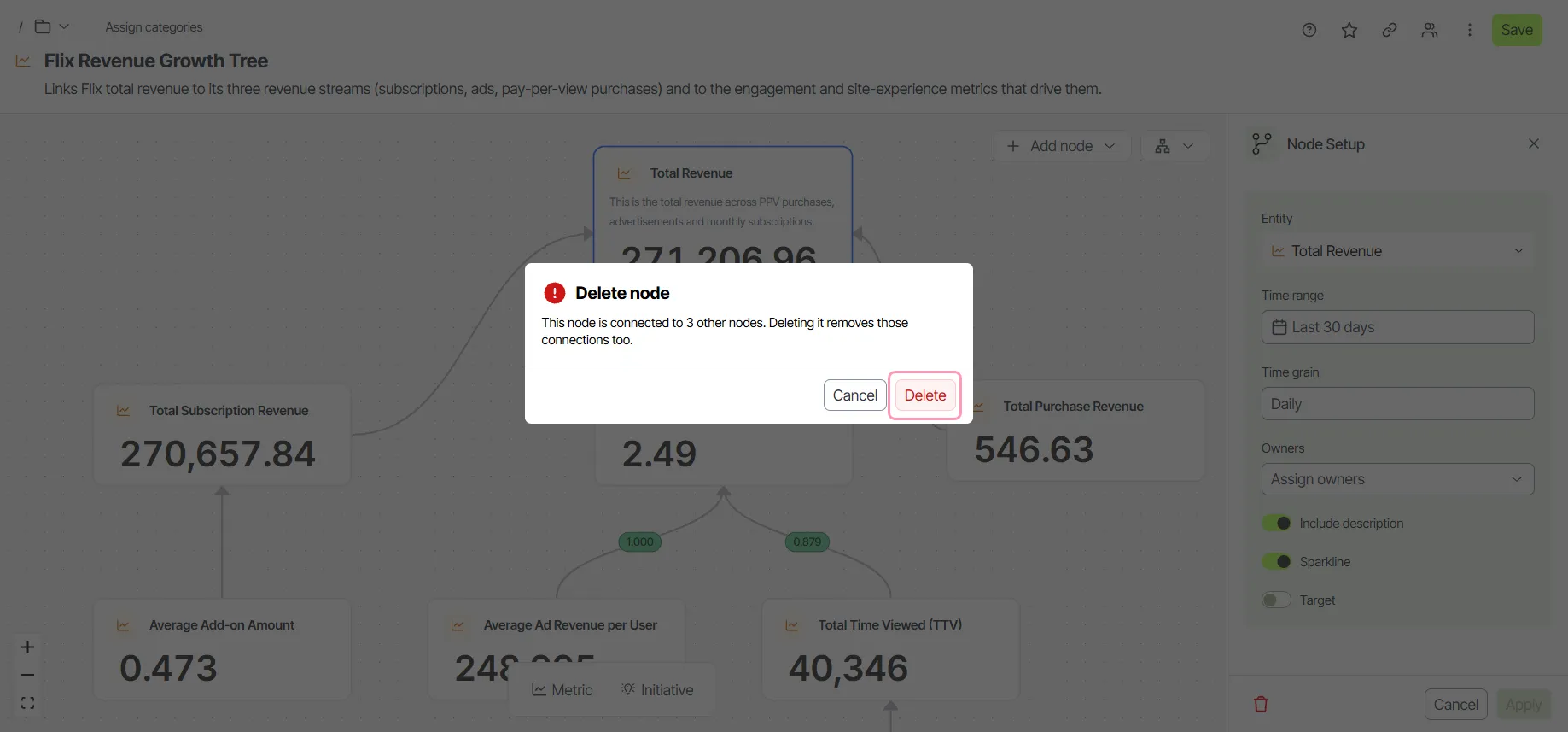
- If the node connects to two or more other nodes, click Delete in the confirmation window.
- Click Save.
Deleting a node also deletes its connections. Deleting a connection keeps both of its nodes.
Manage goal trees with Mark
Ask Mark to create, find, update, or delete goal trees in plain language instead of editing the canvas by hand. Mark works with metric nodes, initiative nodes, and the connections between them. It returns a link to each goal tree it works on.
Deleting a goal tree is permanent. For information, see Mark chat for Optimizely Analytics.
Manage goal trees with the Optimizely Analytics MCP server
The Optimizely Analytics MCP server lets AI agents in your own tools work with your Analytics app. Use it to manage goal trees without opening Optimizely Analytics.
The MCP server provides the following goal tree tools:
- oa_find_goal_trees – Searches saved goal trees by name, description, or category.
- oa_create_goal_tree – Creates a goal tree that links a business goal to the metrics and initiatives that drive it.
- oa_update_goal_tree – Changes the name, description, tags, metrics, initiatives, or connections of a goal tree. Fields you omit stay unchanged.
- oa_delete_goal_tree – Permanently deletes a goal tree.
Creating, updating, or deleting a goal tree modifies live data in your Analytics app. Your agent confirms the target app and the changes it is about to make before committing them.
To set up the MCP server, see Install Optimizely Analytics MCP server. For information about the server and its tools, see Optimizely Analytics MCP server overview.