Connect your Snowflake warehouse to Optimizely Analytics
2 min
Connect your Snowflake warehouse to Optimizely Analytics to explore and analyze the data that you store in Snowflake. Use the resulting insights to make data-driven decisions.
Before you start, prepare your Snowflake warehouse, roles, and users for Optimizely Analytics. See Configure your Snowflake warehouse.
To connect your Snowflake warehouse, complete the following steps:
- Log in to Optimizely Analytics.
- Go to Data > Connections.
- Click + New Connection.
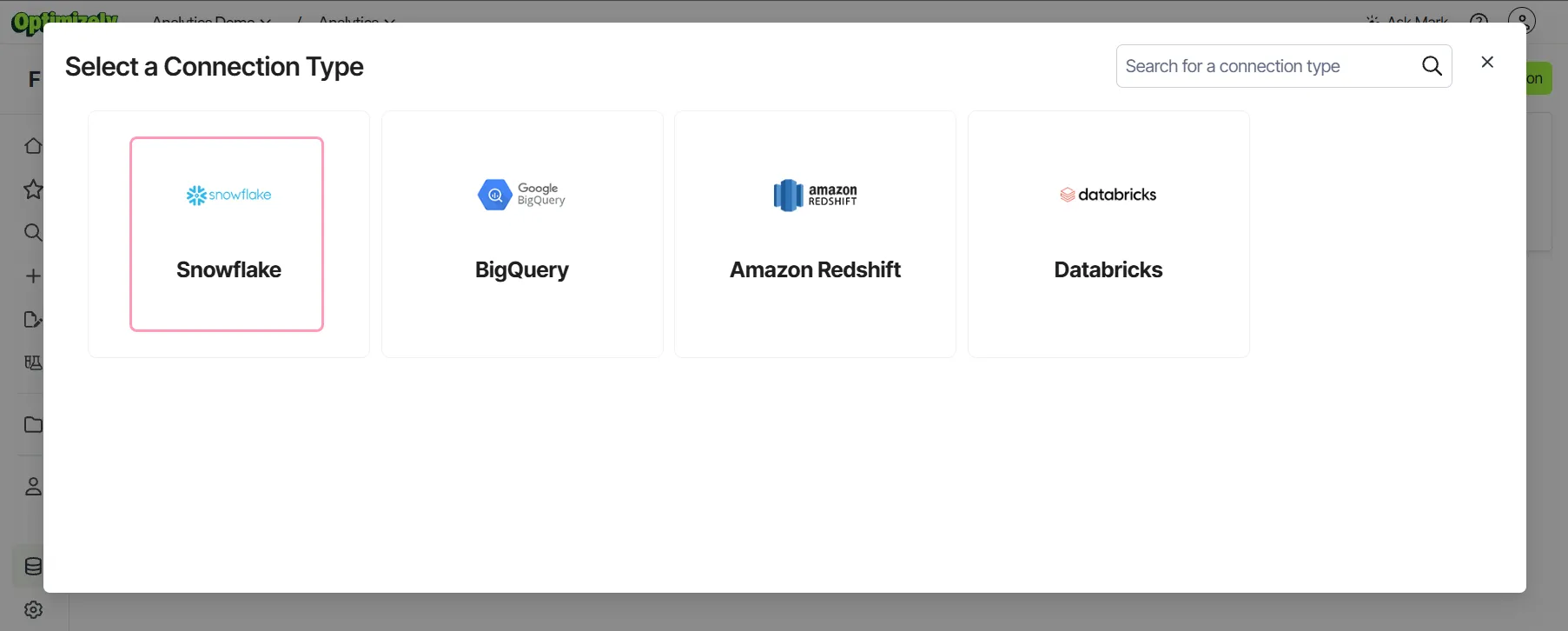
- Select Snowflake.
- Enter a name and description for the connection, and select a folder.
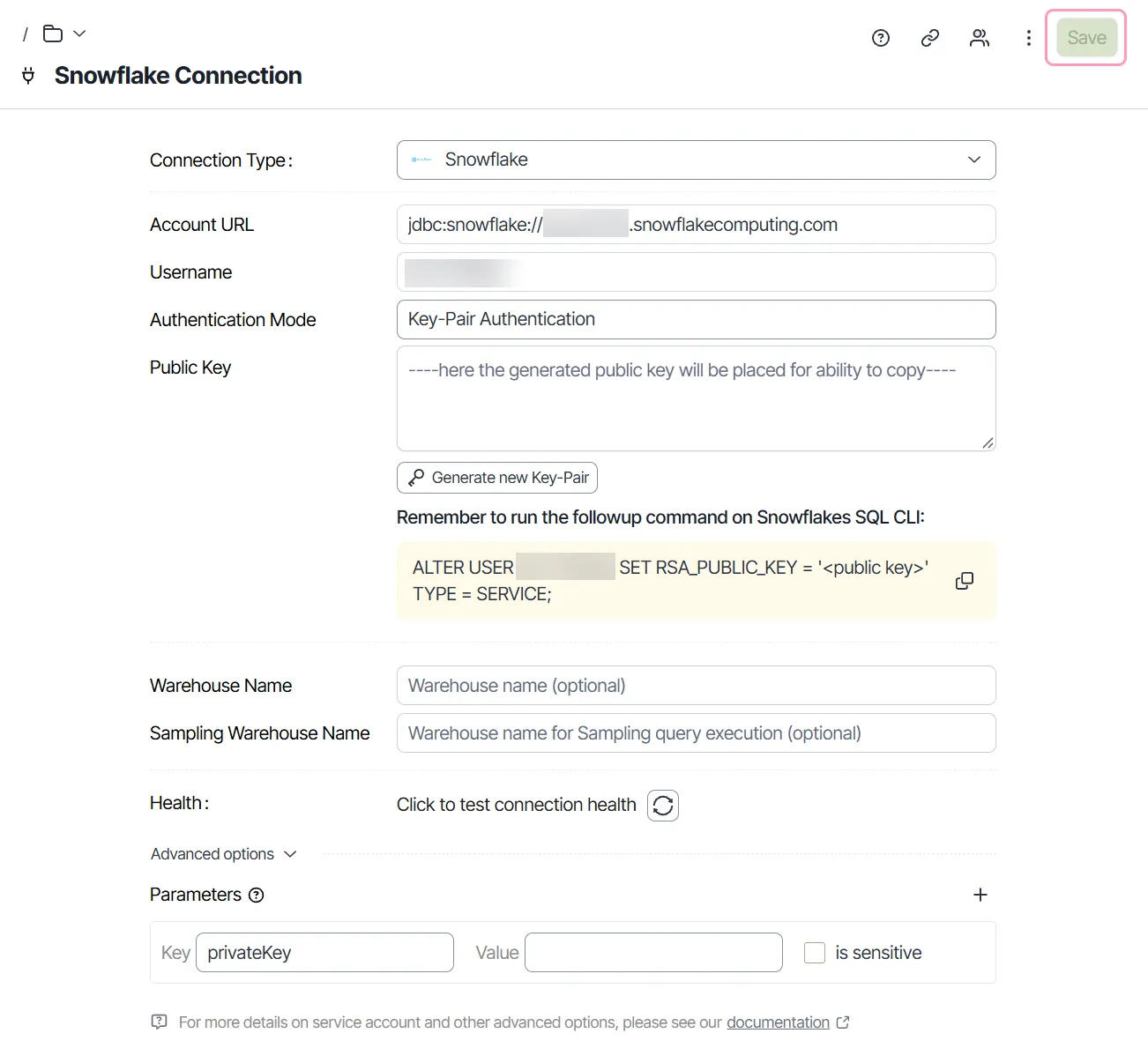
- Complete the following fields for the Snowflake connection:
- Account URL – Enter the URL of your Snowflake account in Java Database Connectivity (JDBC) format or standard format, such as jdbc:snowflake://ACCOUNT_IDENTIFIER.snowflakecomputing.com. Find your account identifier in the URL of your Snowflake application. For details, see Account identifiers in the Snowflake documentation.
- Username – Enter the Snowflake account username. This field does not display when you select OAuth (User-to-Machine).
- Authentication Mode – Select how Optimizely Analytics authenticates to Snowflake. When you create a connection, the default is Key-Pair Authentication.
- Simple Authentication – Authenticate your connection with the Snowflake account password. This option displays only when you edit an existing connection.
- Key-Pair Authentication – Authenticate your connection with a key pair that Optimizely Analytics generates. Optimizely Analytics displays the public key and a command that assigns the key to the Snowflake user. A Snowflake administrator must run that command in Snowflake to update the user. To replace the key pair, click Generate new Key-Pair, and then have the administrator run the updated command. Snowflake supports two active public keys for each user, so you rotate keys without interrupting the connection. For details, see Configuring key-pair rotation in the Snowflake documentation.
- OAuth (User-to-Machine) – Authenticate each user through Open Authorization (OAuth). Each user logs in with their own Snowflake account, and queries run with that user's Snowflake role. In Identity Provider, select Internal IdP to log in through Snowflake's own OAuth server. Select External IdP to log in through your company's identity provider, such as Okta. For setup, see Connect your Snowflake warehouse with OAuth or Connect your Snowflake warehouse with an external identity provider.
- Warehouse Name – (Optional) Enter the name of the default warehouse for Optimizely Analytics queries.
- Sampling Warehouse Name – (Optional) Enter the name of the warehouse for sampled queries.
Note
Specify separate warehouses for sampled and unsampled queries to balance performance and cost. These warehouses must exist in your Snowflake account.
- Click Click to test connection health to validate the connection. When the connection works, the Health status displays Good.
- (Optional) To add custom connection properties as key-value pairs, go to Advanced options > Parameters and click +.
- Click Save. Optimizely Analytics enables the connection when you save it.