Translate content
Translate content so that visitors see your website in their own language. In Optimizely Content Management System (CMS), each language, such as French or Swedish, holds its own version of your content. An administrator enables and sets access rights for a language, and editors translate content into the languages they have access to. Go to Languages for details.
Translate manually, or use AI translation to create a first draft that you review before publishing. Translatable content includes pages or blocks on a CMS website or product-related content on an ecommerce site. The Optimizely Languages gadget extends the translation functionality in CMS with more options, such as auto-translation with Microsoft Azure.
When visitors open a page on your website, they see the language version that the URL specifies. For example, a URL with /sv/ in the path shows the Swedish version, and a language-specific domain shows the version for that language. Depending on your configuration, CMS also uses the visitor's browser language to choose which version to show.
Translating content does not change the language of the CMS UI. To set the UI language, select Personal language in My settings. See CMS 13 user interface.
Important
You can translate only properties that have Unique value per language selected. Other properties share one value across all languages, so neither you nor AI translation can translate them. Before you translate content, confirm that each property that needs translation has this setting. See Define language-specific properties.
Content that AI translation covers
AI translation translates the content stored on the page you select. It does not translate shared content that the page displays or other pages that the page links to. Use the following table to plan which content to translate separately.
Content | Translated by AI | Details |
|---|---|---|
Page text and rich text | Yes | AI translation translates strings, text areas, and HTML body copy on the page. |
Inline blocks and composition components | Yes | AI translation translates Visual Builder components, local blocks, and content area items embedded directly on the page. |
Link properties and link collections | No | AI translation copies LinkItem and LinkItemCollection properties without translating them, including the link text. Translate the link text in the draft. |
Shared blocks, such as global headers, footers, and menus | Separately | Headers, footers, and menus are usually shared blocks stored in one place, such as the start page or a site settings block. Translating a page does not translate the shared blocks it displays. Translate each shared block separately so that a page translation does not change content across the whole site. |
Properties without a unique value per language | No | AI translation translates only properties that have Unique value per language selected. Other properties share one value across all languages, so AI translation skips them. This prevents a translation from changing that value in every language. Developers can set this in code with the [CultureSpecific] attribute. |
Pages that links point to | No | AI translation does not translate the pages that links point to. Translate each linked page separately. |
To translate all the content that visitors see on a page, complete the following tasks:
- Confirm that each property that needs translation has Unique value per language selected.
- Translate the page.
- Translate the link text in the page draft.
- Translate each shared block that the page displays, such as the header, footer, and menus.
- Translate each linked page.
Translate existing content
The Sites tab displays the languages available for content creation, with the default language at the top. Languages enabled on the website but not enabled for editing display in italics.
Select Show Content in Current Language Only in a panel or gadget to filter it to the selected language. Other panels and gadgets keep their own setting. While the filter is on in the page tree:
- You can move pages by drag and drop or copy and paste.
- You cannot sort pages. CMS disables sorting because the filter hides pages in other languages, and sorting could reorder those pages unexpectedly.
Click Show All Languages to see all content again.
Translate a page
Pages in the tree structure display in the Pages tab, including untranslated pages shown in italics. Select Show Content in Current Language Only to see pages for the chosen language only.
To translate a page:
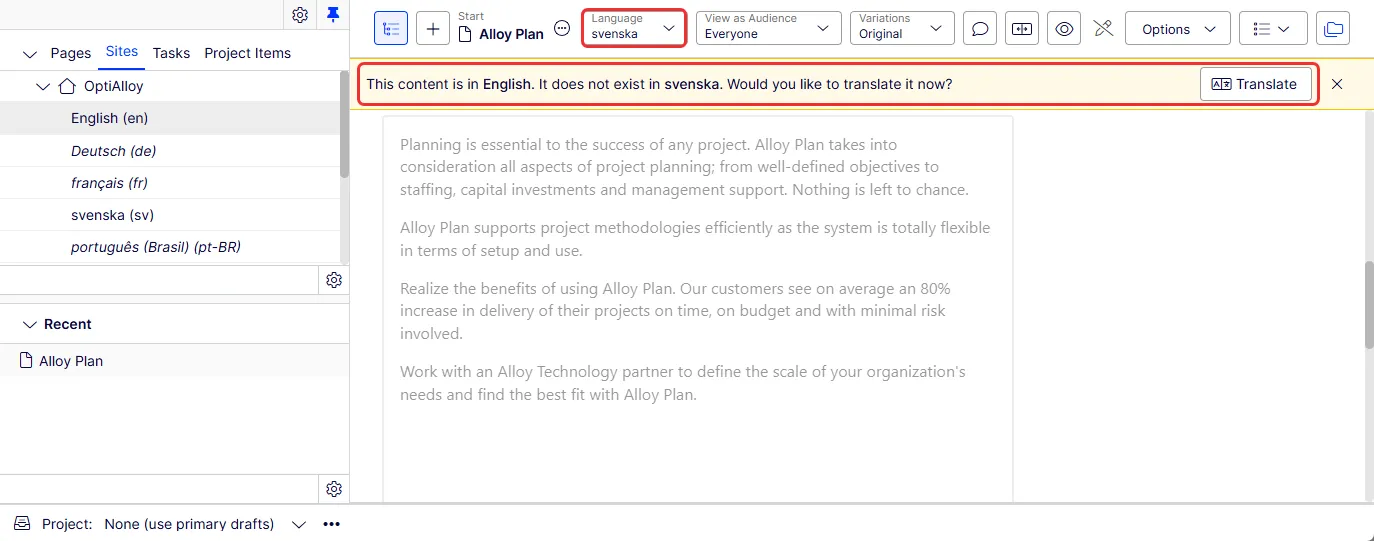
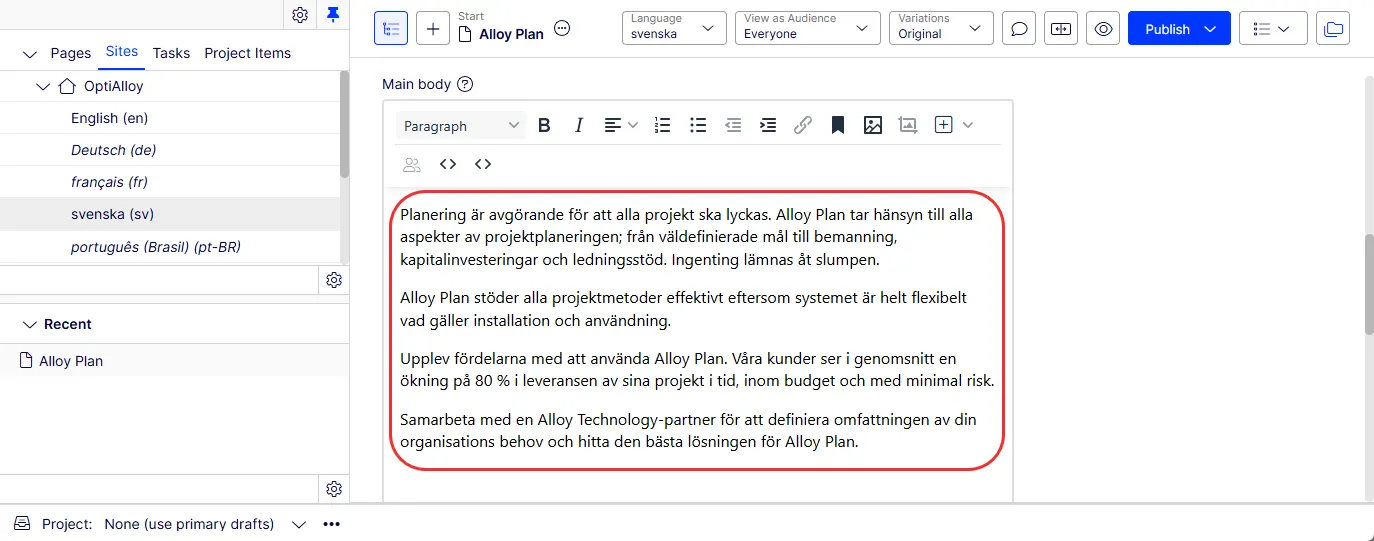
- Select the target language for translation under the Sites tab in the navigation panel, such as svenska.
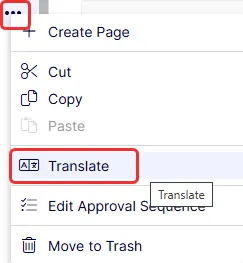
Note Select More > Translate from the page tree as an alternative.
- Click Translate when CMS indicates the content does not exist in the selected language. The Add Language dialog box displays.
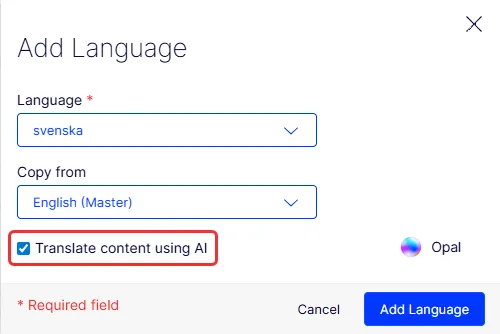
- Choose how to translate the page, and then click Add Language:
- AI translation – Select Translate content using AI. Optimizely Opal translates the page content and saves it as a draft. See Content that AI translation covers.
- Manual translation – Clear Translate content using AI. CMS copies the original content into the new language version for you to translate.
If Translate content using AI does not display, AI translation is not configured for your site. Click Add Language to copy the content for manual translation. To turn on AI translation, contact your administrator.
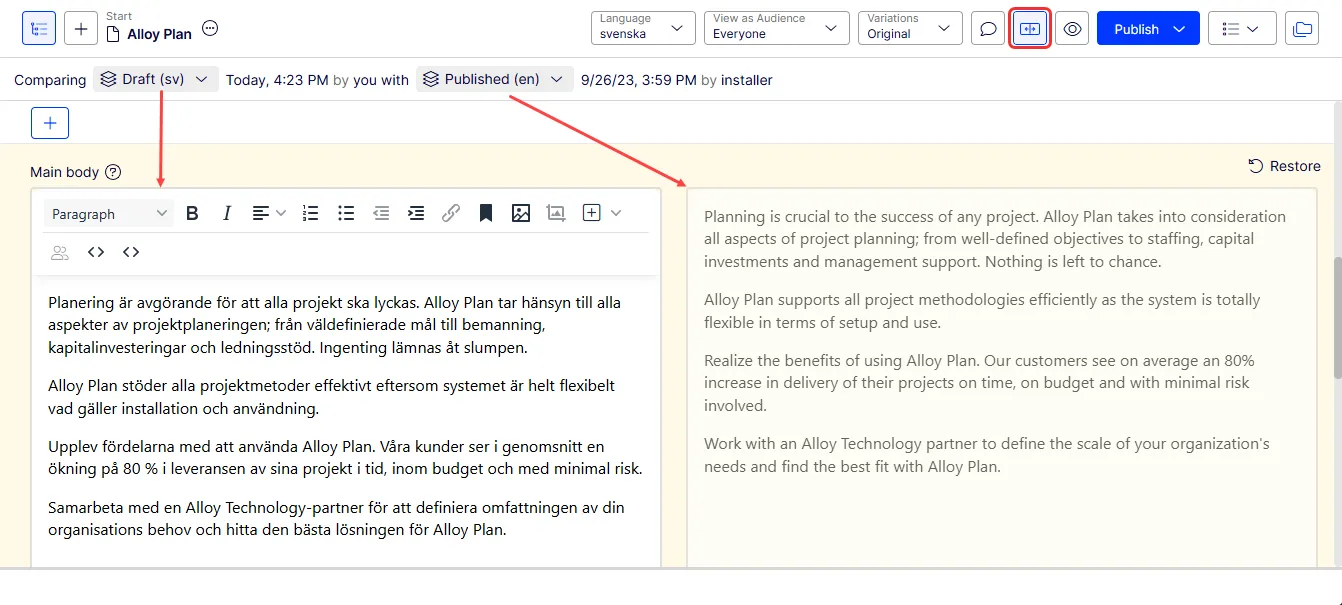
- Click Compare view to translate in one panel while viewing the original version in the other panel.
- Edit the content and follow the content publishing flow to save and publish the translated page.
Translate a block
Access language versions for blocks from Shared Blocks in the assets panel. Untranslated blocks display in italics. Select Show Content in Current Language Only to see blocks for the chosen language only.
To translate a block:
- Select the target language for translation under the Sites tab in the navigation panel. The UI reloads.
- Expand the assets panel and select Shared Blocks.
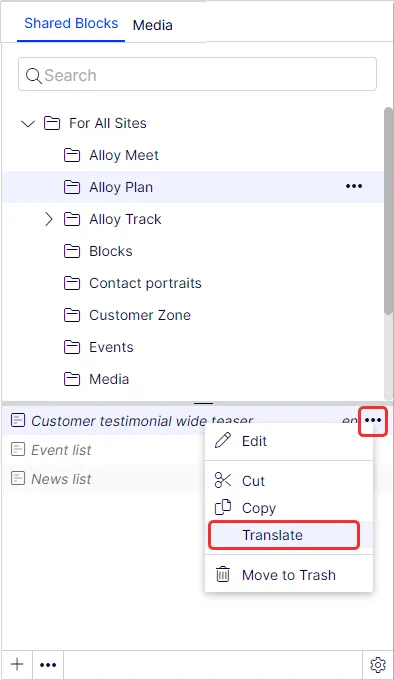
- Select the block to translate in the block structure, then select Translate from the context menu.
- In the Add Language dialog box, choose how to translate the block:
- Select Translate content using AI for AI translation.
- Clear Translate content using AI to translate manually.
If Translate content using AI does not display, AI translation is not configured for your site. Translate the block manually, or contact your administrator to turn on AI translation.
- Click Add Language.
- Click Compare view to translate in one panel while viewing the original version in the other panel.
- Edit the content.
- Follow the content publishing flow to save and publish the translated block.
View language versions
Use the Versions gadget to see the language versions of content while you translate. Select a language version in the list, and then click the switch option in the notification bar to edit in that language.
Each panel and gadget has its own Show Content in Current Language Only setting. For example, add the Versions gadget twice, and set one to show all languages and the other to show only the current language.
To find the language versions of specific content, enter a keyword in the search field for Pages or Shared Blocks in the assets panel.
Review AI translations
AI translation saves the translated content as a draft in the new language. View the draft in the Versions gadget, and then edit and publish it.
Important Always review AI-translated content before you publish it. AI translation provides a starting point, but it can make mistakes.
To translate content with AI again, delete the language with Delete All [language] Versions, and then add the language again with Translate content using AI selected. See Delete language versions.
Delete language versions
Delete versions of a translation in the Versions gadget. The two delete options work differently:
- More > Delete Version – Deletes one version, such as an older draft. The language version of the content remains, so you cannot add the language again or run AI translation again. You cannot delete the only remaining version in a language.
- More > Delete All [language] Versions – Deletes the language version of the content, including the published version and its history. Use this option to start a translation over or to run AI translation again.
Warning You cannot undo a deletion. Delete All [language] Versions permanently removes the published content in that language.
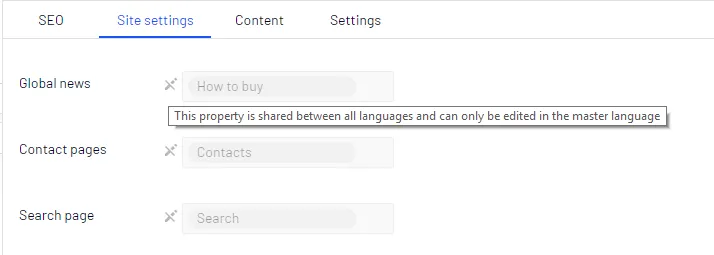
Global properties
CMS shares some properties globally across all language versions, depending on your implementation. Edit these properties in the master language only. These properties are marked as non-editable when editing content in another language. Switch to the default language to edit global properties. When editing in the All Properties view, the default language is the first language listed next to Languages in the header.