Find orders
Find orders by No. (order number), Created Date, Name, Market, Customer Name, Customer Email, or Status.
By order number, name, or email
Search for orders by customer name (partial match) or email address (exact match; searching for @example.com does not work). Begin entering the customer's first name or exact email address and results dynamically update as you refine your search.
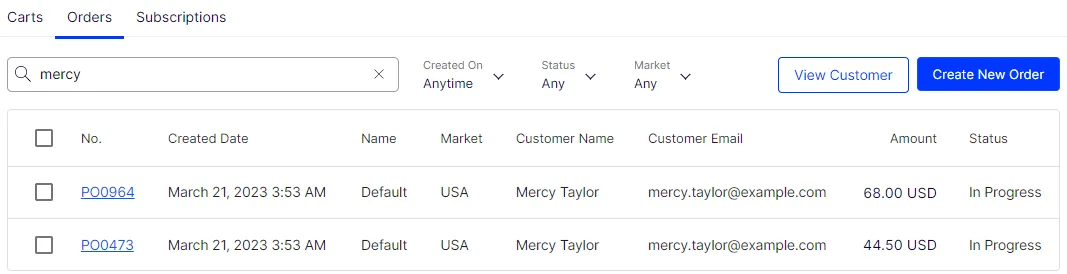
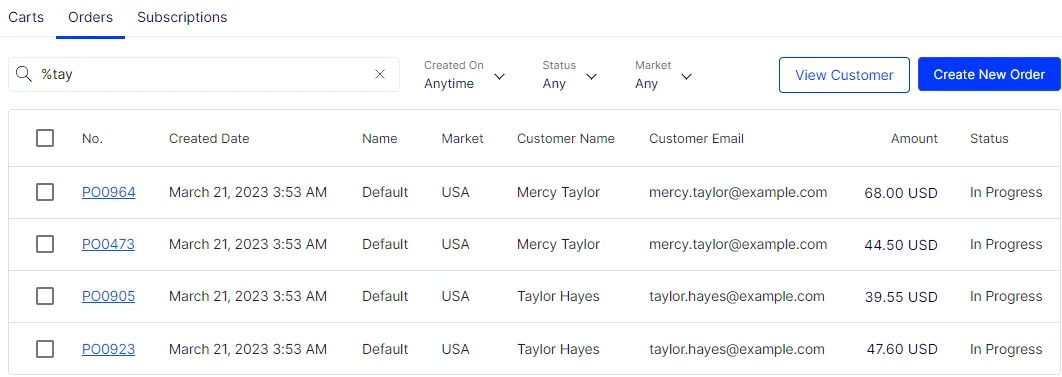
Use % to search for any consecutive string of letters or numbers. For example, %tay filters users to Mercy Taylor and Taylor Hayes.
If an order is anonymous with no name attached and you do not have the order number, search these orders by Customer Name or Customer Email Address.
Choose which fields to search
Use the Search in menu to control which fields the search covers. The list searches Customer email by default. Select Customer name or Order number to widen the search, or clear a field to narrow it. Searching one field instead of three returns results faster on sites with many orders.
Note
The menu requires at least one selected field. The button shows the selected field name, the number of selected fields, or All fields. The cart and subscription lists offer Cart number and Subscription number in place of Order number.
By created date
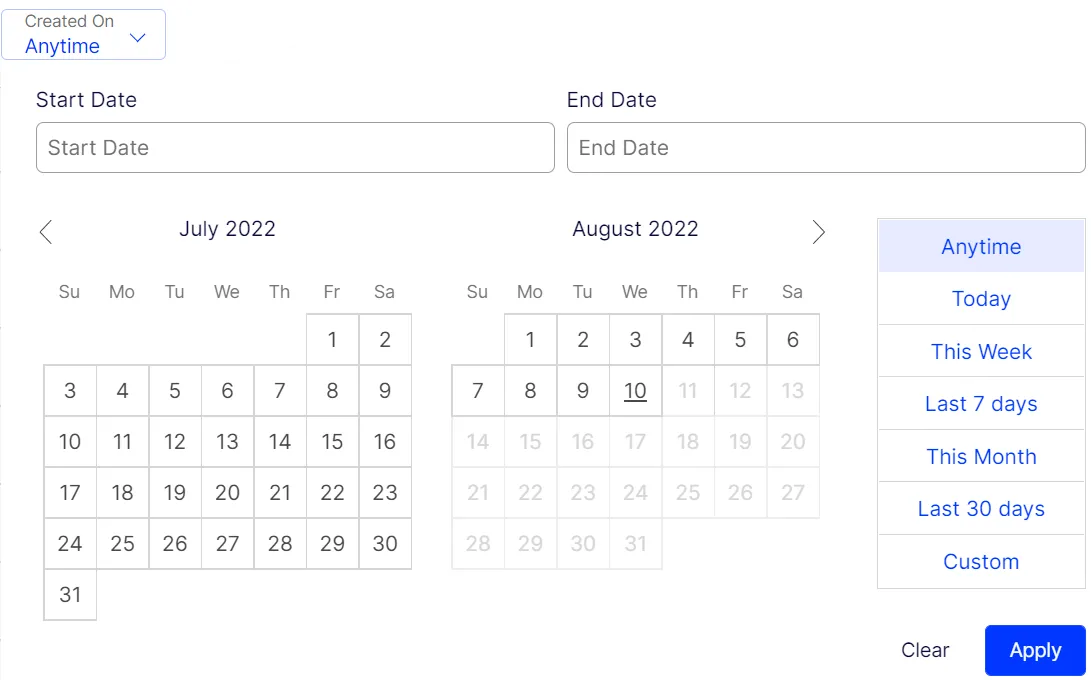
Find results on the Order Management page using the Created On filter. Pick a Start Date and End Date, or select one of the preset options. Click Apply to see the results.
The filter defaults to the last 30 days. Select Anytime to search all dates. Set a different default with the CustomerServiceOptions.DefaultCreatedOnDays option.
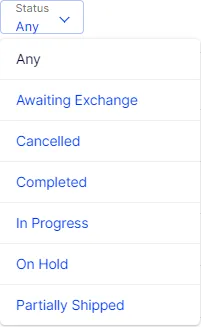
By status
Find by order status.
By market
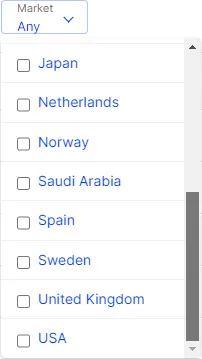
Find by selecting one or more markets.