Export orders and subscriptions
1 min
Export orders and subscriptions with Order Management in Optimizely Commerce Connect. The steps to export order or subscription data are the same.
- Go to Order Management and select the Orders or Subscriptions tab.
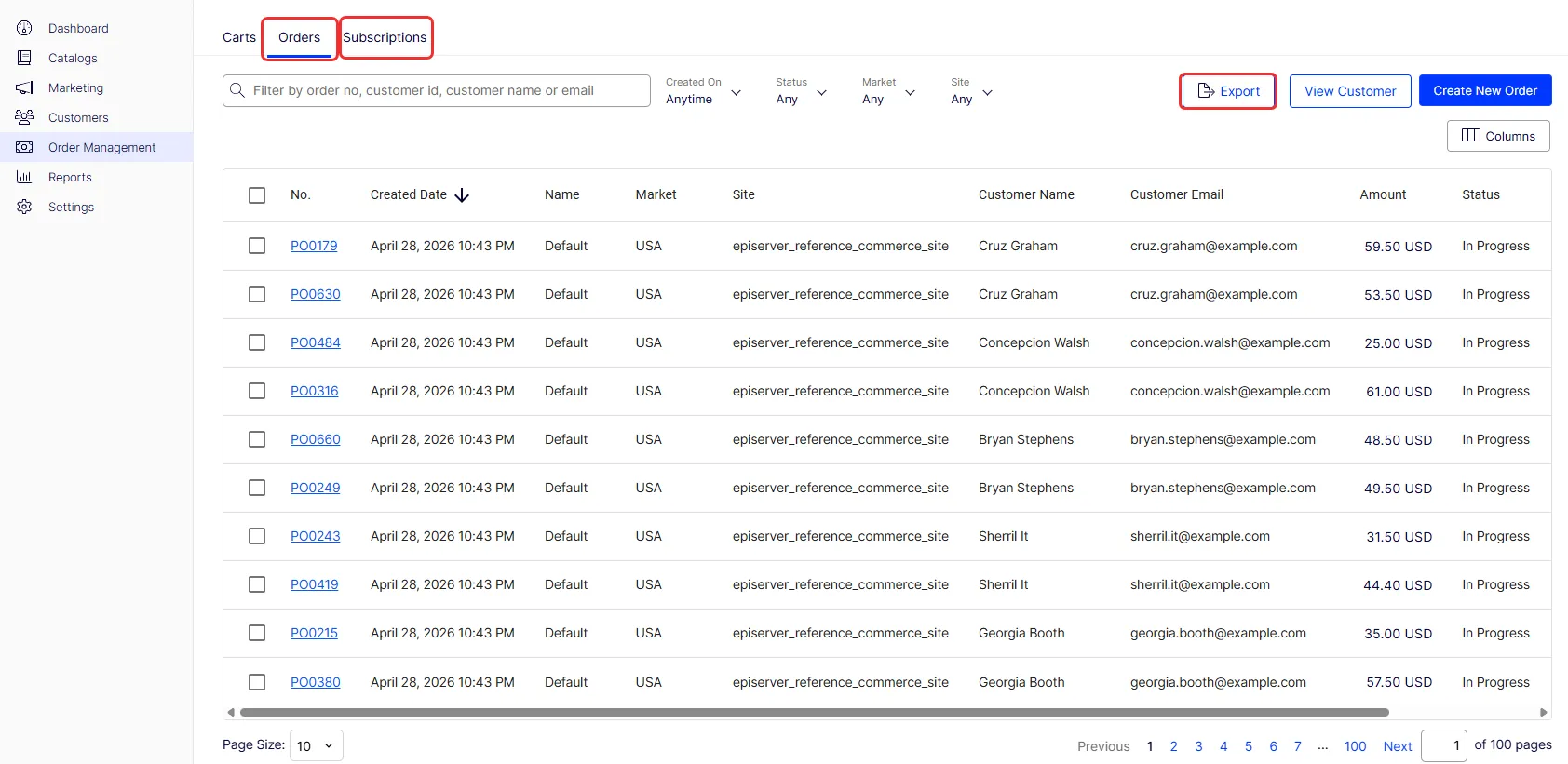
- Click Export. The Export list page displays with any previously exported files.
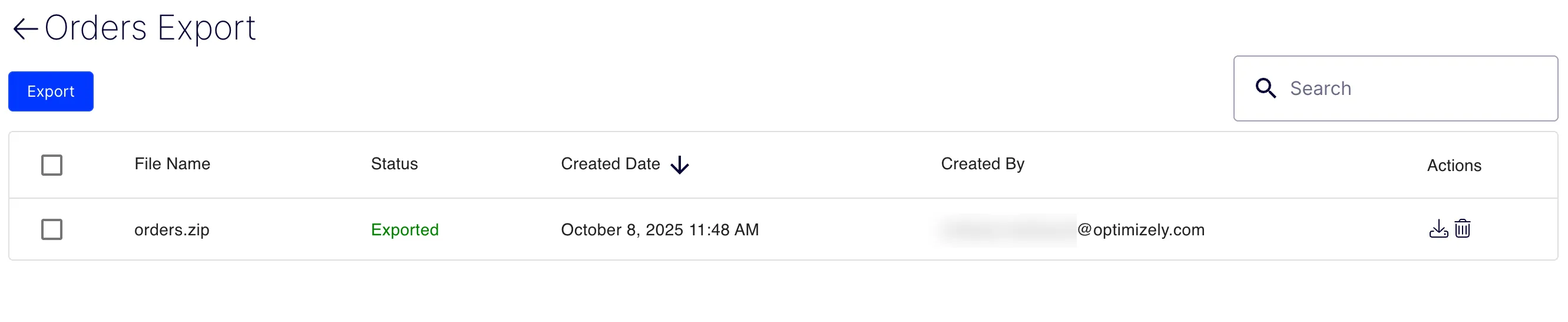
The Export page lets you do the following:
- Click Export to create an export file.
- Click Download to download the exported file.
- Click Delete to delete the file. To delete multiple files at once, select them and click Delete.
- Use the search box to search for exported files by name.
- Click Export. The Export window displays.
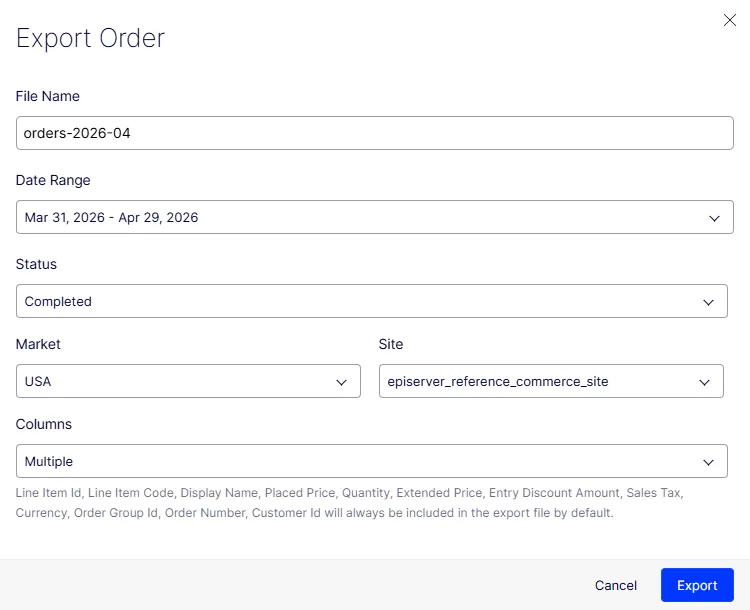
- Enter values in the window. For example:
- File Name – orders-2026-04. This field is required and cannot contain special characters.
- Date Range – Filter by a date range, such as Last 30 days.
- Status – Filter by status, such as Completed. Select multiple options. If you choose Any, the system filters for every status.
- Market – Filter by market, such as USA. Select multiple options. If you choose Any, the system filters for every market.
- Site – Filter by site, such as episerver_reference_commerce_site. Select multiple options. If you choose Any, the system filters for every site.
- Columns – Select which data to export, such as Multiple (e.g., add Shipping Address, Payment Method, Order Status).
- Click Export to export the data to a .csv file. Download the file from the Export page.