Formula block
Use a formula block to enter computations that utilize Analytics's formula language, NetScript.
You can use special characters to instantly filter suggestions. Type @ to bring up a list of all available data columns (events, attributes, and so on) or type # to see a list of all available functions. This allows you to quickly find the exact component you need without scrolling through a long list.
As you type, each suggested entity or function will display additional details, such as its data type, a brief description, and usage examples, helping you select the correct item with confidence.
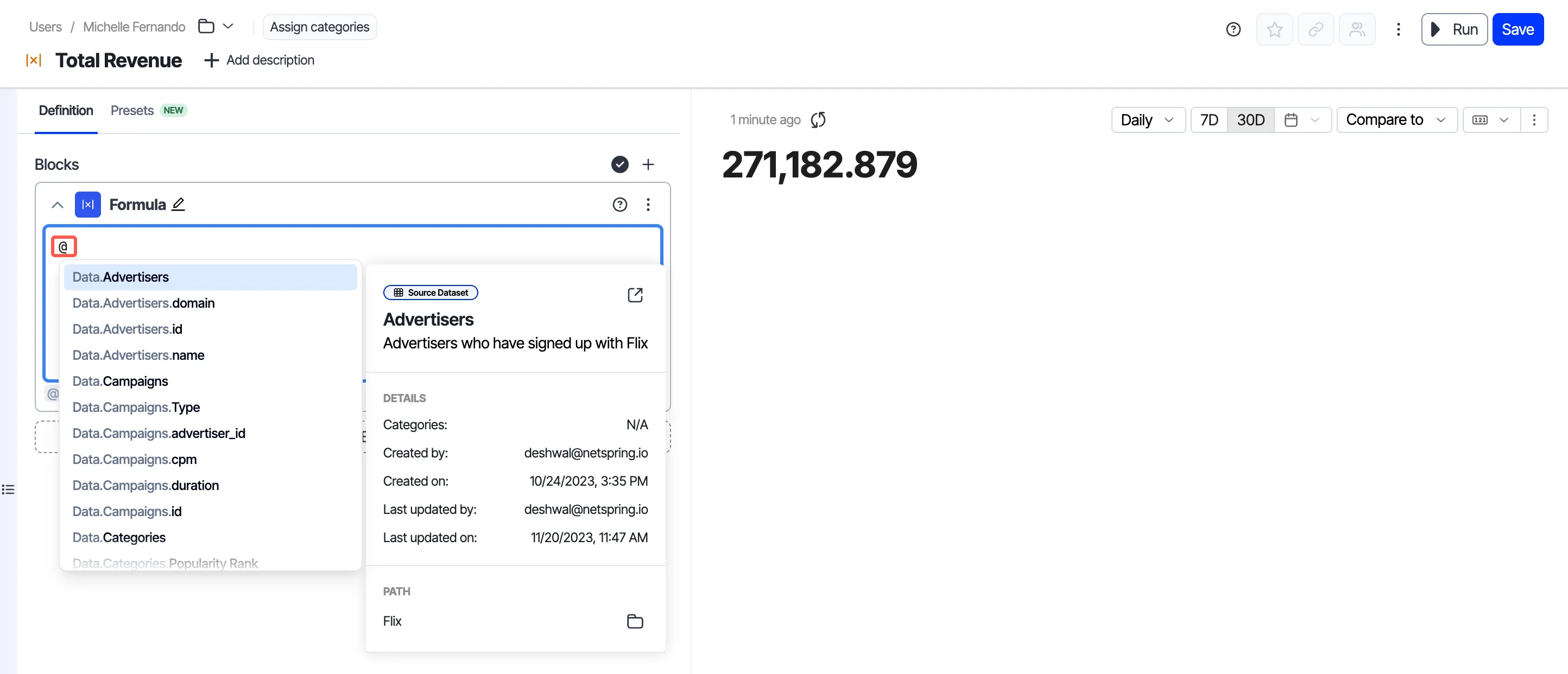
To provide immediate clarity, you can hover over any entity, keyword, or function directly in the editor. A pop-up will appear with comprehensive information, including its description, syntax, and examples.
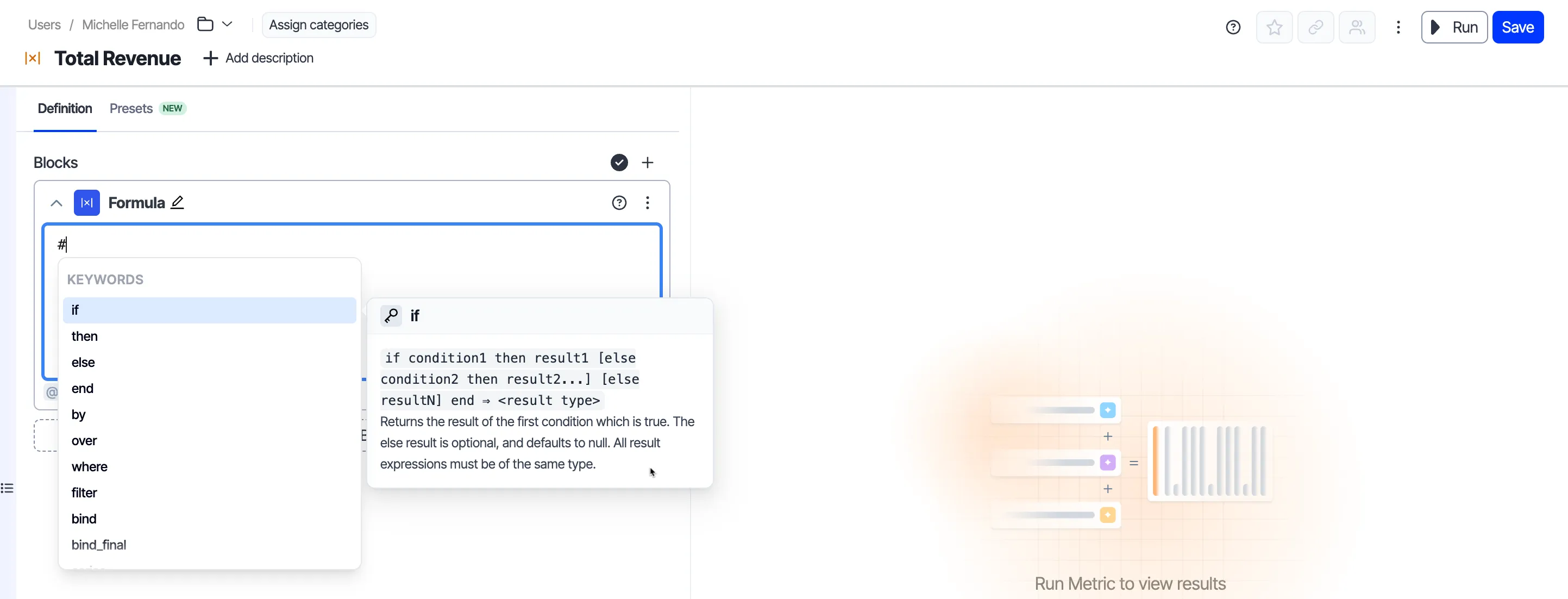
For detailed documentation on syntax and functions, see the NetScript language reference.
Example
To calculate the total revenue across purchases, advertisements, and monthly subscriptions,
- Enter the following formula: Metrics."Total Ad Revenue" + Metrics."Total Subscription Revenue" + Metrics."Total Purchase Revenue". Here, Total Ad Revenue, Total Subscription Revenue, and Total Ad Revenue are all previously created metrics.
- Click Run.
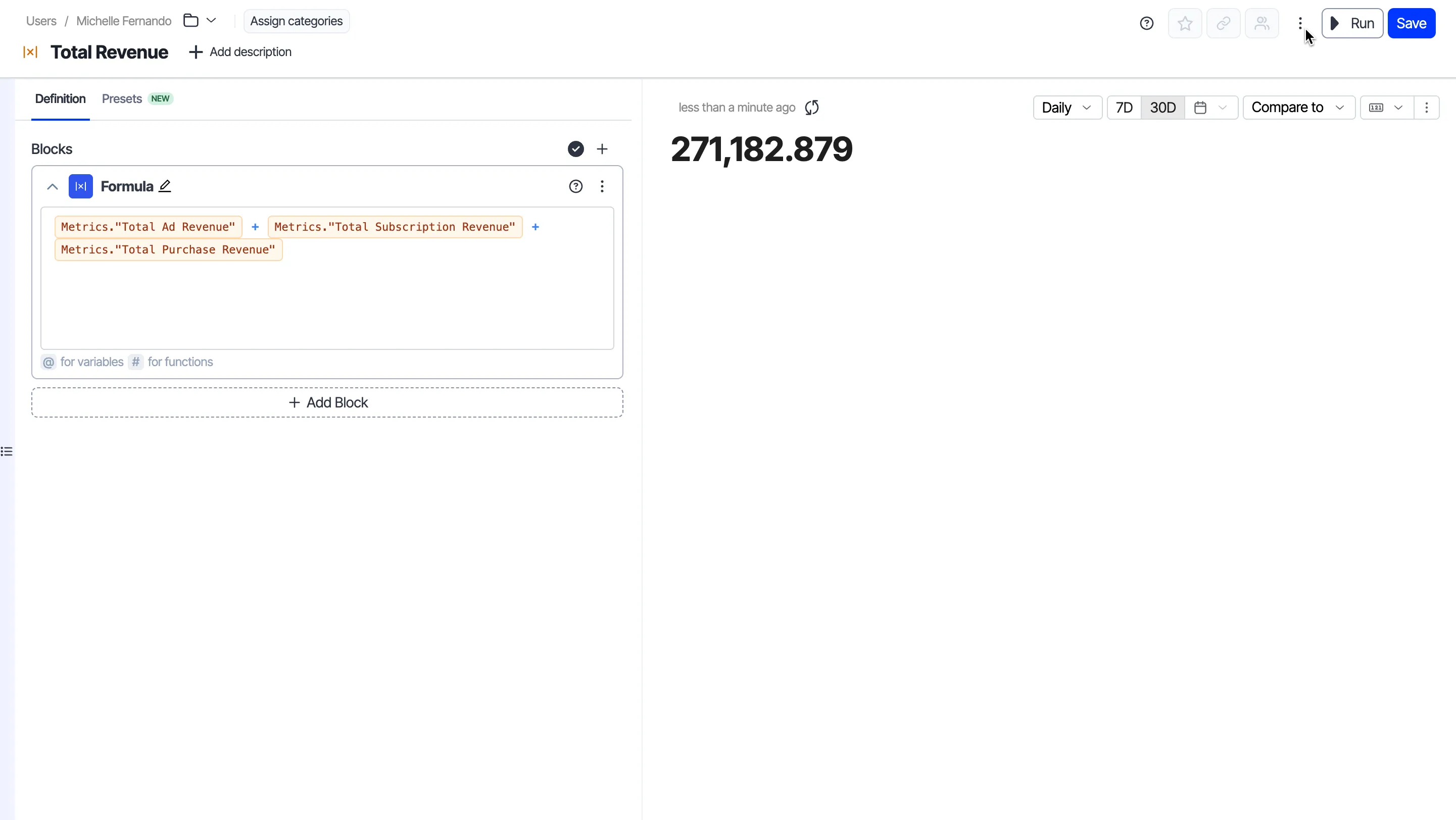
Output
The output of the formula block varies and depends on your formula definition.
How to grab the relevant part of a URL?
You can create a custom Formula block to grab the relevant part of a URL, and then group the results using that property.
First, you need to create the custom block.
1. Open the block panel within the exploration, click + > Formula. 2. Enter the formula to extract the part of the URL. You can use the following syntax:
regexp_substr(‘abc1’, ‘[0-9]’)This function returns the first substring that matches the regex. 1st arg is the string to search in, 2nd arg is the regex to match. It returns null if arg is null or if there is no match, and throws an error if the regex string is invalid. Here is an example:
*regexp.substr(Events.URL, ‘\\ /[^\\/]*$’)* 3. Click Apply to save the block. 4. Select the formula block that you created in the Group by property section. 5. Run the exploration, and the legend will show the relevant part of the URL.