Connect your Databricks warehouse with OAuth
Connect Optimizely Analytics to Databricks through each user's own Databricks account instead of a shared personal access token (PAT). Open Authorization (OAuth) user-to-machine (U2M) authentication runs every query with the permissions of the person who runs it. Your Databricks access controls apply in Optimizely Analytics, and nobody has to create, share, or rotate a token.
The configuration consists of the following three parts:
- A Databricks account admin creates an OAuth app connection in Databricks.
- You add its client ID and client secret to a Databricks connection in Optimizely Analytics.
- You log in to Databricks from the Databricks connection, and every other user logs in the same way.
Prerequisites
Confirm that you have the following before you start:
- A Databricks account admin who can create an OAuth app connection.
- A Databricks SQL warehouse with Internet Protocol (IP) allowlisting and a writable schema. To configure the warehouse, see Configure your Databricks warehouse. Skip the personal access token section, because OAuth replaces the token.
- The Java Database Connectivity (JDBC) URL of the SQL warehouse. See Retrieve the JDBC URL from Databricks’ SQL warehouse.
- A Databricks user account with access to the SQL warehouse for each person who queries it in Optimizely Analytics.
- Permission to create or edit connections in Optimizely Analytics.
Create an OAuth app connection in Databricks
An OAuth app connection lets Optimizely Analytics request Databricks logins on behalf of your users. It provides a client ID and client secret, the credentials that identify Optimizely Analytics to Databricks.
Ask a Databricks account admin to create a custom OAuth app connection. For the steps, see Enable custom OAuth applications using the Databricks UI in the Databricks documentation. The app connection requires the following settings:
- Redirect URL – https://ANALYTICS_DOMAIN/oauth/callback, where ANALYTICS_DOMAIN is the domain you use to open Optimizely Analytics. For example, https://analytics.optimizely.com/oauth/callback or https://app.netspring.io/oauth/callback. Databricks returns users to this address after they log in.
- Access scope – A scope sets which Databricks services a login grants access to. Optimizely Analytics requests the sql offline_access scope. Databricks adds offline_access automatically, which keeps each user logged in without repeated prompts.
- Client secret – Optimizely Analytics uses both the client ID and the client secret.
Get the client ID and client secret from your Databricks account admin.
Note
Databricks takes up to 30 minutes to apply changes to an app connection. Wait for the changes to apply before you log in from Optimizely Analytics.
Configure the Databricks connection and log in
Add the app connection's credentials to a Databricks connection in Optimizely Analytics, and then log in to Databricks. The following steps apply to a new Databricks connection or an existing one.
- Go to Data > Connections.
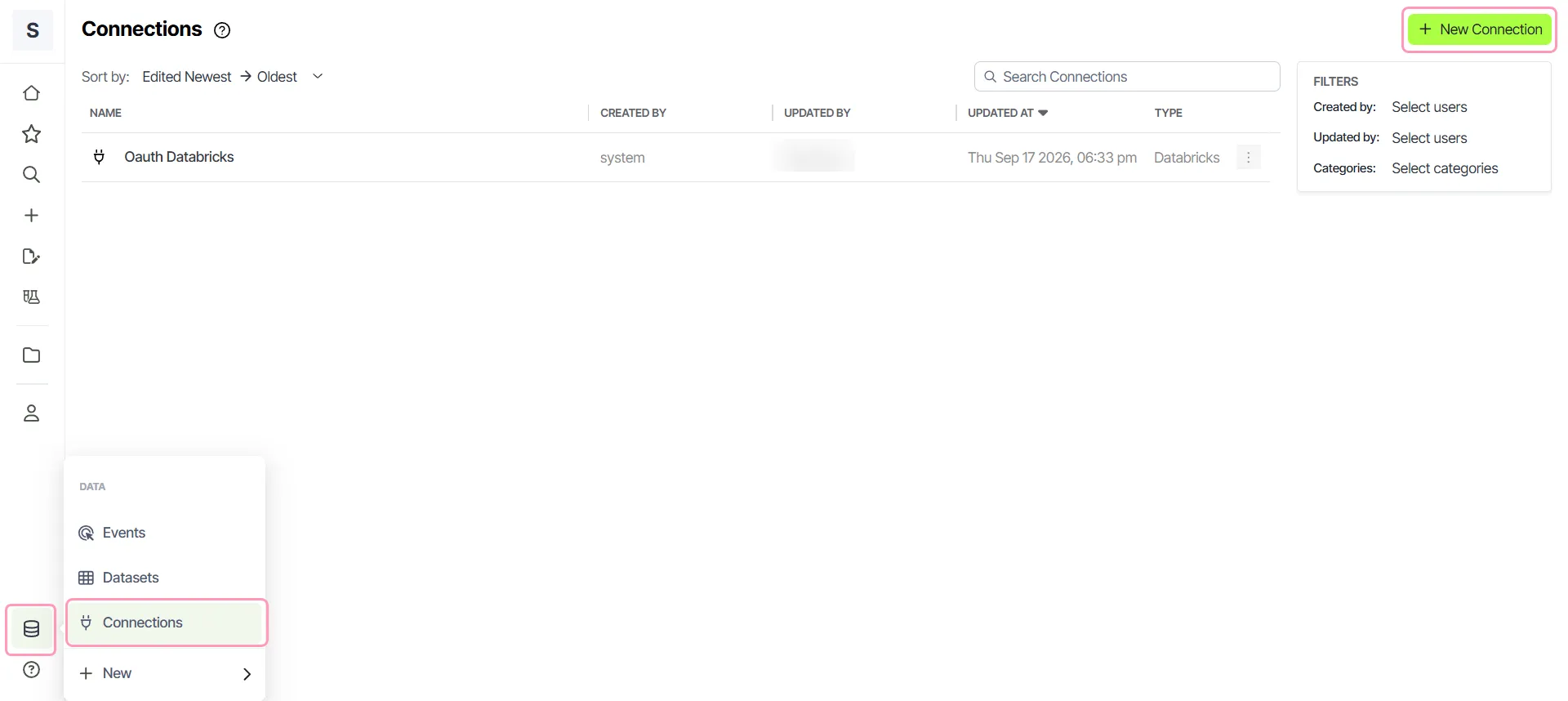
- Create a Databricks connection, or open an existing Databricks connection.
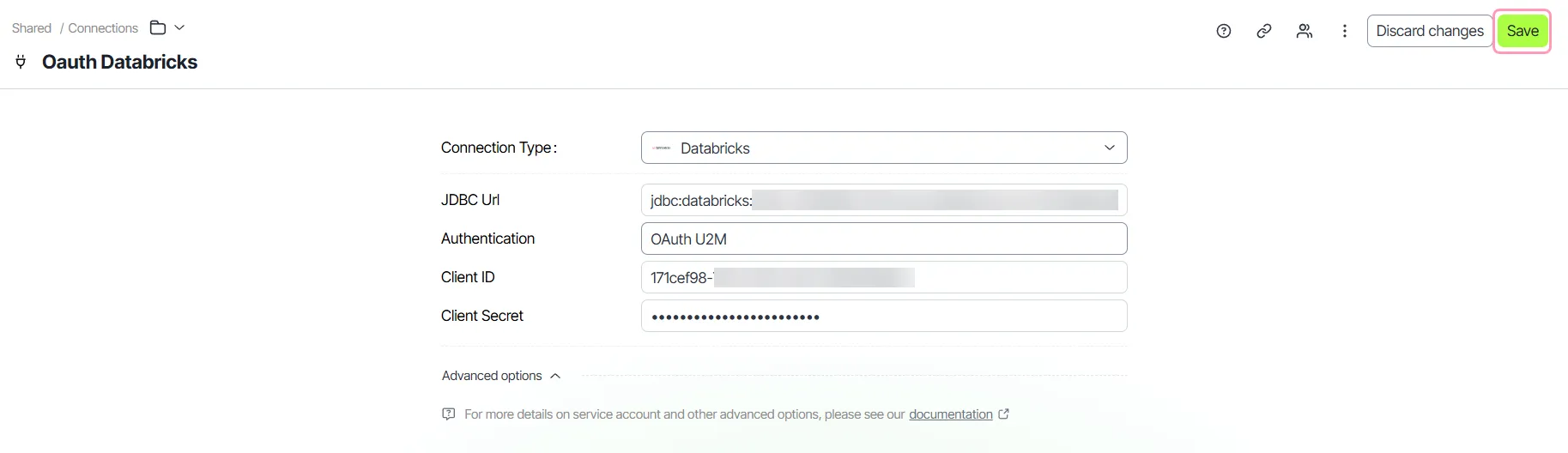
- Paste the JDBC URL of your SQL warehouse into JDBC Url.
- Select OAuth U2M from the Authentication drop-down list.
- Enter the client ID in Client ID.
- Enter the client secret in Client Secret.
- Click Save.
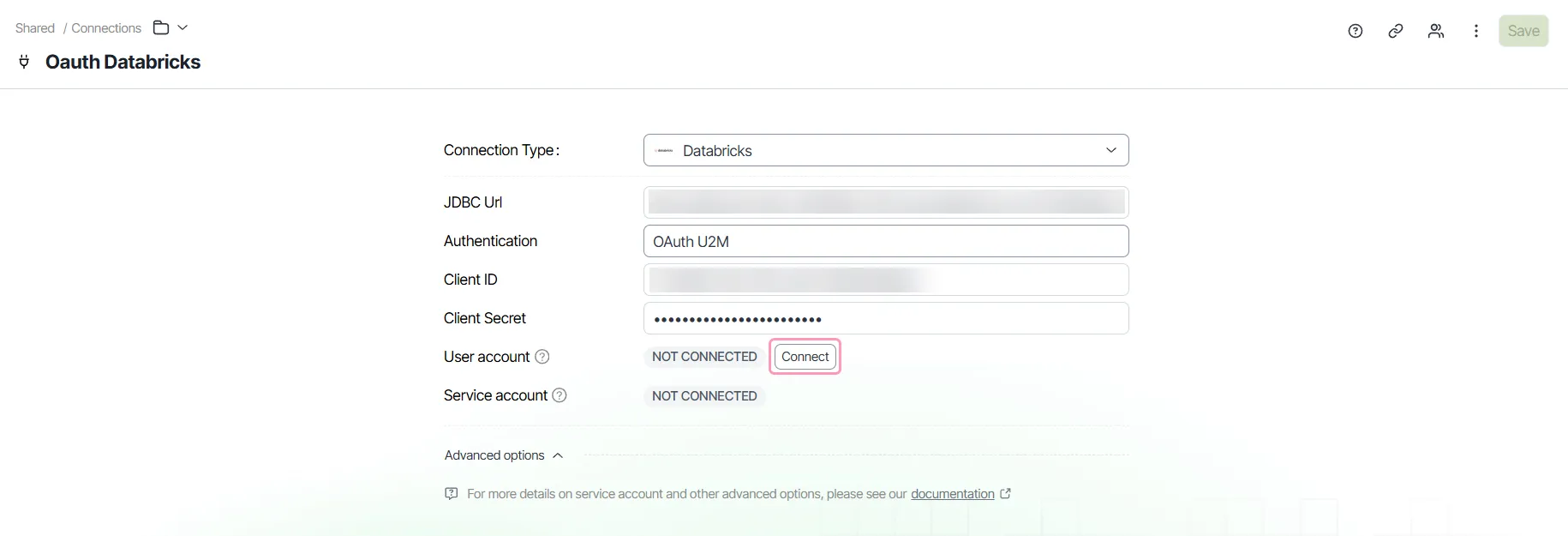
- Click Connect.
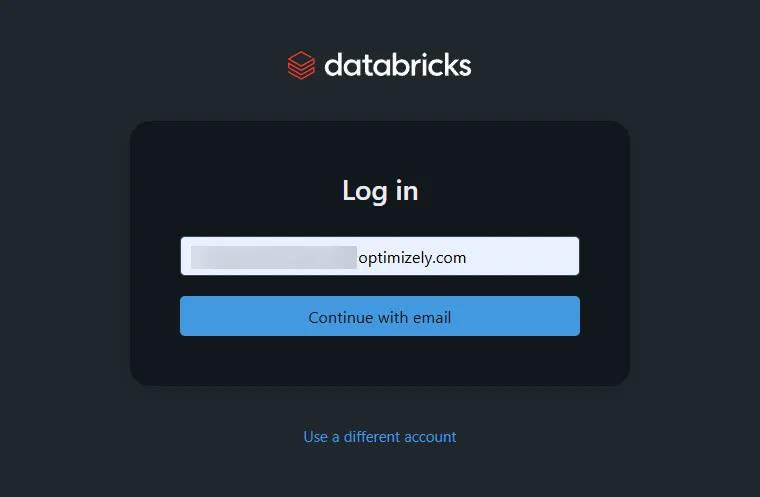
- Complete the Databricks login and authorize in the pop-up window.
When the login completes, the User account status changes to CONNECTED. Your queries on the Databricks connection then run with your Databricks permissions. To test the connection, click Click to test connection health.
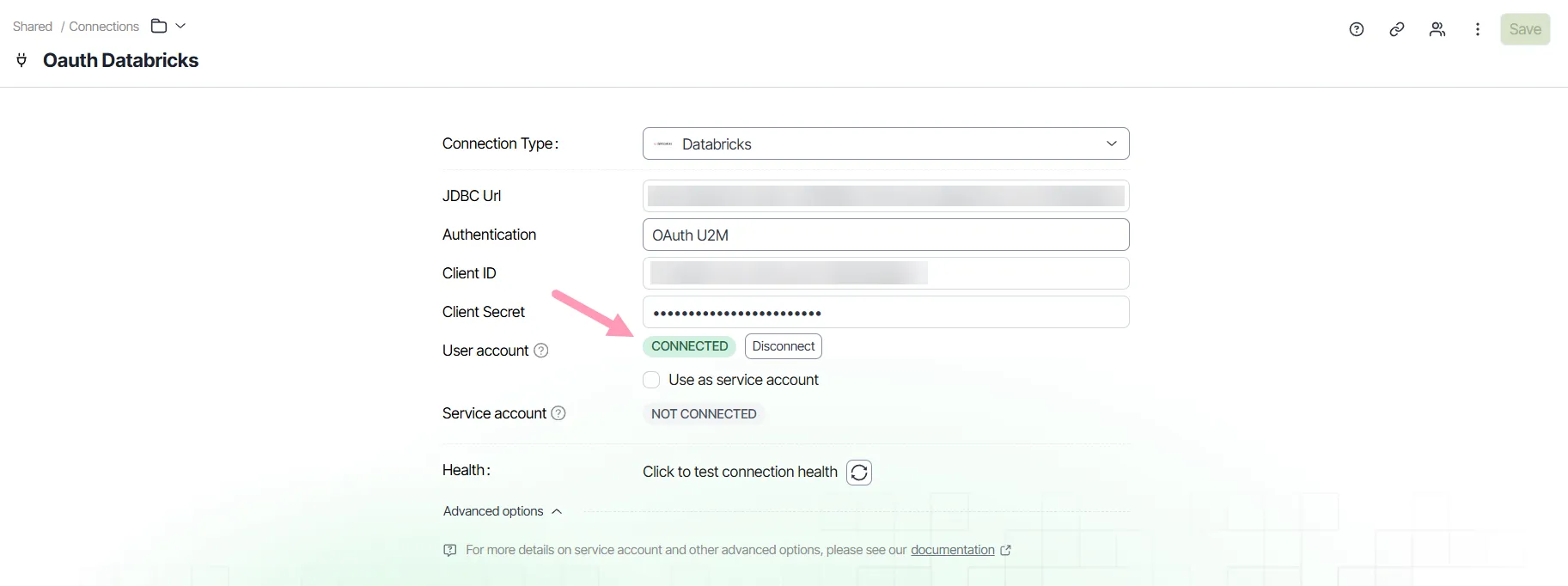
Optimizely Analytics sets the OAuth authentication method itself, so paste the JDBC URL without edits. It builds the Databricks login addresses from the host name in the URL. The URL must include your workspace host name.
Changing the client ID or client secret later logs out every user on the Databricks connection. Each user then logs in to Databricks again.
Each user logs in once for each Databricks connection. Until a user logs in, a Data source disconnected message displays when they create a dataset or load an exploration. Click Connect in the message to start the same Databricks login process.
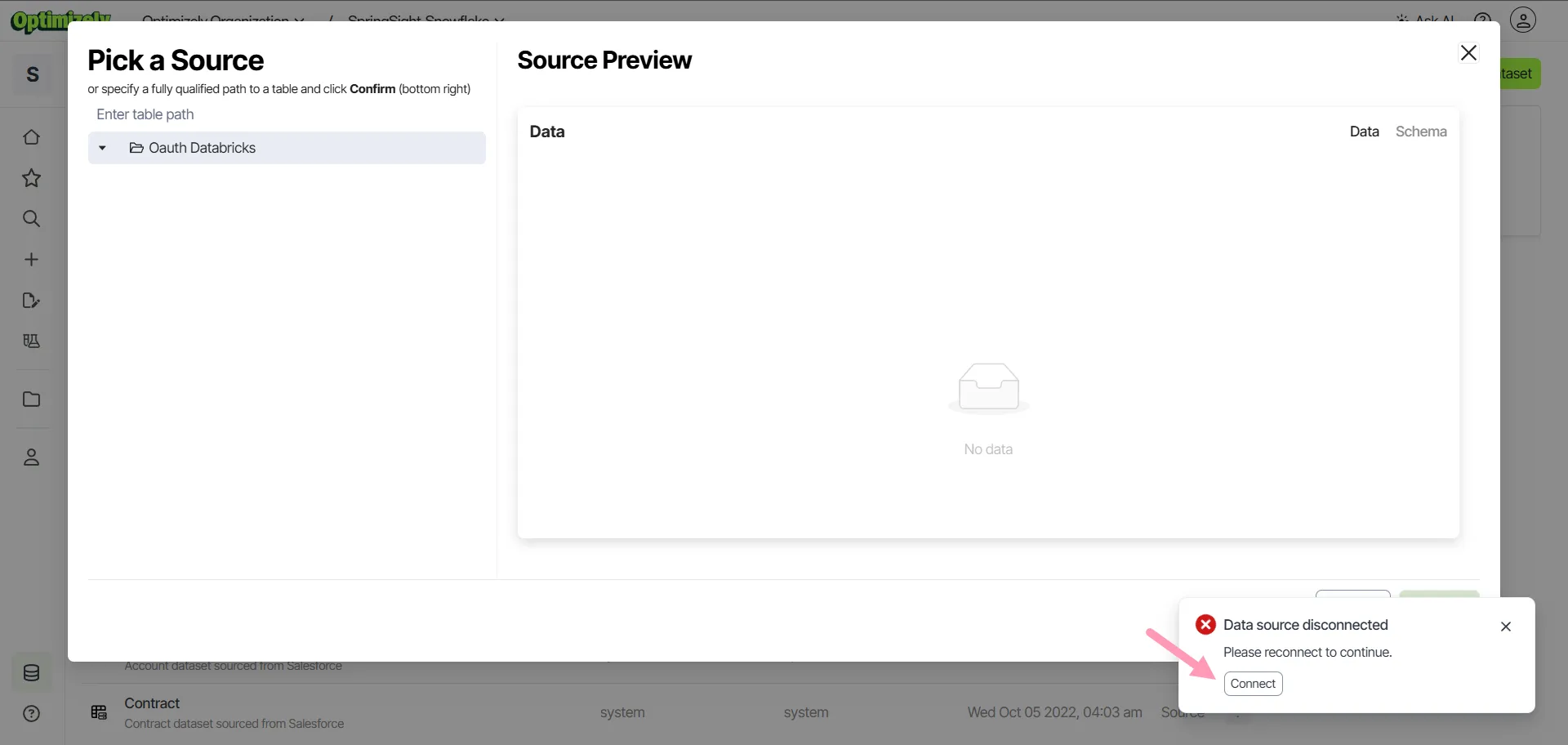
Keep the following in mind when you log in:
- Unsaved changes – Connect is unavailable while the Databricks connection has unsaved changes. Save or discard your changes first.
- Blocked pop-up windows – When your browser blocks pop-up windows, the Databricks login opens in a new tab instead. Complete the login in that tab.
- Time limit – Complete the login within 10 minutes. When the request expires, click Connect again.
Set a service account for scheduled jobs
Scheduled reports and background jobs run when no user is logged in. On a Databricks connection that uses OAuth, these jobs use a service account. The service account is one user's Databricks login. Every scheduled report and background job on the Databricks connection uses it. Set a service account so that these jobs keep running.
Choose a user whose Databricks permissions cover every table that your scheduled reports and background jobs read. That user must have a CONNECTED status on the Databricks connection.
To set the service account, complete the following steps:
- Open the Databricks connection as the user you choose.
- Select Use as service account.
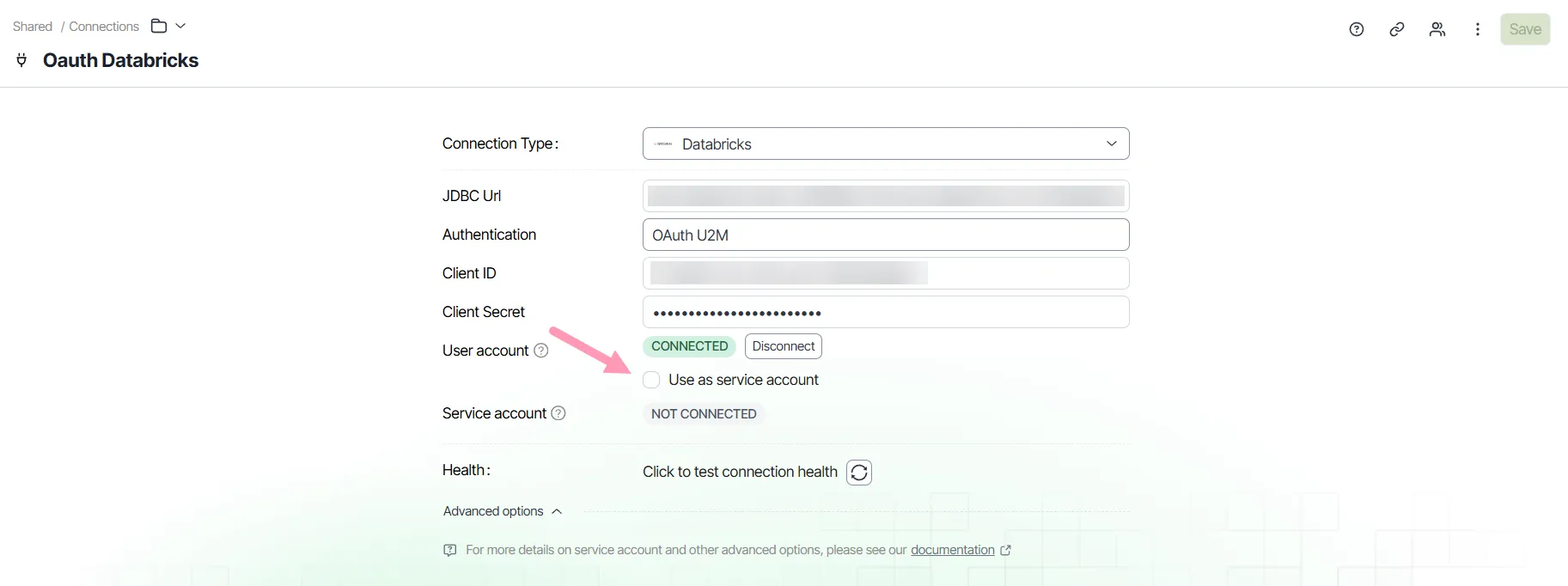
- Click Confirm.
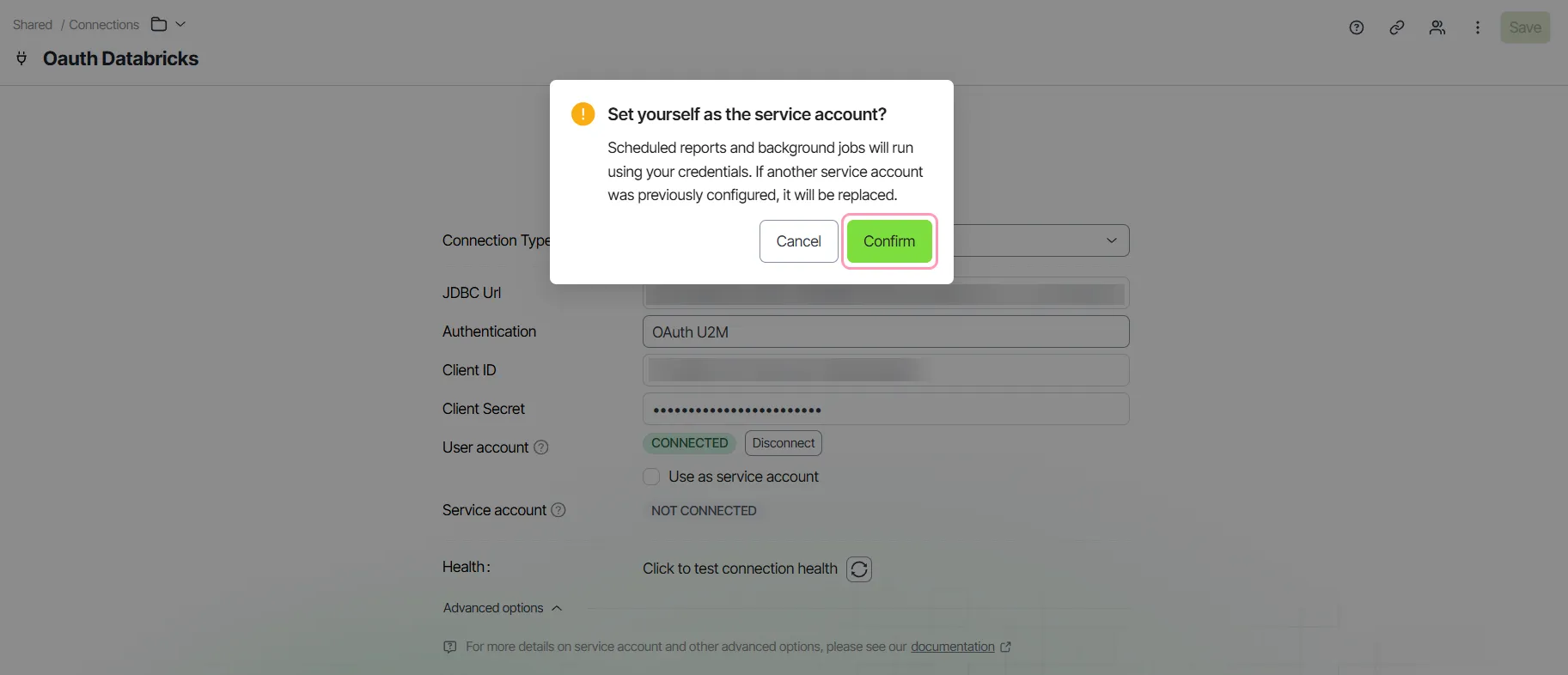
Scheduled reports and background jobs then run with that user's Databricks credentials.
Each Databricks connection has only one service account. When another user is already the service account, your login replaces theirs.
The Service account status shows whether the Databricks connection has an active service account. When another user is the service account, the status shows CONNECTED even when your User account status shows NOT CONNECTED.
When you are the service account, disconnecting your own login also removes the service account. The Service account status changes to NOT CONNECTED. Scheduled reports and background jobs stop until a user sets a new service account.
To remove yourself as the service account, complete the following steps:
- Open the Databricks connection.
- Uncheck Use as service account.
- Click Remove.
Check your login status
The User account status on the Databricks connection shows whether your own Databricks login is active. The following list describes each status and the action to take:
- NOT CONNECTED – You have not logged in to Databricks on this Databricks connection. Click Connect.
- CONNECTED – Your login is active, and your queries run with your Databricks permissions. To remove your login, click Disconnect.
- Auth failed – Optimizely Analytics could not renew your login. Click Re-authenticate.
- Status unavailable – Optimizely Analytics could not read your login status. Click Disconnect, and then click Connect.
After your login expires, the Data source disconnected message displays when you create a dataset or load an exploration. Click Connect or Re-authenticate in the message to log in again without leaving the page.
How Databricks permissions apply
Each user sees only the data that their own Databricks account has permission to read. Two users who open the same dashboard see different results when their Databricks permissions differ. Optimizely Analytics caches query results separately for each user, so one user's results never display for another user.
Disconnect your Databricks login
Disconnecting removes your own Databricks login from the Databricks connection. The Databricks connection and other users' logins stay in place. When you are the service account, disconnecting also removes the service account, and scheduled reports and background jobs stop.
- Open the Databricks connection.
- Click Disconnect.
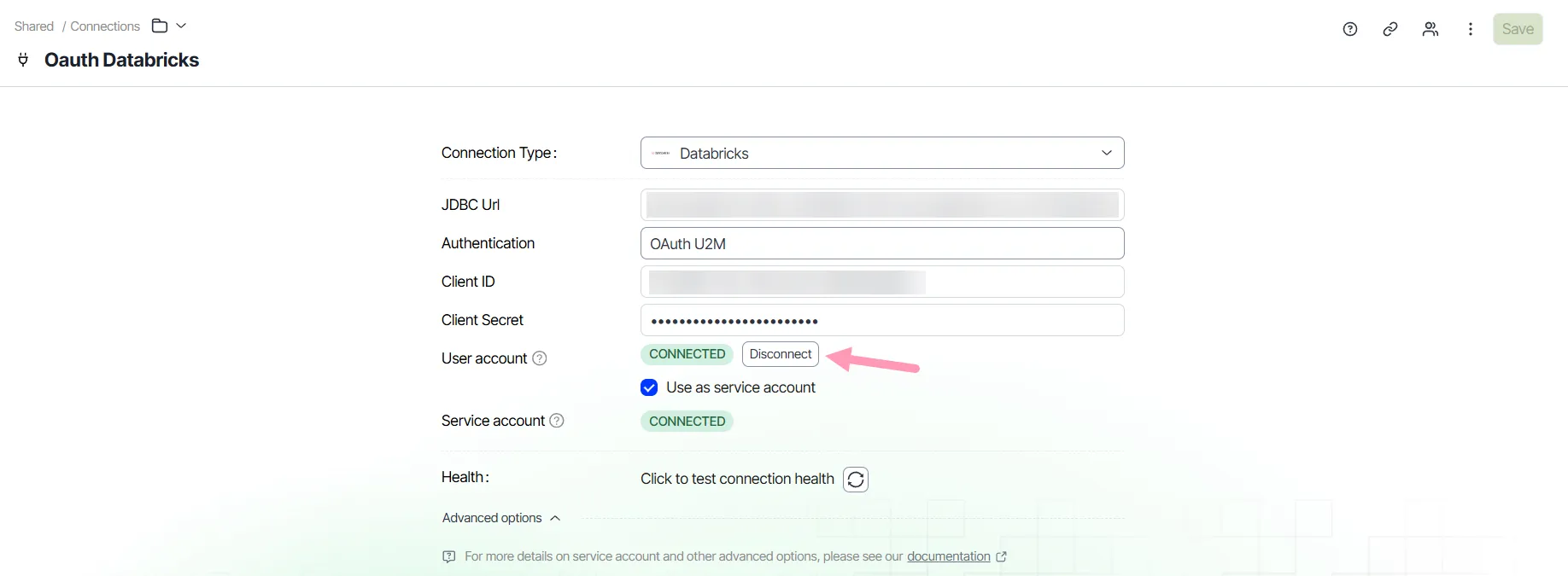
The User account status changes to NOT CONNECTED. Click Connect to log in again.
Troubleshoot OAuth connection errors
The following errors are the most common during setup:
- redirect_uri 'REDIRECT_URL' not registered for OAuth application 'CLIENT_ID' – The Databricks app connection does not list the redirect URL for your Optimizely Analytics domain. Ask your Databricks account admin to add https://ANALYTICS_DOMAIN/oauth/callback to the app connection. See Enable custom OAuth applications using the Databricks UI. The change takes up to 30 minutes to apply.
- Could not derive workspaceHost from JDBC URL; ensure the URL contains a hostname – The JDBC Url value has no workspace host name. Paste the full JDBC URL of your SQL warehouse.
- Invalid callback URL — missing state or code. – The Databricks login did not return to Optimizely Analytics correctly. Click Connect and complete the login again.
- OAuth state is invalid – The login request expired or started in another browser session. Click Connect and complete the login within 10 minutes.
- Data source disconnected – Displays when you create a dataset or load an exploration. You have not logged in to Databricks on the Databricks connection, or your login expired or someone removed it. Click Connect or Re-authenticate in the message.