Manage pages
Products
- Optimizely Web Experimentation
- Optimizely Edge Delivery
- Optimizely Personalization
The availability of features may depend on your plan type. Reach out to your Customer Success Manager if you have any questions.
The new Visual Editor gives you several ways to manage pages.
Change the page that loads in the Visual Editor
When you launch the Visual Editor, you see the name and URL of the page you are editing. These are the same pagespages you set up when implementing Web Experimentation or Personalization.
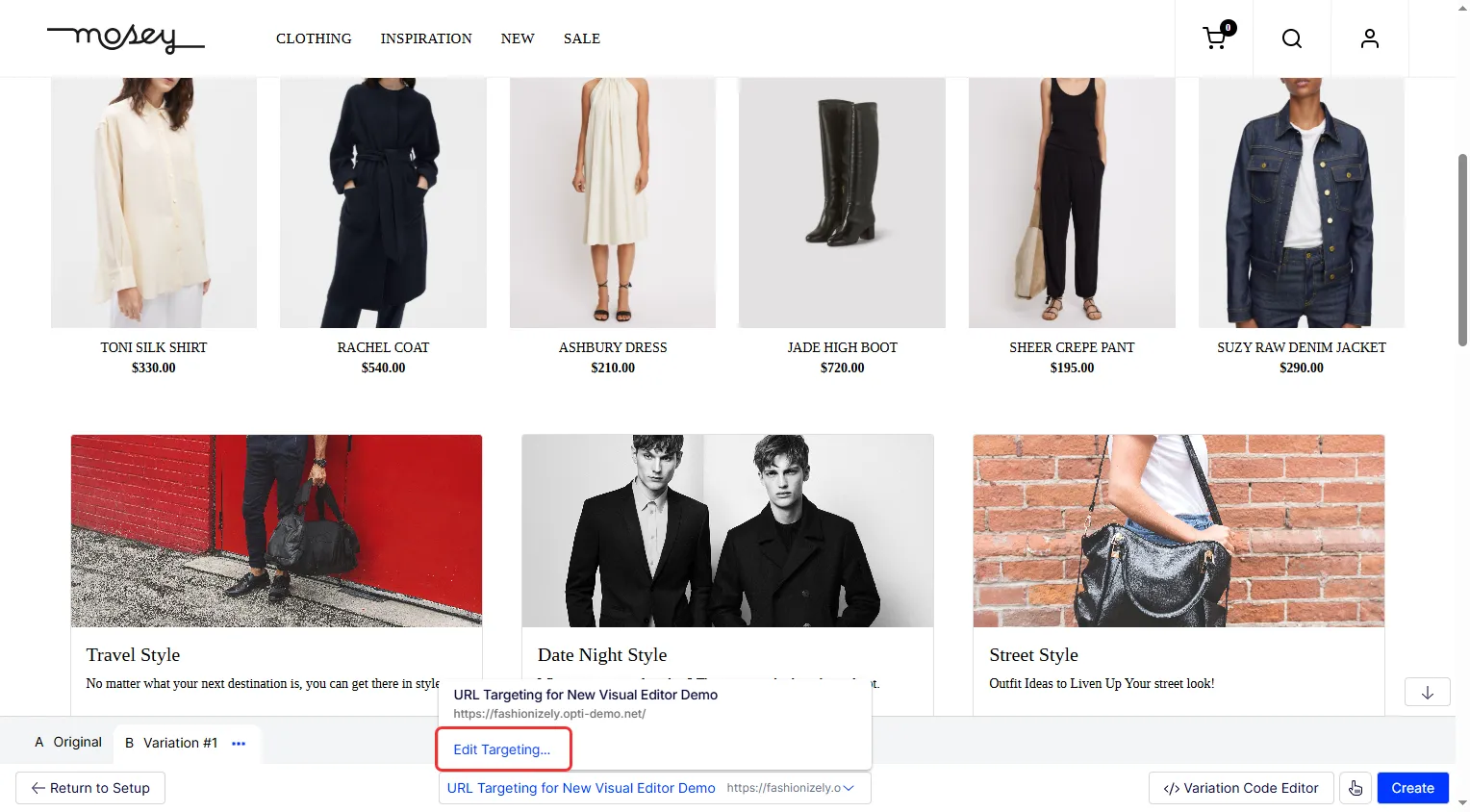
To change the page that loads in the visual editor and edit a different element on your site, click the URL bar with the name and URL of your page, and click Edit Targeting.
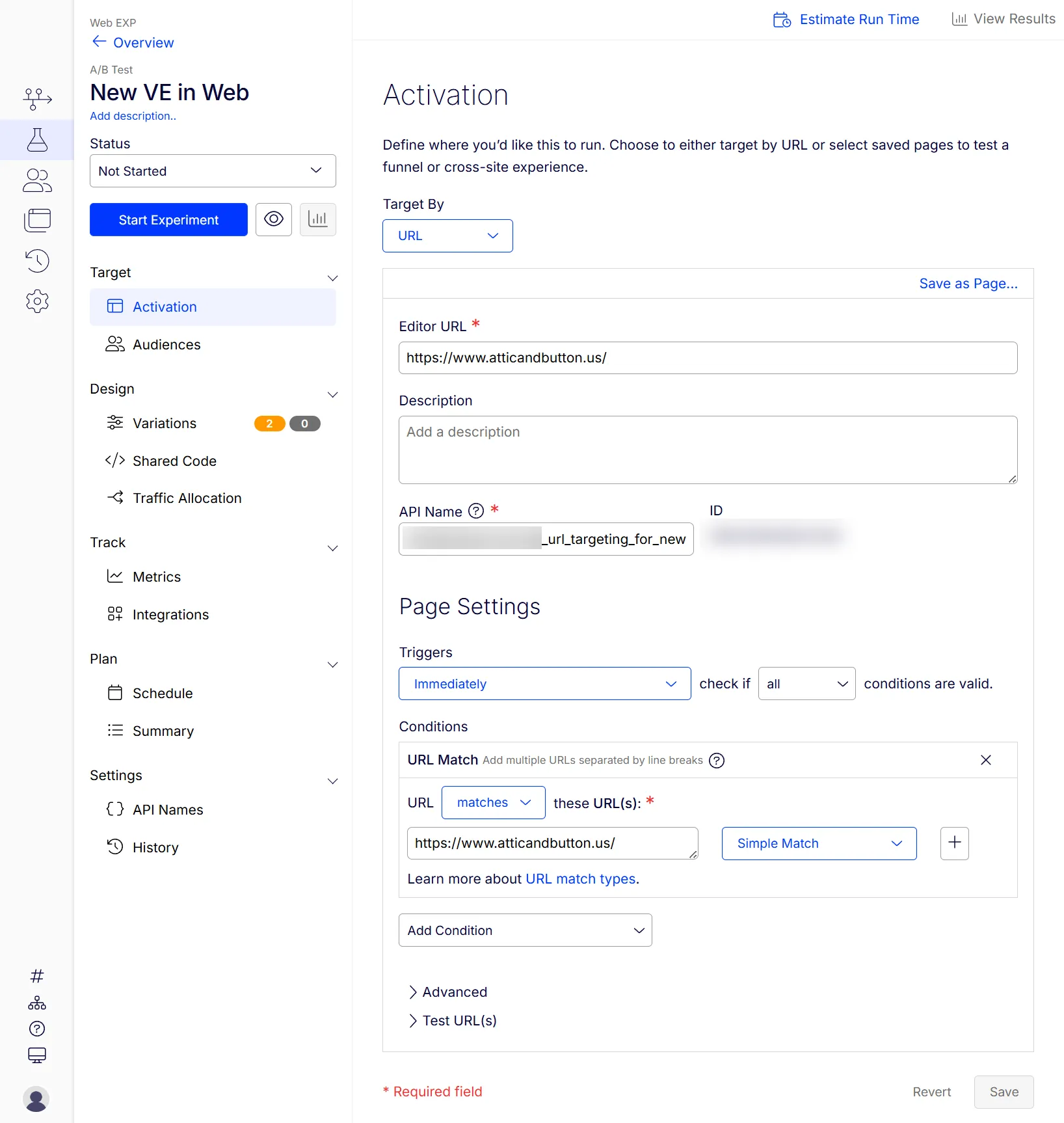
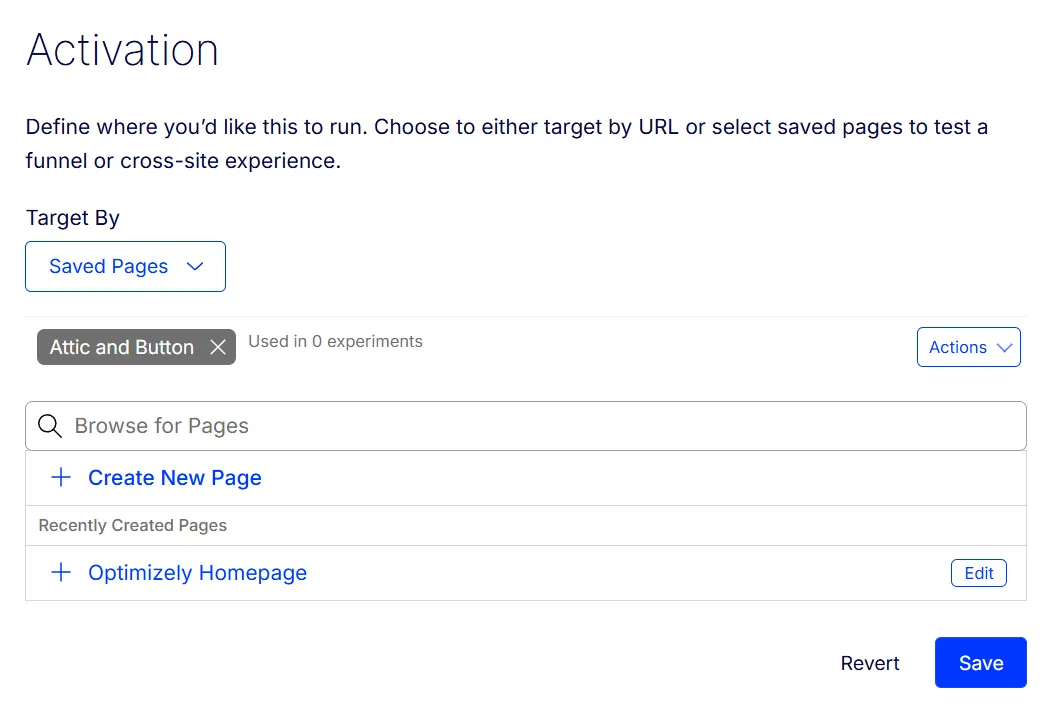
The Activation pageActivation page displays different options based on your Target By drop-down list setting.
- URL – Update the Editor URL field.
- Saved Pages – Click Browse for Pages or select from Recently Created Pages. You can also create a page.
Warning
Updating the Editor URL changes the page shown in the visual editor but does not change the URL that the experiment or campaign targets.
(Coming soon) Add pages for a multi-page experiment
To create a multi-page or funnel experimentmulti-page or funnel experiment, click Edit Targeting in the drop-down list to add an existing page or create one. You can create variations for different pages on your site in a single experiment.
When making visual or custom code changes to a multi-page experiment, select the page from the drop-down list to ensure your changes are applied correctly.
Note
You should create new pagescreate new pages in the Implementation section whenever possible. Pages are reusable across experiments and campaigns. Setting them up in the Implementation tab lets you create experiments and gather consistent data on the eventsevents you add to each page.