Export the database to Bacpac file
- 📘 Prerequisites An Optimizely cloud account to access the self-services for Optimizely DXP. See Create an Optimizely Cloud AccountCreate an Optimizely Cloud Account.
- A provisioned project on DXP.
You can export the Optimizely Content Management System (CMS) or Optimizely Customized Commerce database to a bacpac file using the API or the DXP Management Portal.
When you export a database, it triggers an export job for the requested database. The export job copies the requested database from the requested environment to a new database in the Integration environment to avoid performance issues in the production environment when the export runs. After this, it exports to a bacpac file from the copied database, and stores the bacpac on BLOB storage.
📘 Note The Export Database process can take from a few hours to several days (in extreme cases). You can export only one database at a time.
- Select your project on the home page.
- On the project detail page, open the Troubleshoot tab.
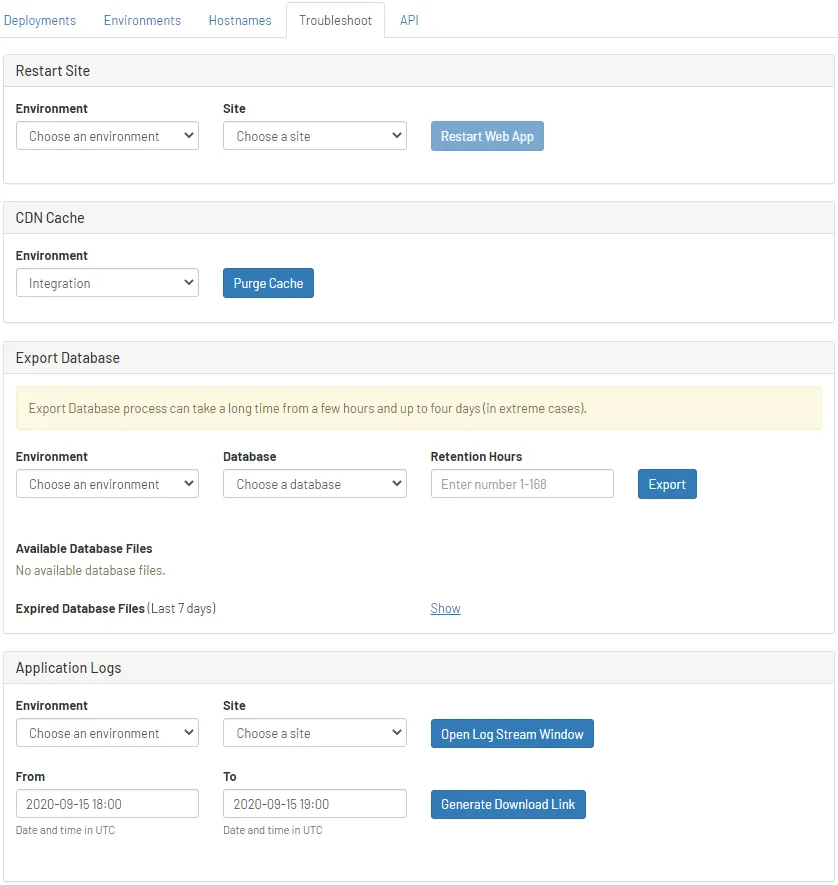
- Scroll to the Export Database section, select an Environment, Database, and Retention Hours, then click Export.
📘 Note Retention hours specify how long the export is available before it is removed.
- A confirmation dialog box displays. Click OK to start the export database progress. The progress result displays in real-time, and the export database file shows when the export database progress finishes.
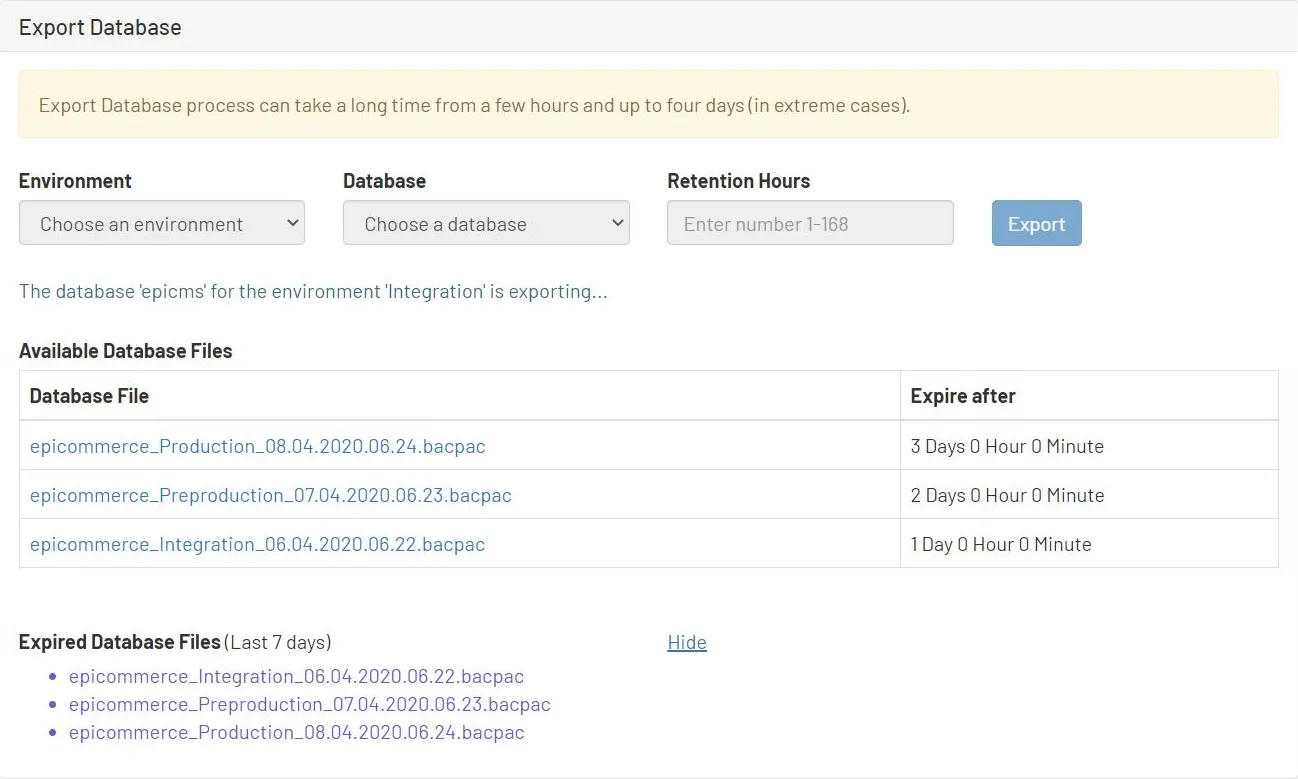
- Available Database Files – If available, click a database file link to download the database file to your local machine.
📘 Note You can download the exported database file only when is not expired.
- Expired Database Files – Click Show/Hide to display/hide exported files that expired within the last seven days.