Find content
2 min
Follow these tips to find Optimizely Content Management System (CMS) content.
- To find any content, see Manage content with Content Manager.
- To find content in a page, asset, or shared block structure, select content from the page tree structure or the shared blocks and media assets panel.
- To find content on a website or application, use the preview option to go to the content on the website or application.
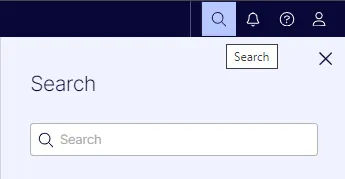
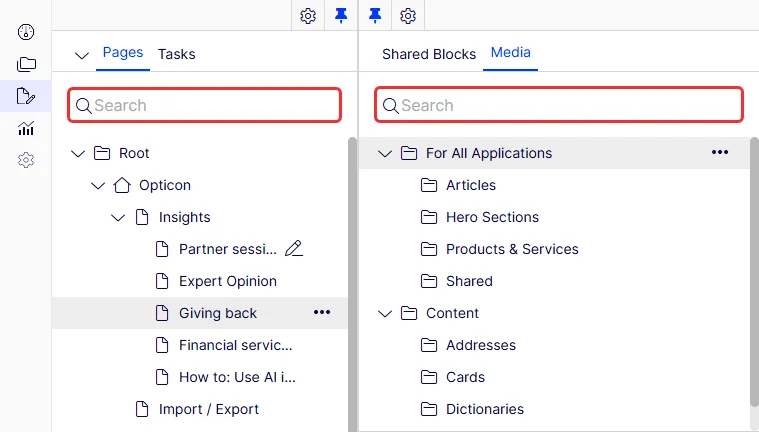
- To find text within the content title or body, use the global search in the top menu or the search fields at the top of the navigation and assets panes.
- The global search can search all types of content on the application (depending on the configured search provider).
- The search fields in the navigation and assets panes search for content in the respective pane and related dialog boxes. See Search configuration.
- To find a page's status (for example, draft), use the Tasks tab to find content in the selected status.
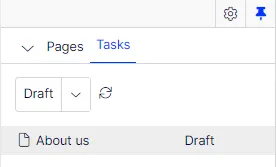
- To find recently edited content, use the Recently changed status in the Tasks tab.
📘 Note The Recently Changed gadget displays up to 20 entries.