Manage content with Content manager
The content tree in the Edit view and in the Assets panel shows Optimizely Content Management System (SaaS) content that is organized in a hierarchical structure. As the amount of content in CMS grows, finding content can become more of an issue unless you are familiar with the hierarchy.
The CMS Content manager view addresses these scaling issues by displaying all content (pages, assets, and media) in a "flat" view table structure that you can filter, search, and sort to get to the content you want.
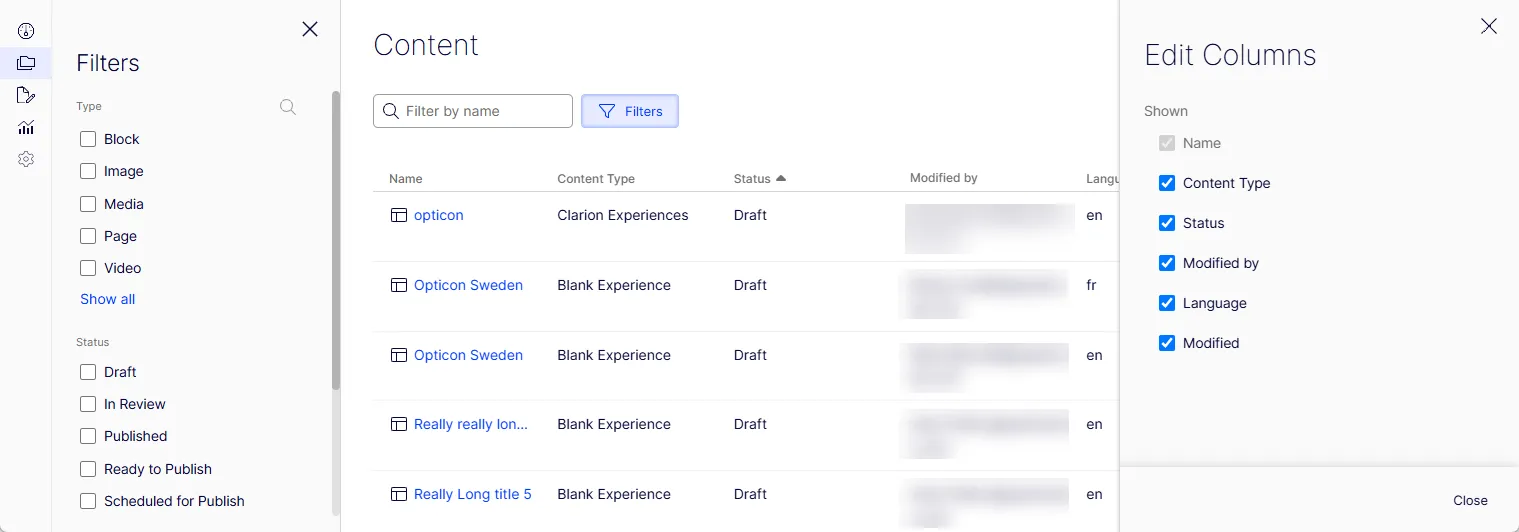
Note You can make quick edits to content when you click a content item in the Content manager view. For full editing functionality, go to Edit view.
You can select among All, CMS, DAM, and OCP content views to find and manage content from various sources more efficiently by filtering based on content types.
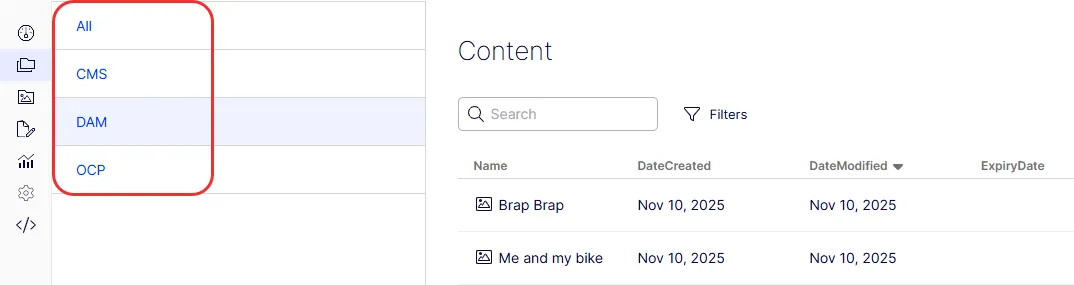
Select a view
You select a view by clicking the buttons as shown and described below.

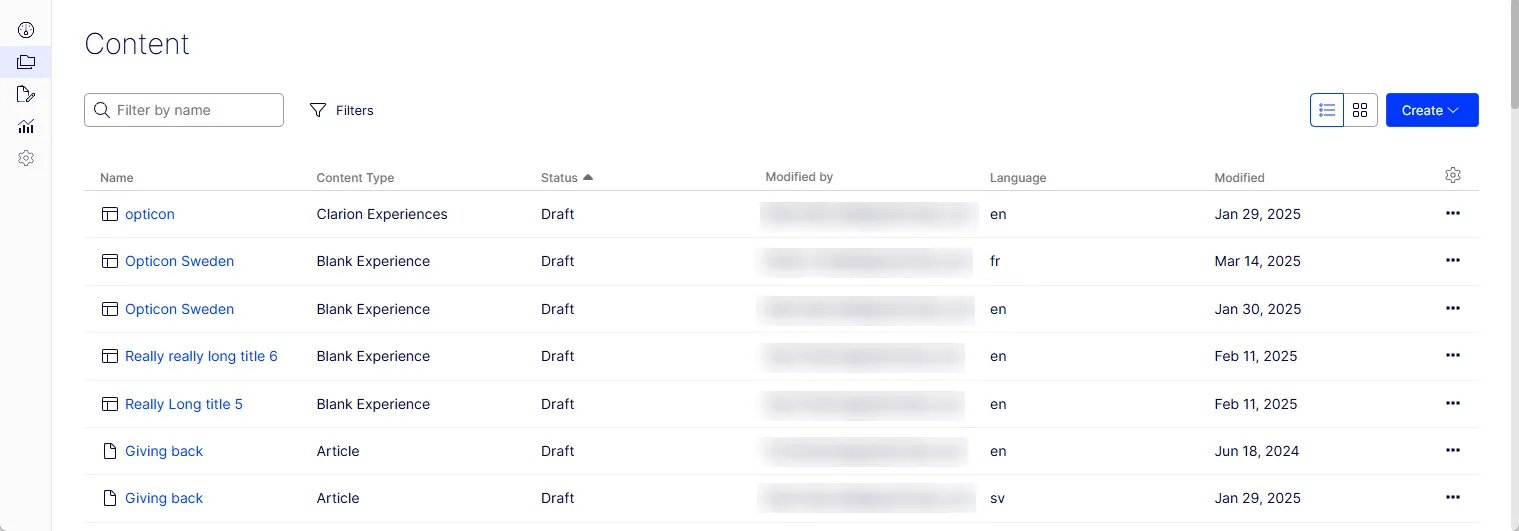
- List view – Displays content in a multi-column list (a table) that you can customize.
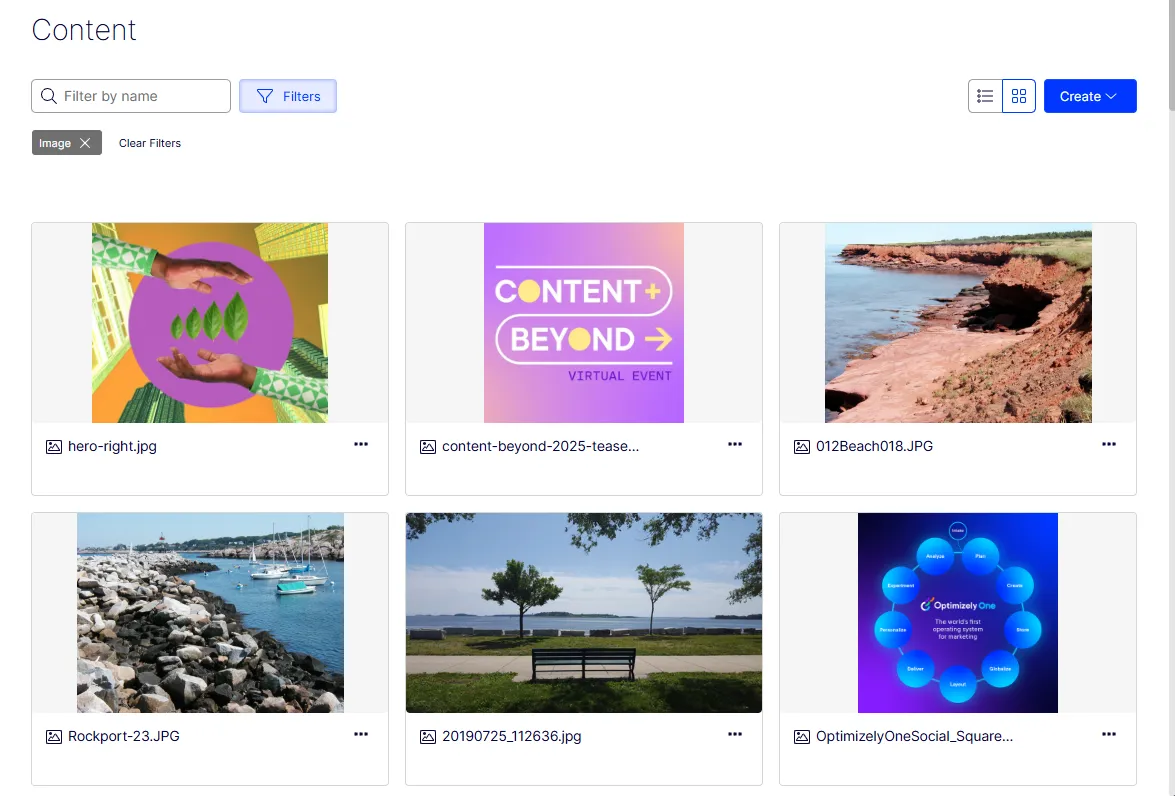
- Grid view – Displays content as cards with thumbnail images to find content. The view below is filtered by images.
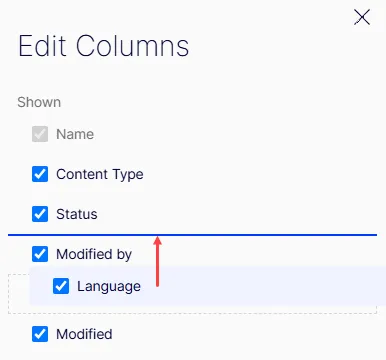
Edit columns
The gear icon opens a panel that lets you select the columns you want to see in List view. You can also arrange your columns by dragging them into the order you want.
Sort columns
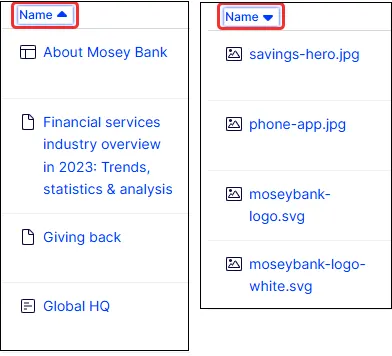
Sort content in List view by clicking on a column header. The following image shows two views of the Name column sorted ascending and then descending.
Filter content
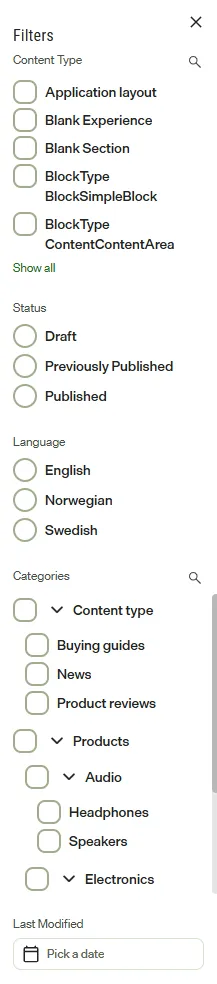
Click Filter to access the Filter panel. You can filter by Content Type, Status, Language, Categories, and Last Modified. Click Show all to display additional filters.
Note
Categories apply only to CMS content, not to content from other sources, like DAM.
- Content Type – The Page filter includes other filters like Block and Experience, but you can also filter on just blocks or experiences. The Media filter includes Images and Videos, which you can also filter separately.
- Status – Select to display content that is in Draft, Published, Rejected, or other states.
- Language – You can select to display content that exists in available languages.
- Categories – Select to display content assigned to specific categories.
- Parent category – Selecting a parent category shows all content tagged with that parent or any of its children.
- Child category – Selecting a specific child category shows only content tagged with that exact category.
- Multiple categories – Select multiple categories to show content tagged with any of the selected categories.
- Last Modified – Select a specific date or date range to filter by when the content was last modified.
Search content
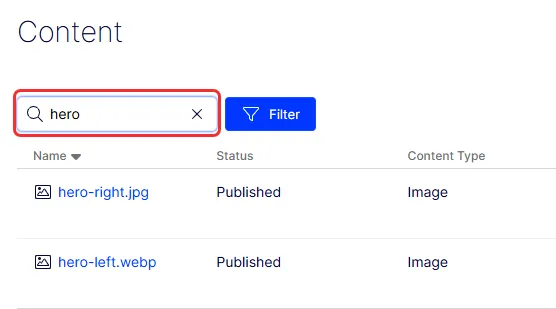
Use the Search box to find content by typing a few letters. The following image shows two items found by typing hero in the box. Search is powered by Optimizely Graph.
View content details
Select a content item to open the detail pane. The Info tab shows the item's metadata, such as content type, status, language, and who created and last modified it.
When the item has categories assigned, the Info tab also shows a Categories row with each category as a chip. Use it to check how content is categorized without opening it for editing. The row has the following behavior:
- Many categories – When the categories do not fit, click the link that shows how many are hidden, such as Show 3 more, to display the rest. Click Show less to collapse them.
- Long category names – A long name is shortened. Hover over the chip to see the full name.
- No categories – The Categories row does not display.
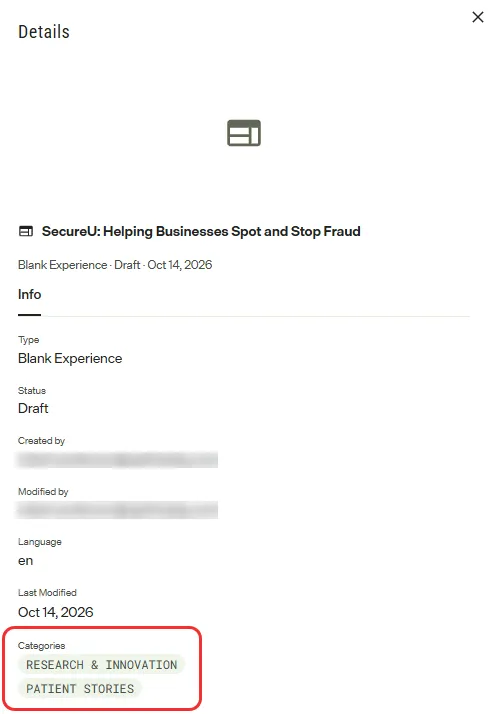
The chips are read-only. To change the categories on an item, see Categorize content. To find every item with a given category, use the Categories filter. See Filter content in this article.
View DAM renditions
A rendition is an alternate version of an Optimizely Digital Asset Management (DAM) asset that DAM generates from the original, such as a crop or a resized copy. When you select a DAM image or video that has renditions, the detail pane shows a Renditions tab next to the Info tab.
If the Renditions tab does not display, the asset has no renditions yet. Create them in the CMP Library.
The Renditions tab lists the asset's renditions and includes a Size comparison chart that shows each rendition against the original. Use it to see which renditions exist and how their dimensions compare before you use the asset.
On the Content page, the Renditions tab is for reference only. To use a rendition on a property, select it while you edit the content, from the property's Select Image, Select Video, Select Media, or Select Content button. See Select a rendition.
Only DAM images and videos have renditions. The Renditions tab does not display for CMS (SaaS) content, documents, or other raw files. See Renditions for how renditions are created in DAM.
Upload media
To add media from Content view, select Create > Upload Media.
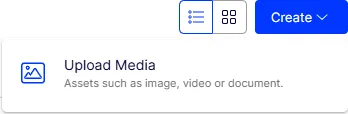
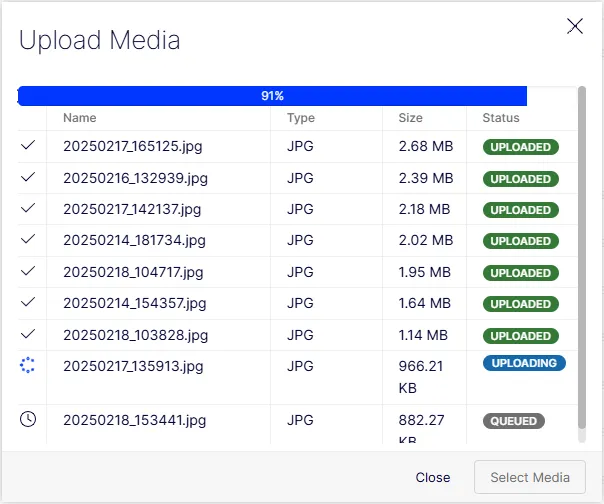
The Upload Media dialog box displays. Click Select Media and choose the files you want.
Use content in Visual Builder
The Content manager view is where you manage the content (such as pages, blocks, and media) that you can use when designing experiences in Visual Builder. Three areas of CMS (SaaS) work together:
- Content manager – Create and manage the content you want to reuse.
- Settings > Content Types – Create content types and assign properties to them.
- Visual Builder – Build an experience from those content types and their configured properties.
For example, if you create a page content type with a Content Reference List property, you can add that content type (and therefore its Content Reference List property) to an experience in the Visual Builder. Then, for that property in the Visual Builder, you can select Add Contents to open the Content Manager picker. The picker shows the same content available on the Content page, and you can multi-select content to add to that property in your experience.