Edit content using TinyMCE
The TinyMCE rich-text editor lets you enter information such as text with formatting, images, tables, and links to other content. The rich-text editor is used for elements and pages in Optimizely Content Management System (CMS) (SaaS).
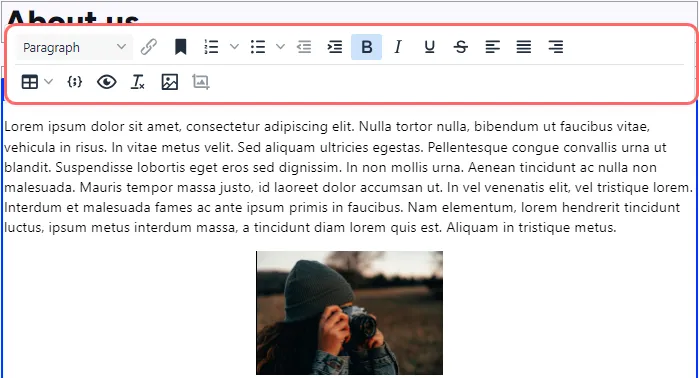
The CMS (SaaS) sample templates have a standard selection of activated editor functions (buttons in the previous image). Contact your administrator for information about your specific TinyMCE implementation.
Format content
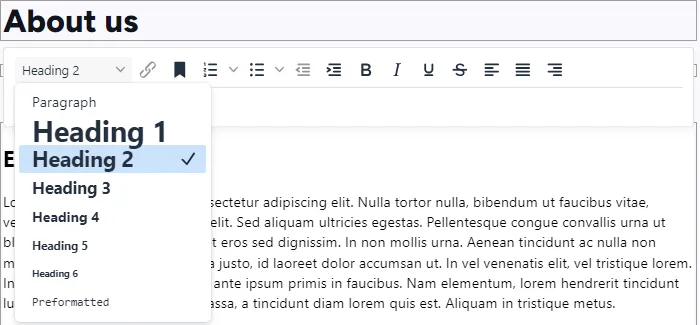
The Paragraph option shows a drop-down menu with preset style formats for text formatting.
Editor keyboard shortcuts
You can use many of the standard keyboard shortcuts in the rich-text editor. The following standard keyboard shortcuts are supported in the rich-text editor:
Command | Windows | Mac |
|---|---|---|
Select all | CTRL+A | CMD+A |
Copy | CTRL+C | CMD+C |
Cut | CTRL+X | CMD+X |
Paste | CTRL+V | CMD+V |
Undo | CTRL+Z | CMD+Z |
Redo | CTRL+Y | CMD+Y |
Find and replace | CTRL+F | CMD+F |
Insert link | CTRL+K | CMD+K |
Bold | CTRL+B | CMD+B |
Italic | CTRL+I | CMD+I |
Underline | CTRL+U | CMD+U |
Paragraph break | Enter | CTRL+O |
Line break | Shift+Enter | Shift+Enter |
H1–H6 headings | ALT+Shift+1–6 | CTRL+ALT+1–6 |
Focus to toolbar | ALT+F10 | ALT+F10 |
Toggle fullscreen | CTRL+Shift+F | CTRL+Shift+F |
📘 Note Certain shortcuts may not work as described depending on customizations and the browser you are using.