Create a page
3 min
This topic describes how to create a page in the CMS (SaaS).
- You can create a page in the following ways:
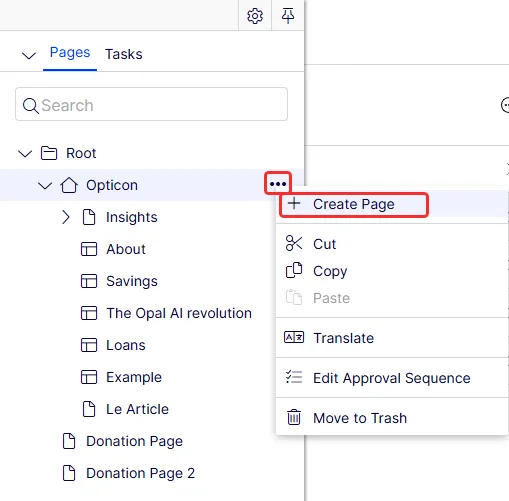
- Content tree – Select More from an existing page and select Create Page.
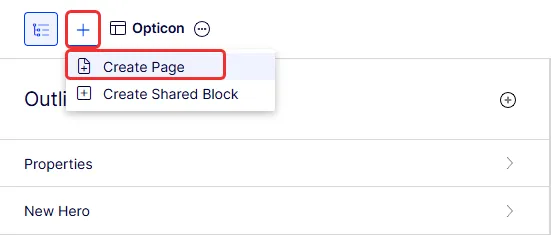
- Create Content – Select Create Content > Create Page.
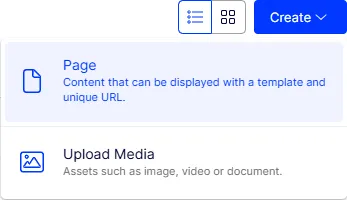
- Content Manager – Select Create > Page. The Create Page page displays.
- Enter a name for the new page and select a template to start from. You can preload a template with your page and customize it by adding or removing elements. (Select the Blank Experience template to build your page from scratch.) The following image shows a template selected by filtering Start from by the template's name.
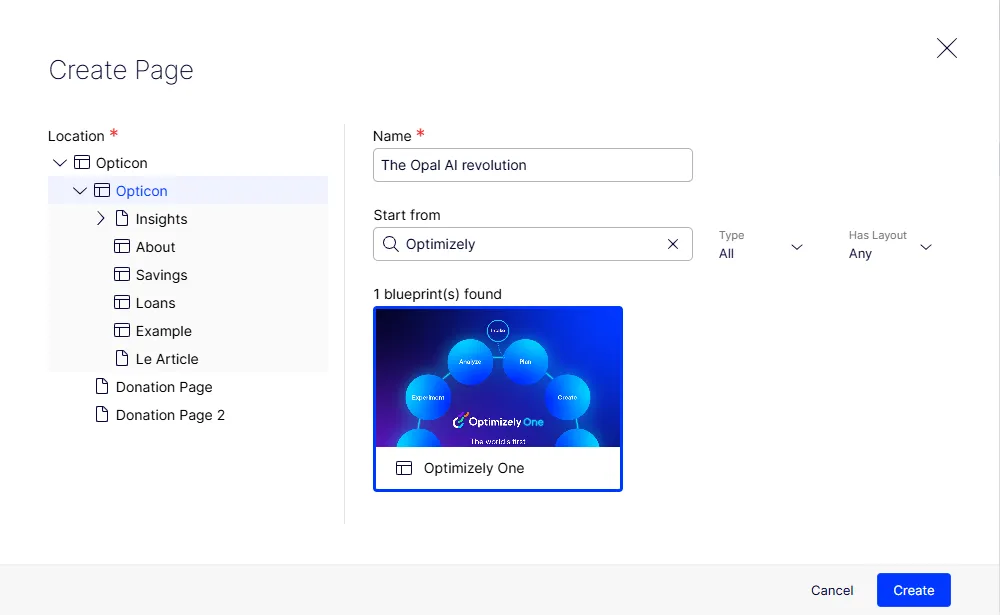
- Click Create. CMS (SaaS) creates the new page loaded with the template you selected (or nothing if you selected Blank Experience).
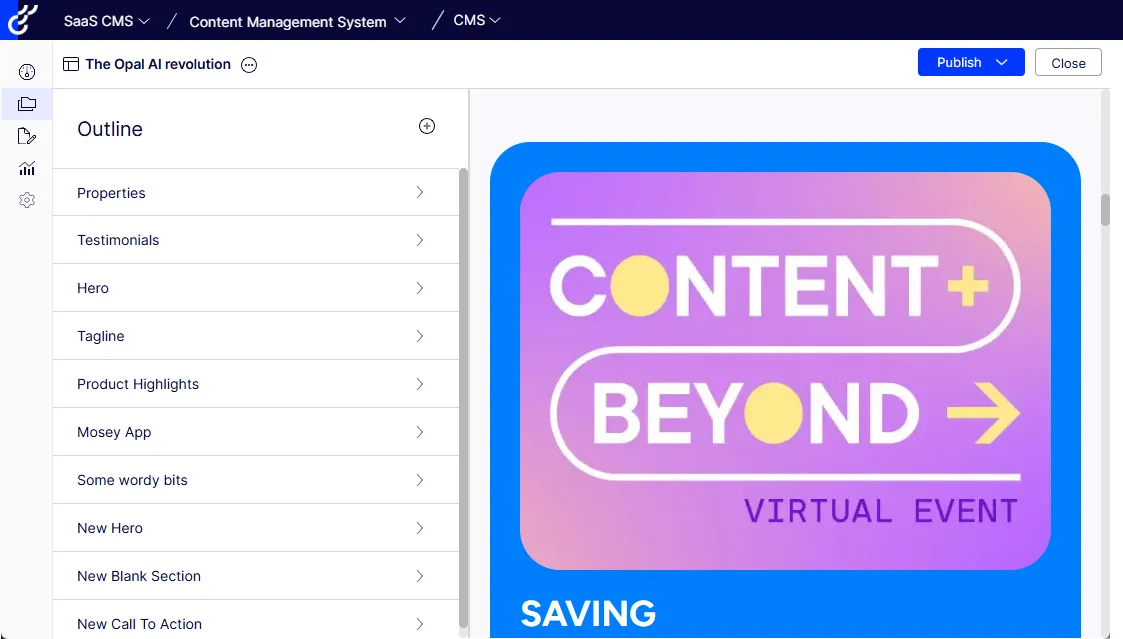
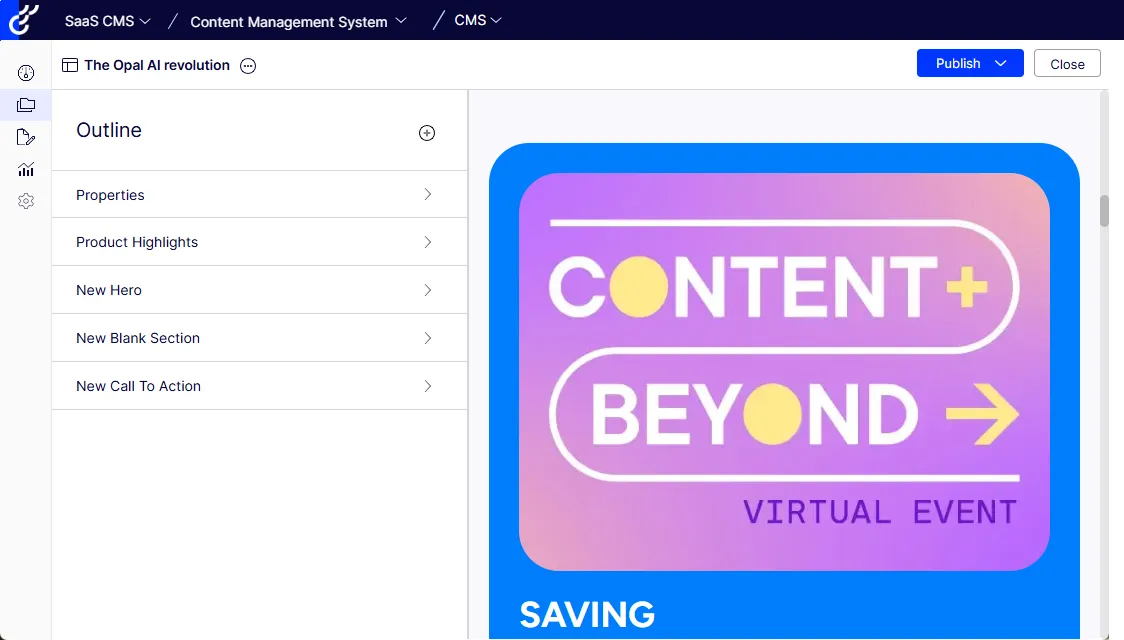
- You can delete (or add) selections to customize the page. See Create Visual Builder content from a blueprint for information.
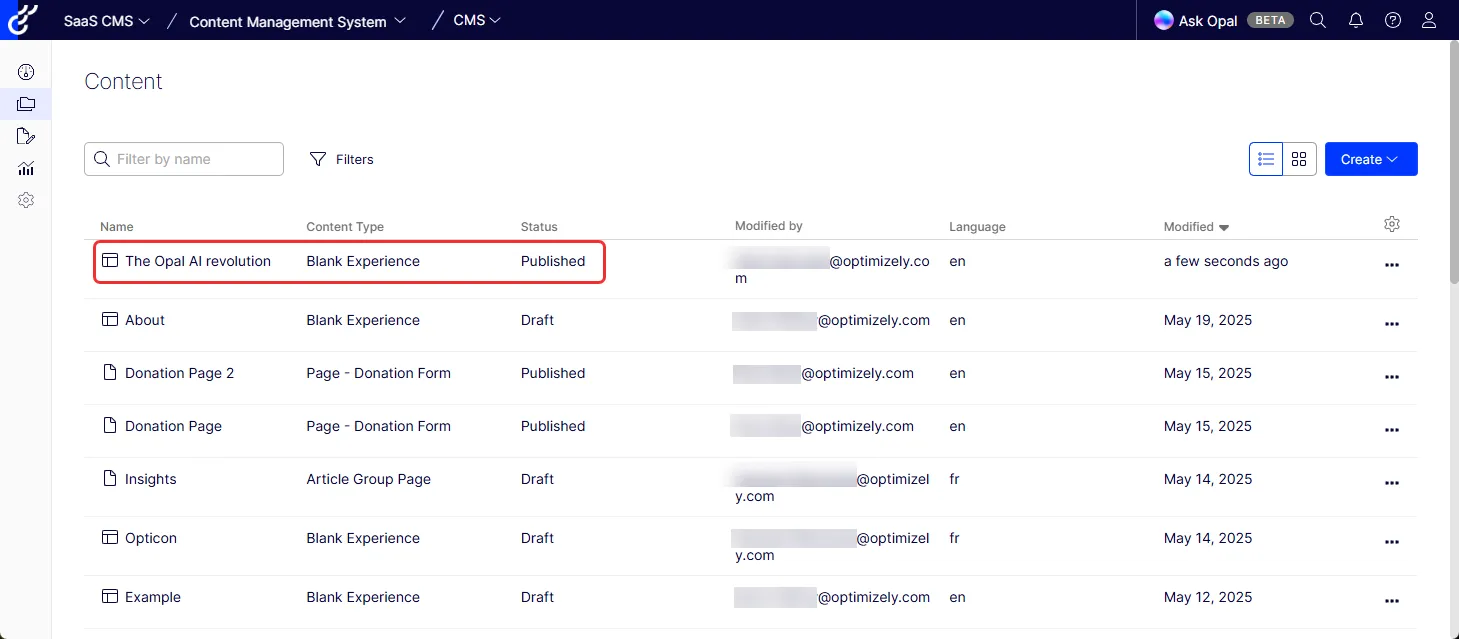
- When you leave the editor and go to Content Manager, the new page is listed among the content. You can double-click it to edit the page.
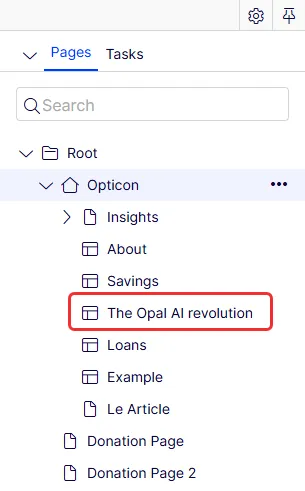
The new page is also listed in the Page tree.
See the following topics to enhance your content further: