Authentication
5 min
How to authenticate with the Opti ID User Management and SCIM APIs.
Opti ID User Management APIs
The Opti ID User Management APIs require an OAuth 2.0 bearer token. To get your bearer token:
- Go to the Opti ID home dashboard.
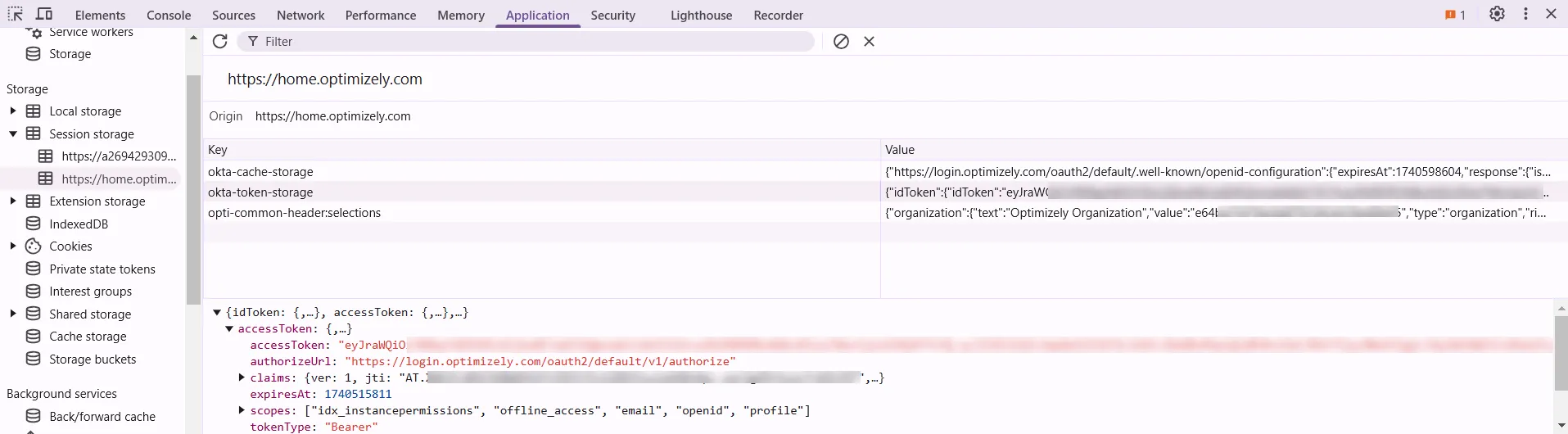
- Open your browser's developer tools. You can get your bearer token on the Console or Application tab:
- Console tab – Run the following command and copy the token that is returned:
JSON.parse(sessionStorage.getItem("okta-token-storage")).accessToken.accessToken
- Application tab – Go to Session storage >https://home.optimizely.com > okta-token-storage, then expand and copy the accessToken value.
- Include your bearer token in the headers of your Opti ID User Management API requests. For example:
curl --request GET \
     --url https://usermgmt-api.optimizely.com/api/attributes \
     --header 'accept: application/json' \
     --header 'authorization: Bearer examplebearertoken'
Opti ID SCIM APIs
The Opti ID SCIM APIs require an API key that you must request from Optimizely Support. Store your API key safely and include it in the headers of your Opti ID SCIM API requests. For example:
curl --request GET \
     --url https://identity-api.optimizely.com/api/scim/v2/groups \
     --header 'accept: application/json'
     --header 'Authorization: exampleapikey' \
Try it feature
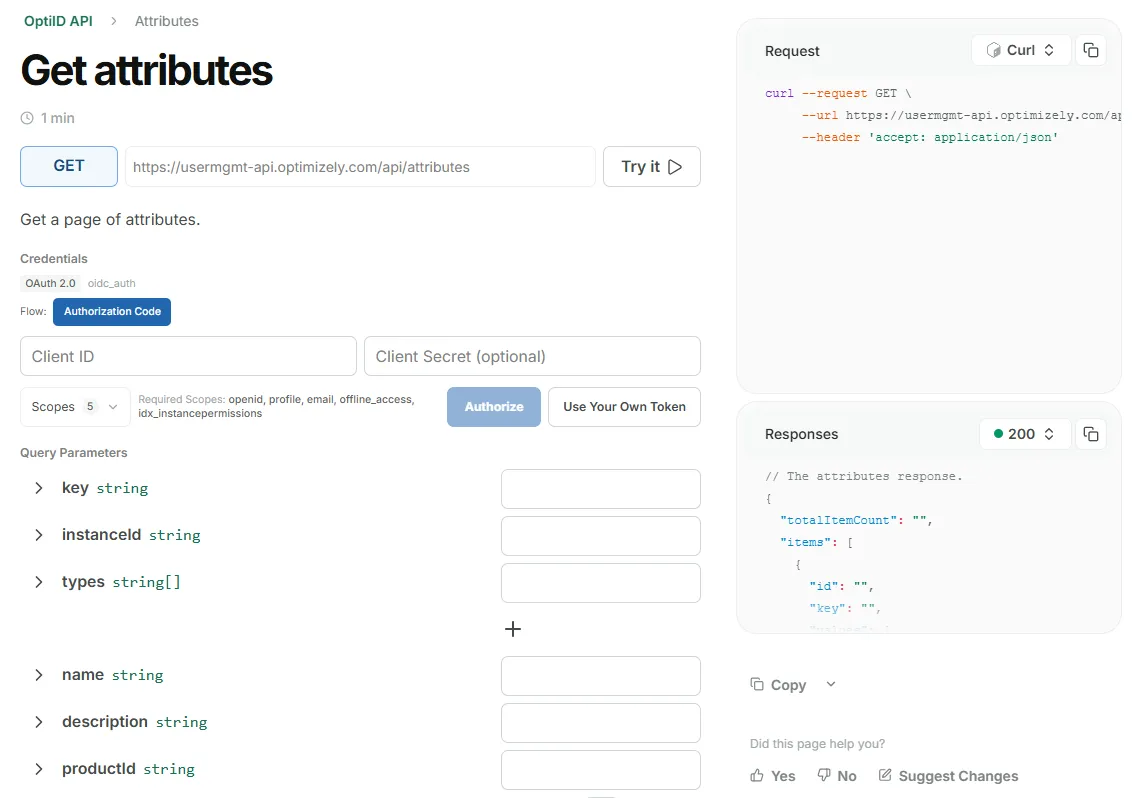
Each endpoint page in the API reference has an interactive Try it panel that sends real requests from your browser. To use it:
- In the Credentials section, provide your authentication:
- Opti ID User Management API – click Use Your Own Token and paste the bearer token you copied above.
- Opti ID SCIM API – enter the API key you requested from Optimizely Support.
- Fill in any required path, query, or body parameters.
- Click Try it to send the request and view the response.
🚧 ImportantThe Try it feature makes requests against your production data, so use caution when making any requests that change your data (POST, PUT, PATCH, and DELETE).