Configure Google Analytics 4 (GA4)
This is a third-party integration and is not an Optimizely subprocessor. See Optimizely's Third-Party Add-Ons & Platform Integration Terms.
If you use Google Analytics to monitor your project’s traffic, you can view the results of your Optimizely experiments alongside the rest of the data that Google Analytics collects.
Configure GA4 in Feature Experimentation
You can use a custom notification listener to configure GA4 in Optimizely Feature Experimentation. Notification listeners let you programmatically observe and act on various events within the SDKs.
For information on how to configure a notification listener, select the corresponding SDK to view the developer documentation:
- JavaScript (Browser) SDK – SDK versions 5.3.5 and below
- JavaScript (Node) SDK – SDK versions 5.3.5 and below
The following examples use the JavaScript (Browser) SDK.
Example onDecision listener.
const {
  createInstance,
  createPollingProjectConfigManager,
  NOTIFICATION_TYPES
} = require("@optimizely/optimizely-sdk");


const projectConfigManager = createPollingProjectConfigManager({
	sdkKey: ""
})

const optimizely = createInstance({
	projectConfigManager
});

const onDecision = ({ type, userId, attributes, decisionInfo }) => {
  // Add a DECISION Notification Listener for type FLAG
  if (type === 'flag') {
    // Access information about feature, for example, key and enabled status
    console.log(decisionInfo['flagKey']);
    console.log(decisionInfo['enabled']);
    console.log(decisionInfo['decisionEventDispatched']);
    if (decisionInfo['decisionEventDispatched']) {
      // Send data to analytics provider here
    }
  }
}

const notificationId = optimizely.notificationCenter.addNotificationListener(
  NOTIFICATION_TYPES.DECISION,
  onDecision
);
The notification listener returns the decision. It is possible to update what is returned by editing the onDecision notification listener. Review the Decision notifications listeners developer documentation for information.
Example of a targeted delivery decisionInfo object.

Example of an experiment decisionInfo object.

You can distinguish between a flag delivery (targeted delivery) or an experiment (A/B test or multi-armed bandit optimization) based on decisionEventDispatched. An experiment has this value set to true. A targeted delivery returns false, as there is no dispatched event for rollouts. See the decision event dispatched parameter developer documentation for information.
Integrate with or without Google Tag Manager
You can configure the integration between Optimizely and GA4 with or without Google Tag Manager (GTM). You should use GTM to track the data and variables sent by Optimizely, as it makes timing issues much more manageable.
GTM lets you push items to GTM’s data layer even while the integration end object is unavailable, such as the Google Analytics (GA) object. Using GTM is especially useful if you run a back-end experiment and pass that information to your front-end to send it to GA.
Alternatively, configuring GA4 without GTM requires manually tracking the events and variables sent by Optimizely and verifying that they are sent after GA is initialized.
With Google Tag Manager
Push Optimizely data to Google Tag Manager
Push each Optimizely decision to the GTM dataLayer so GTM can forward the flag, rule, and variation to GA4. Add the following code to your onDecision notification listener, where the JavaScript SDK example sends data to your analytics provider:
window.dataLayer = window.dataLayer || [];
dataLayer.push({
  // Must match the Event name of the GTM Custom Event trigger exactly
  'event': 'optimizely-decision-fs',
  'optimizely-flagKey': decisionInfo.flagKey,
  'optimizely-ruleKey': decisionInfo.ruleKey,
  'optimizely-variationKey': decisionInfo.variationKey,
});
Create user-defined variables in Google Tag Manager
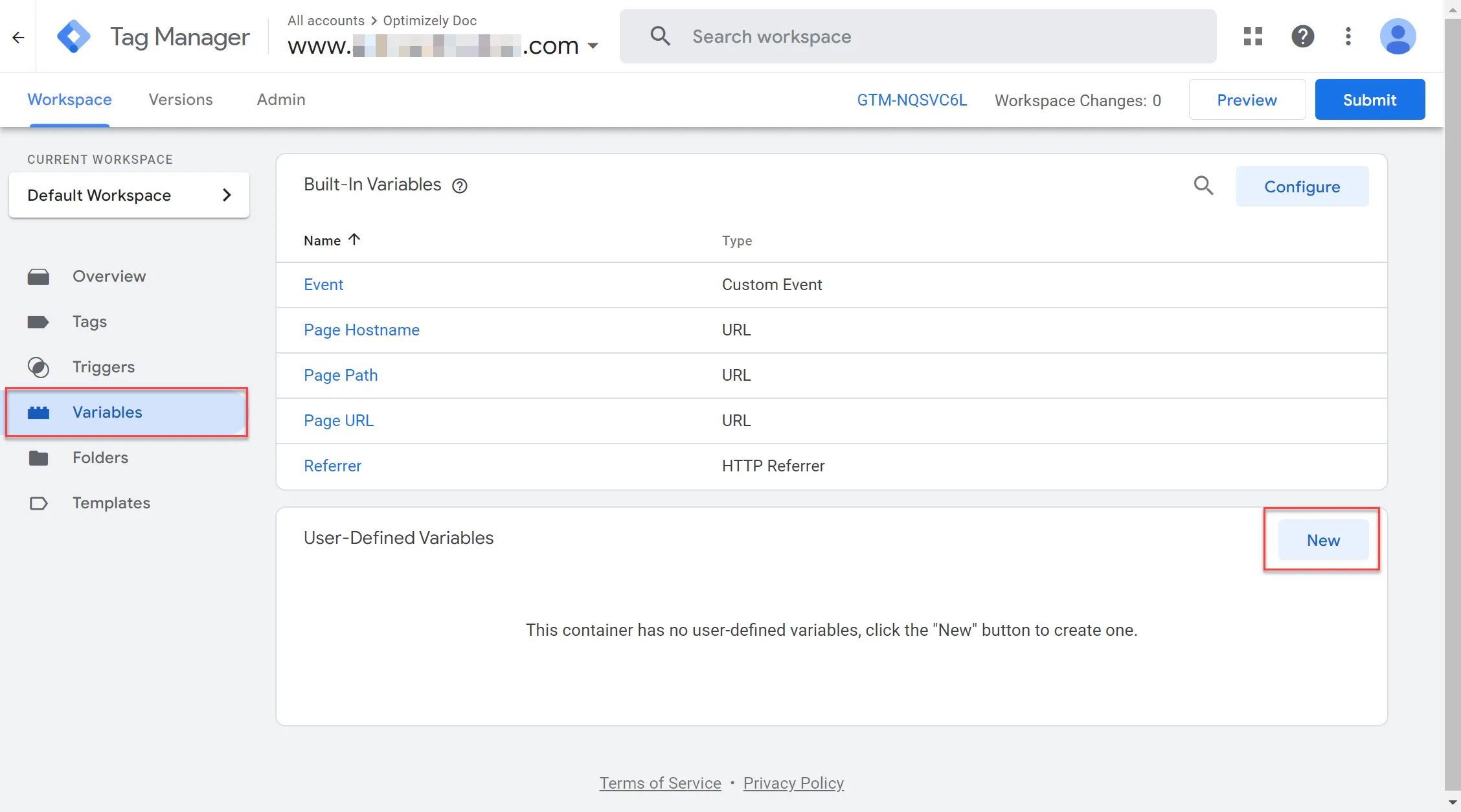
- Go to Workspace > Variables > New.
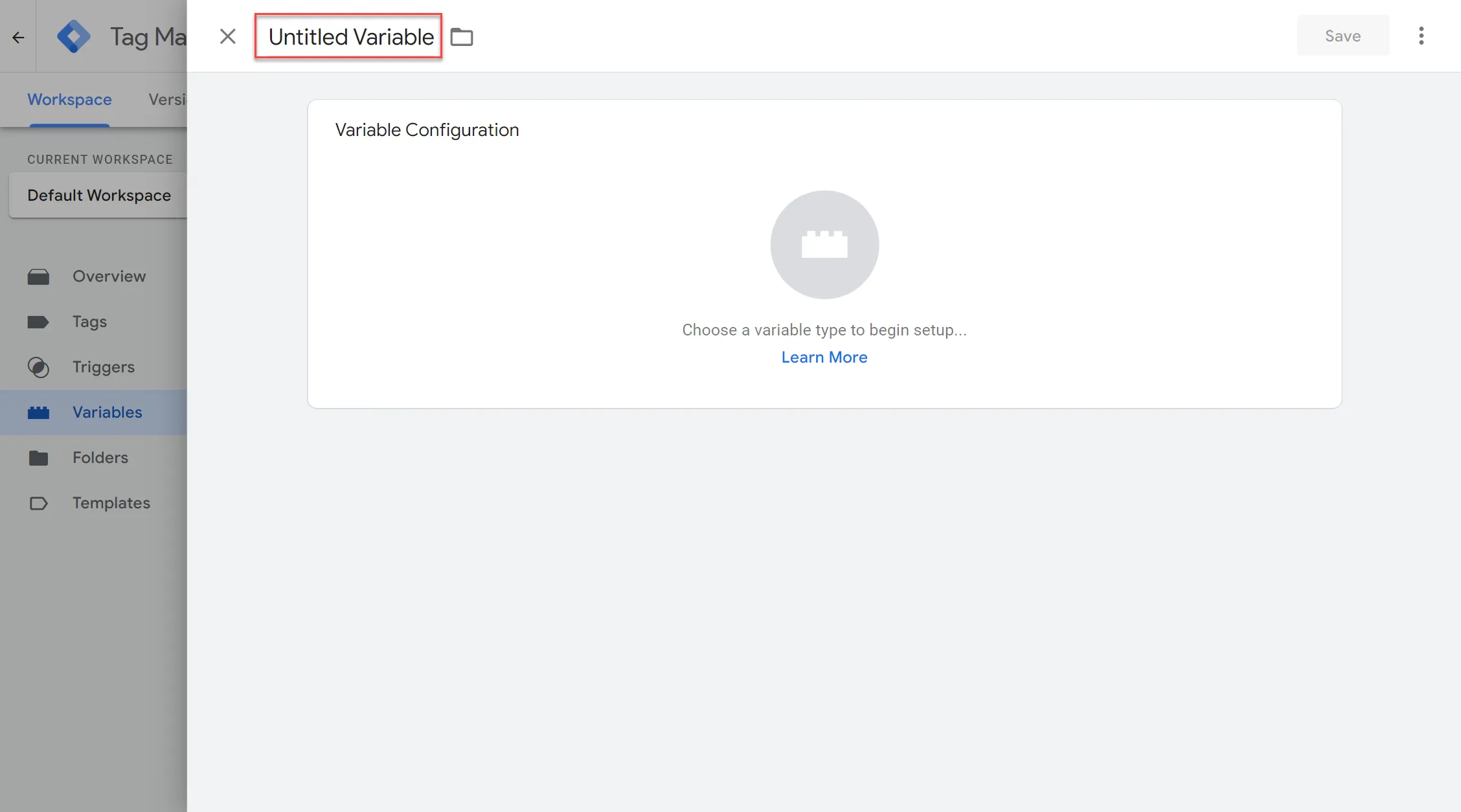
- Enter Optimizely - flagKey in the variable's name field.
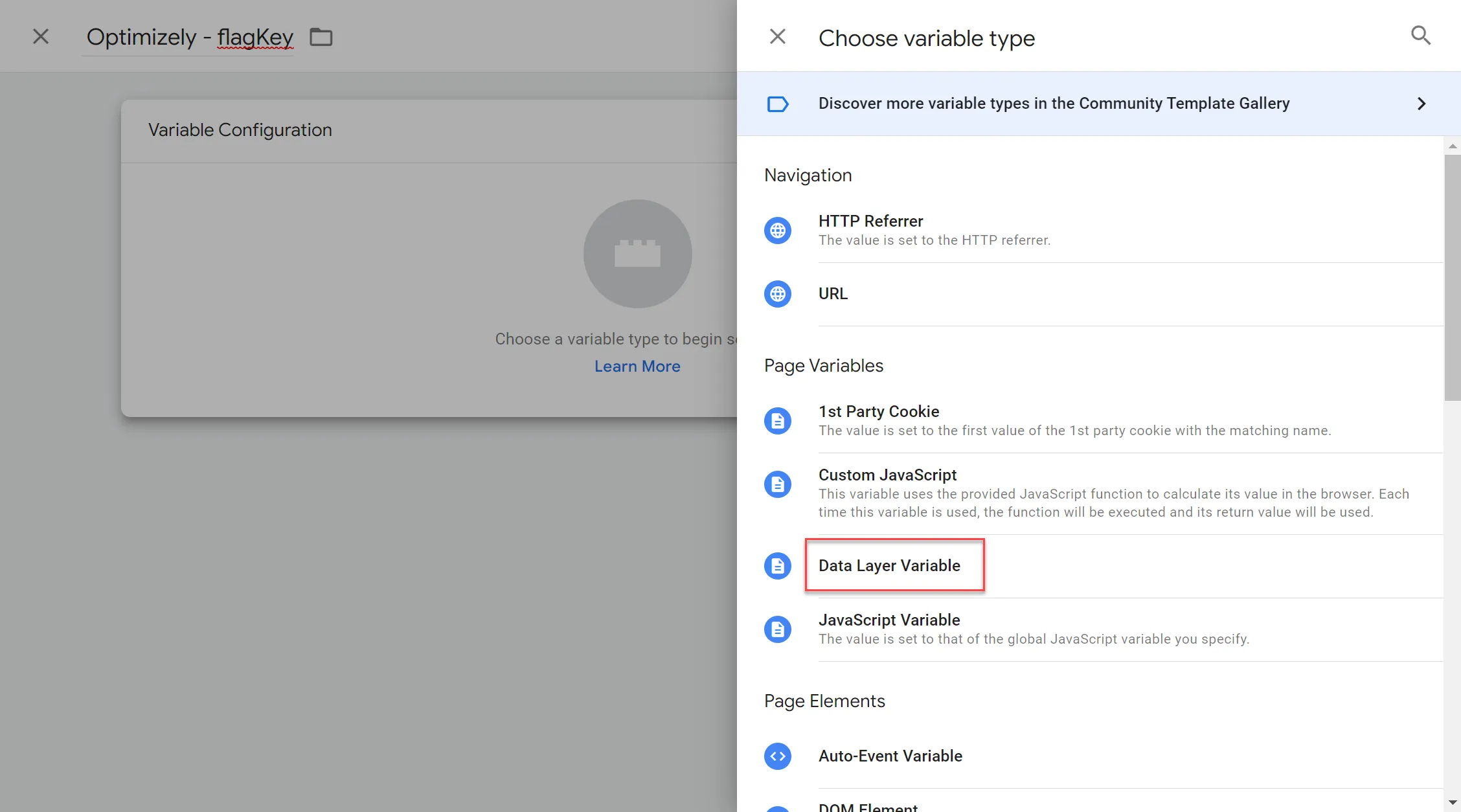
- Click Variable Configuration and select Data Layer Variable.
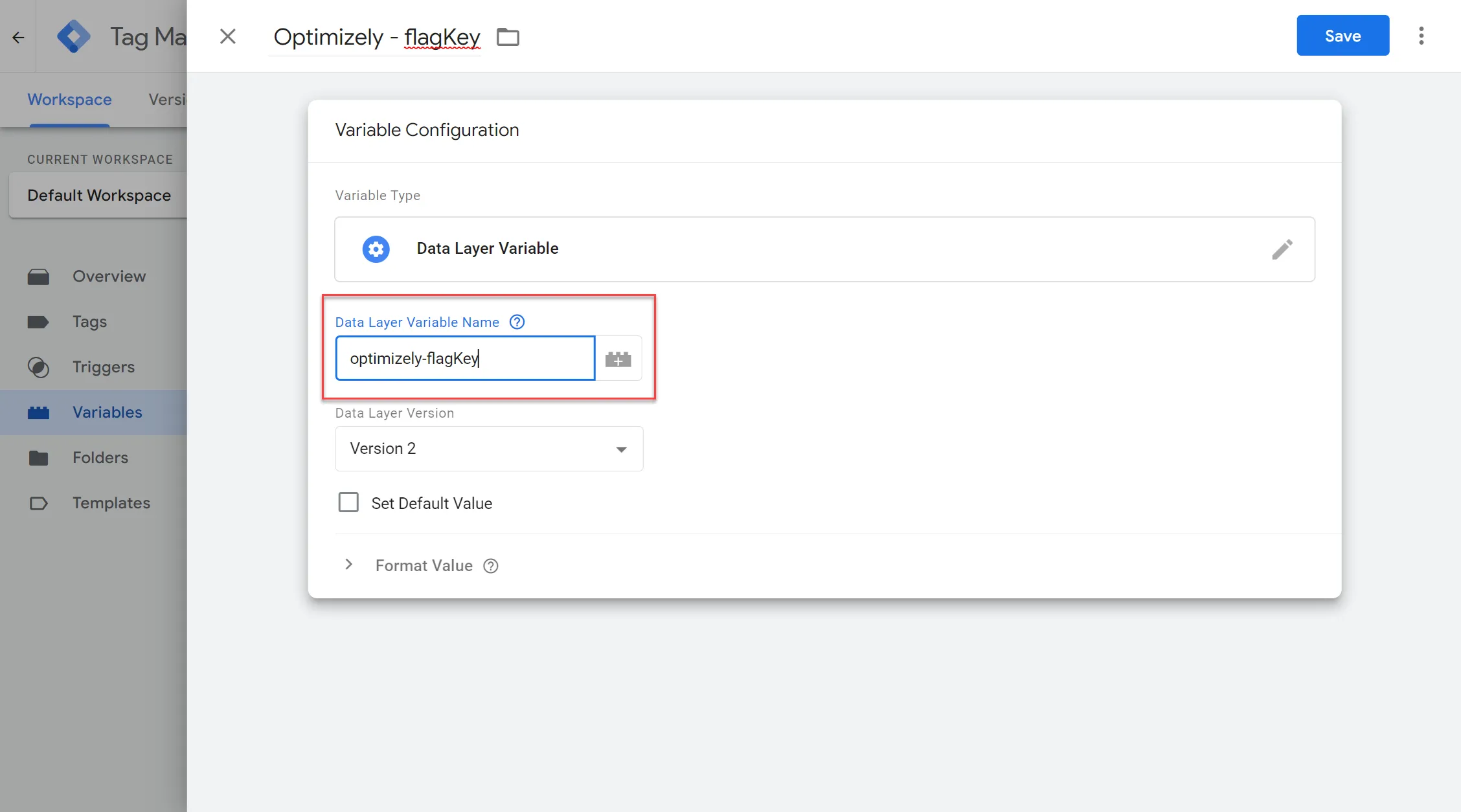
- In the Data Layer Variable Name field, enter optimizely-flagKey.
- Click Save.
- Repeat steps one through five to create a ruleKey and variationKey data layer variable with the following information:
Variable | Variable name | Data layer variable name |
|---|---|---|
ruleKey | Optimizely - ruleKey | optimizely-ruleKey |
variationKey | Optimizely - variationKey | optimizely-variationKey |
When completed, you should have the following user-defined data layer variables:
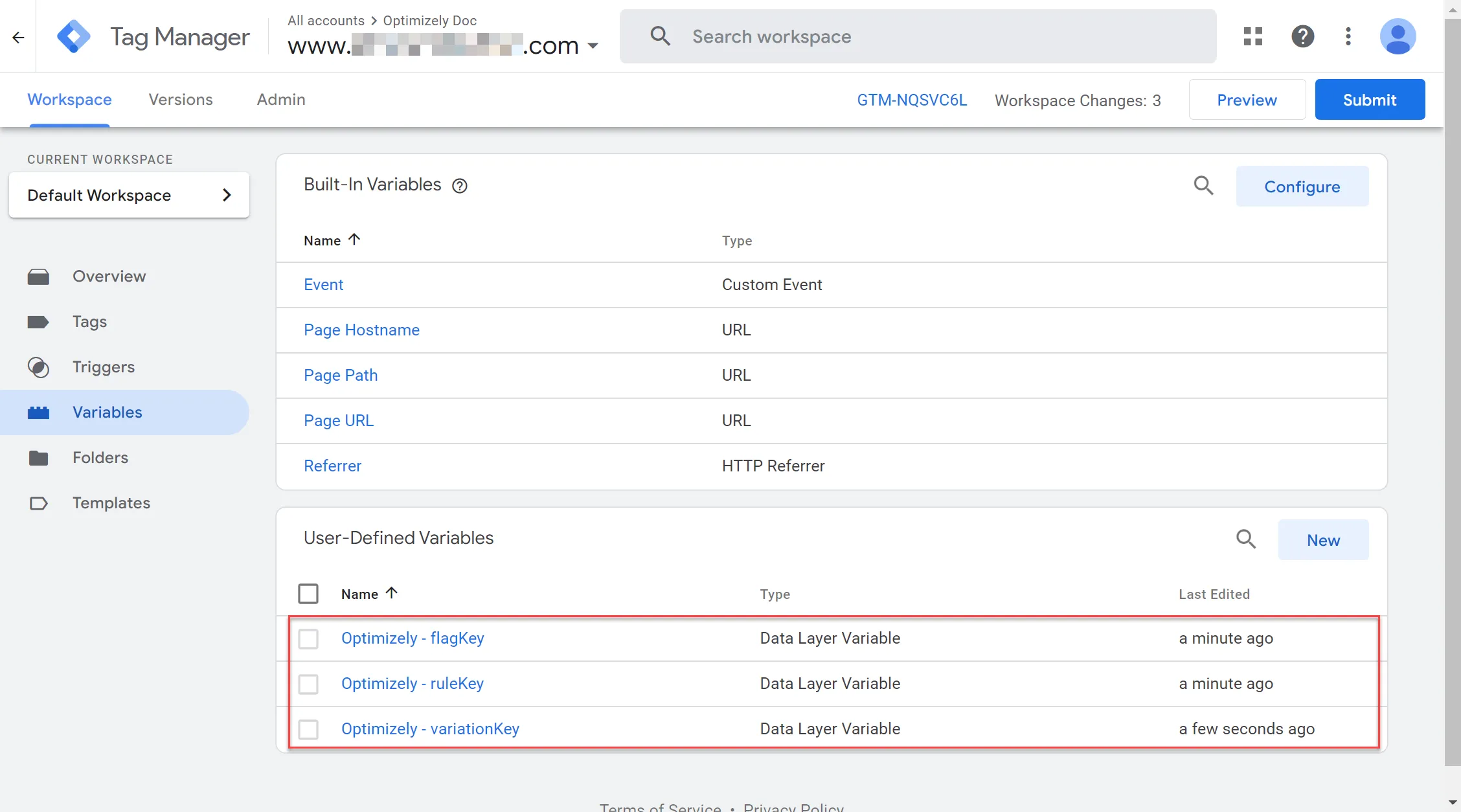
Configure the configuration tag in GTM
- Go to Workspace > Tags > New.
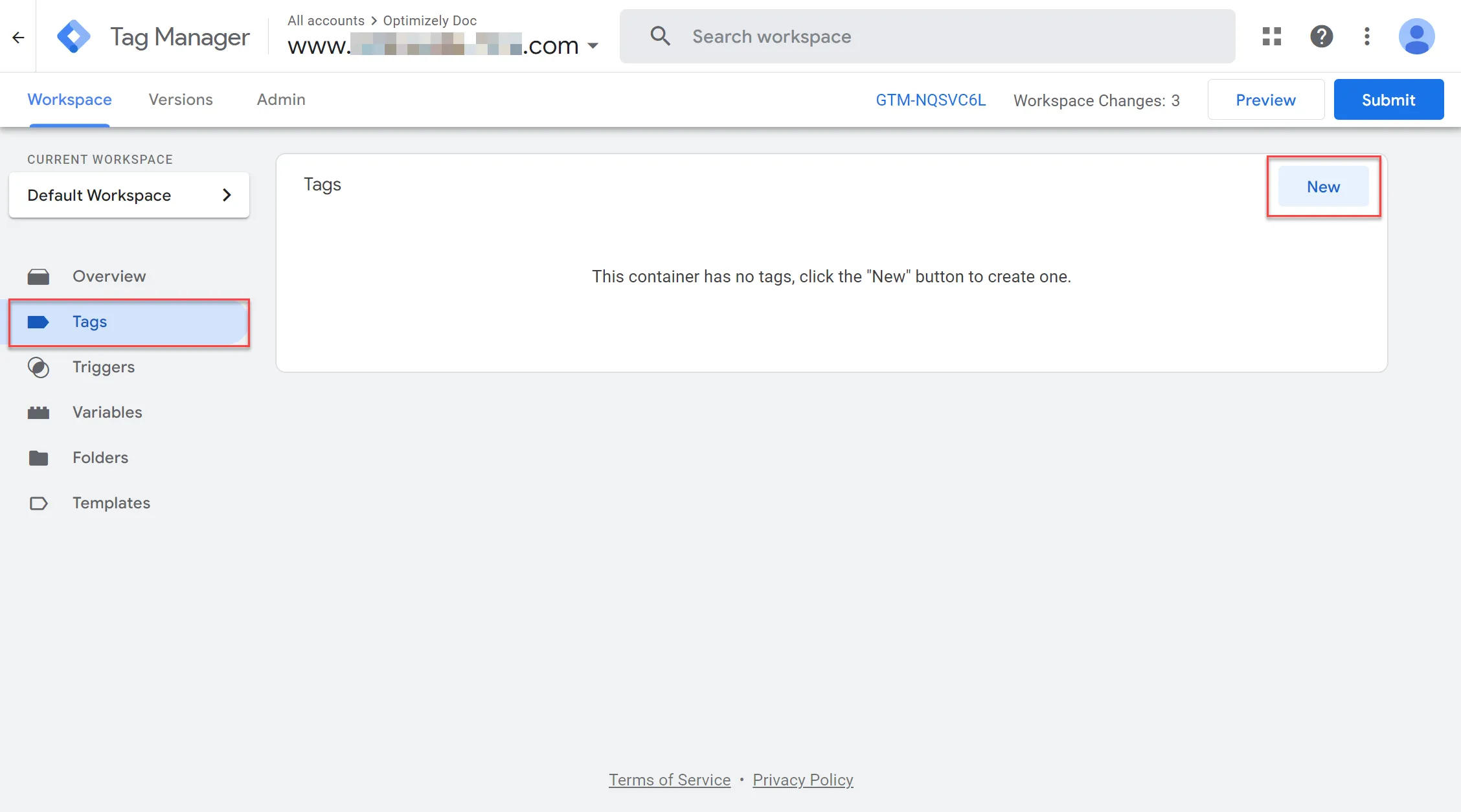
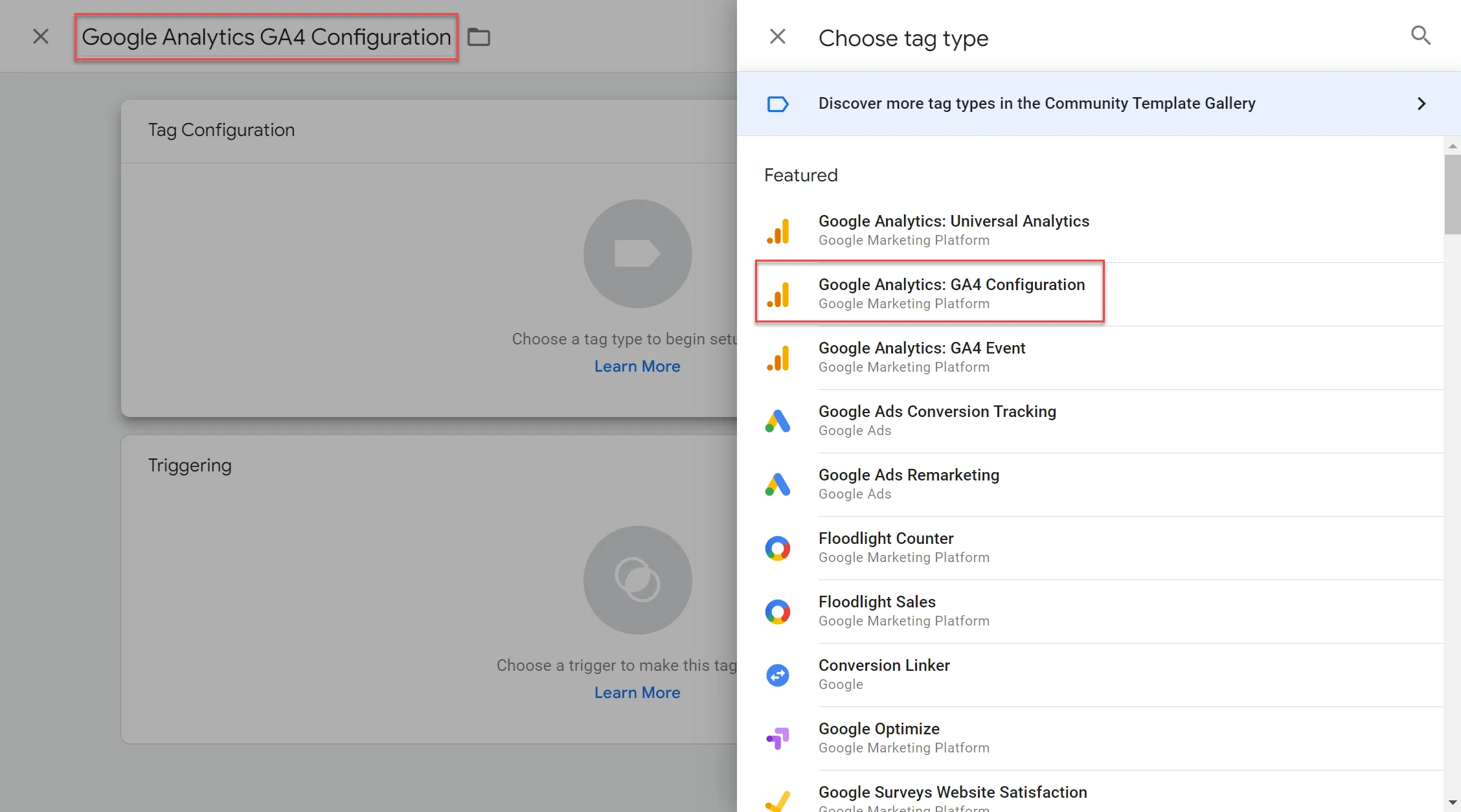
- Enter Google Analytics GA4 Configuration in the name field.
- Click Tag Configuration and select Google Analytics: GA4 Configuration. Enter your Measurement ID. For information on where to find your Measurement ID, refer to the GA4 documentation.
- Click Triggering and select Initialization - All Pages.
- Click Save.
Configure the event tag in GTM
- Go to Workspace > Tags > New.
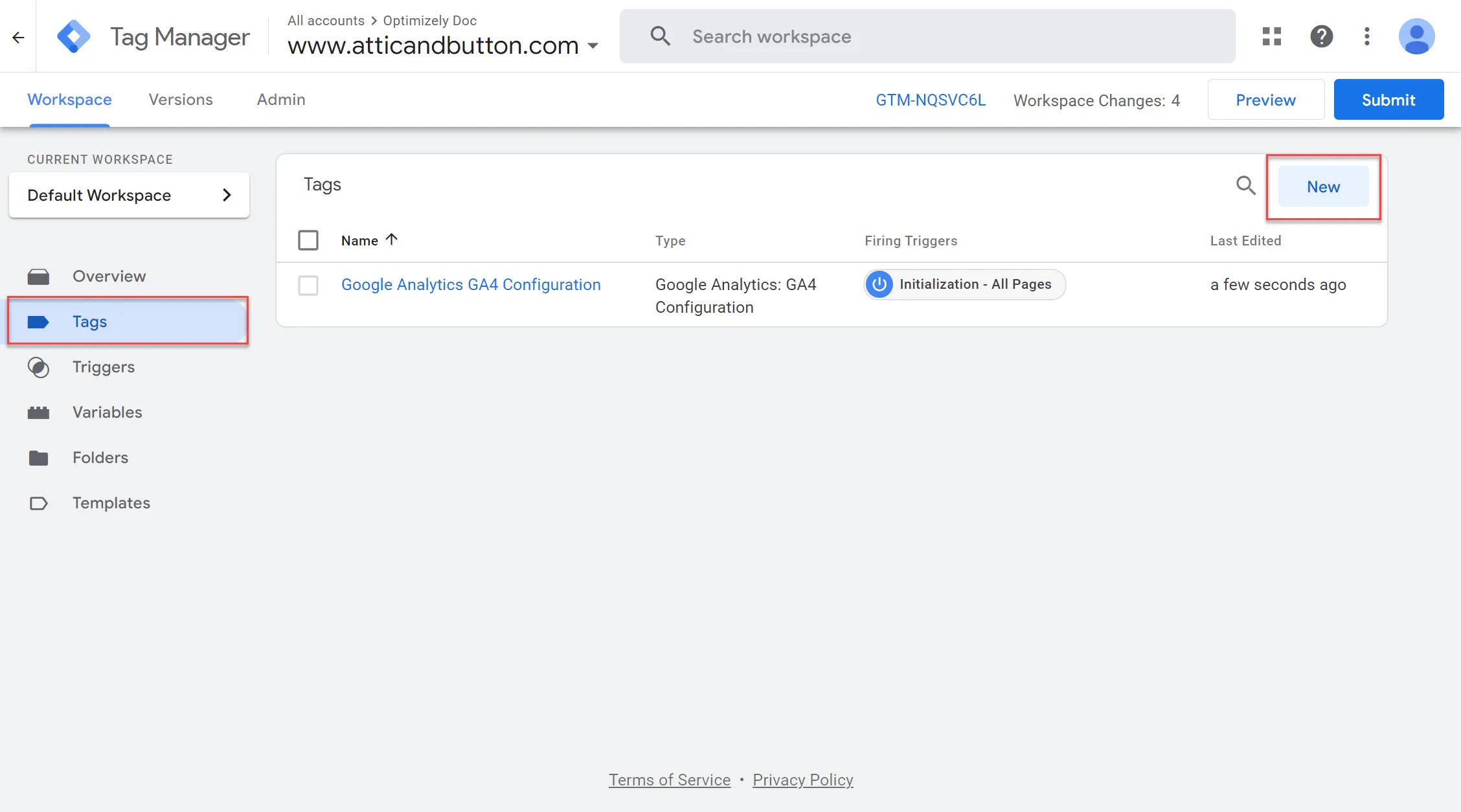
- Enter Optimizely - GA4 EventUpdate in the name field.
- Click Tag Configuration and select Google Analytics: GA4 Event.
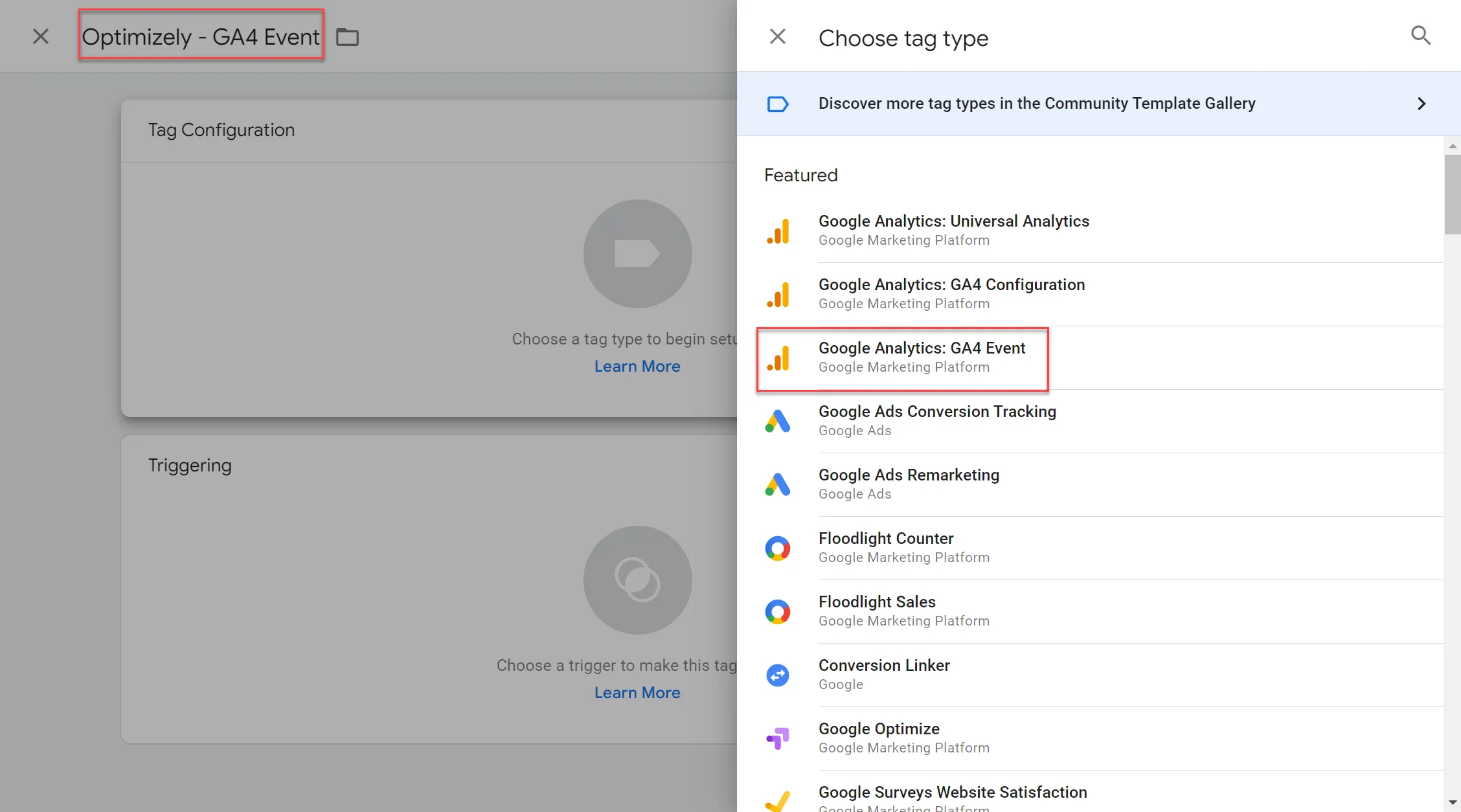
If you plan on creating both an Optimizely Web Experimentation experiment and a Feature Experimentation experiment, you may want to differentiate between your projects.
As a best practice, name your event: optimizely-decision-fs for Feature Experimentation and optimizely-decision-web for Web.
For instructions on setting up Optimizely Web Experimentation and GA4, review the corresponding documentation:
- Enter optimizely-decision-fs in the Event Name field.
- Select Google Analytics GA4 Configuration in the Configuration Tag drop-down menu.
- Expand Event Parameters. a) Select Add Row. b) Enter Flag in the Parameter Name field. c) In the Value field, select the Choose a Variable icon and select Optimizely - flagKey, which you created in Step two. d) Repeat steps a-c for Rule and Variation, selecting the corresponding data layer variable for each.
When complete, your Tag Configuration should look like the following:
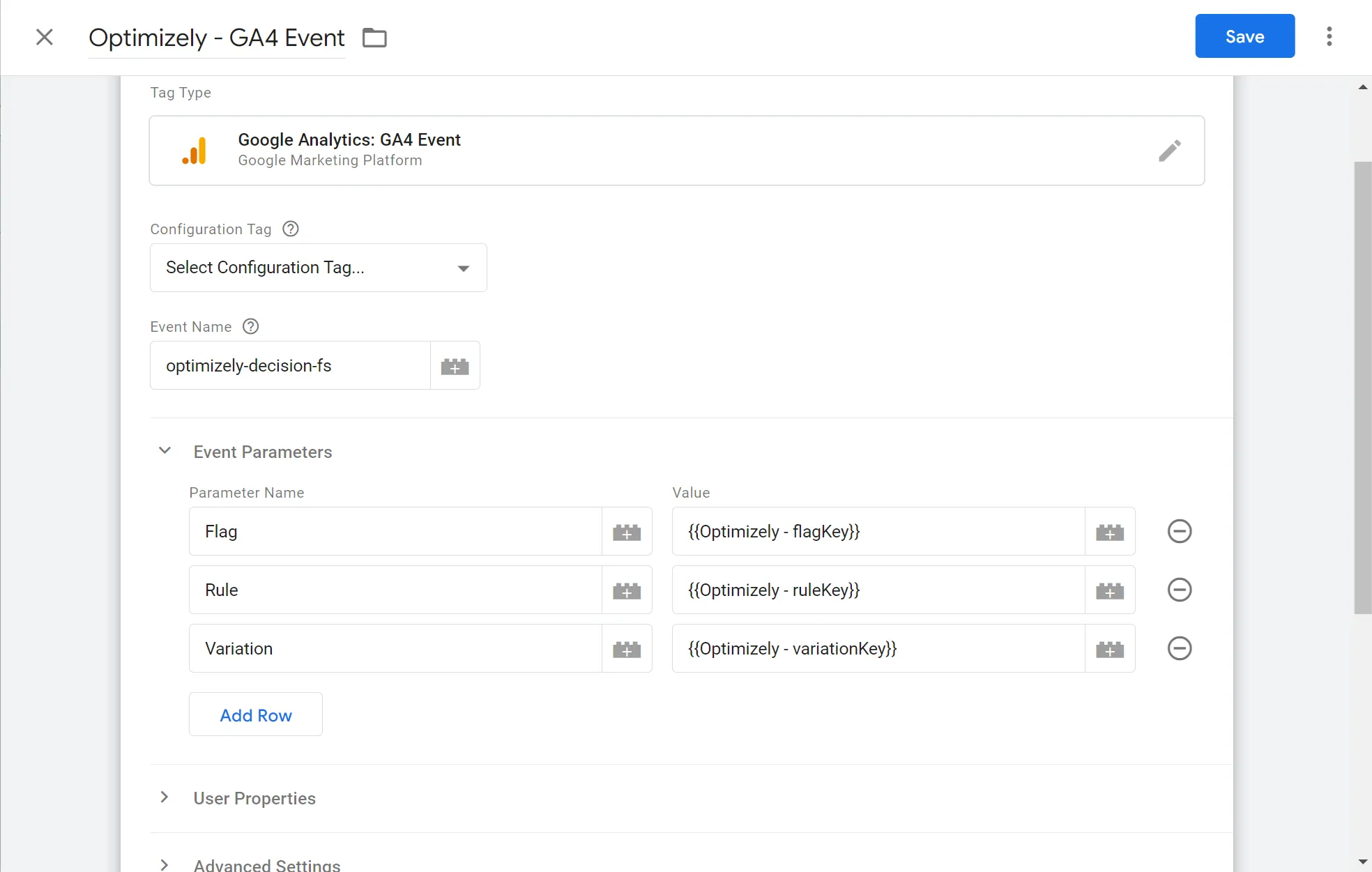
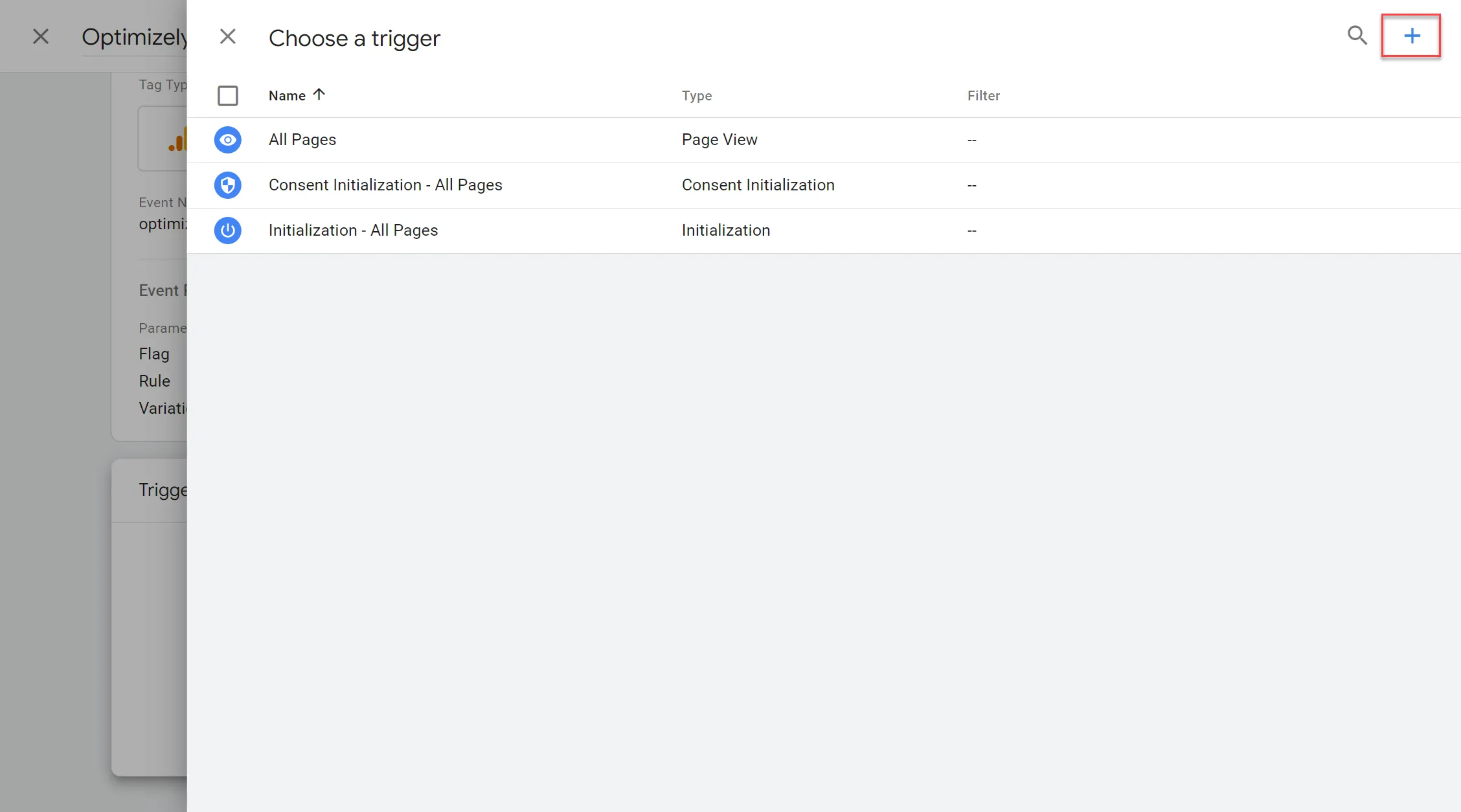
- Click Triggering and click New Trigger (+) to create the following trigger: a) Enter Optimizely - GA4 Trigger as the trigger name.
b) Click Trigger Configuration, scroll down, and select Custom Event.
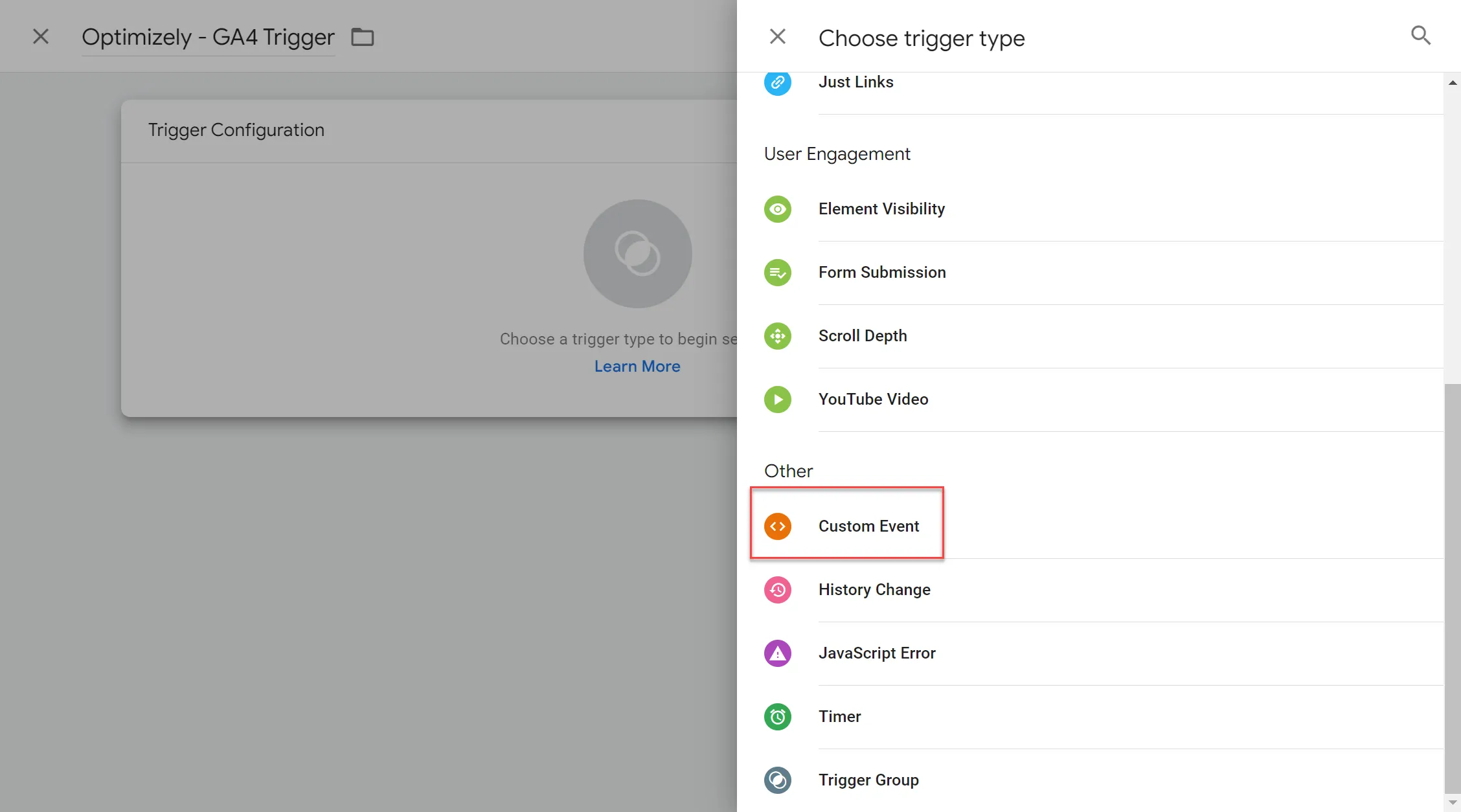
c) In the Event name field, enter optimizely-decision-fs. Click Save.
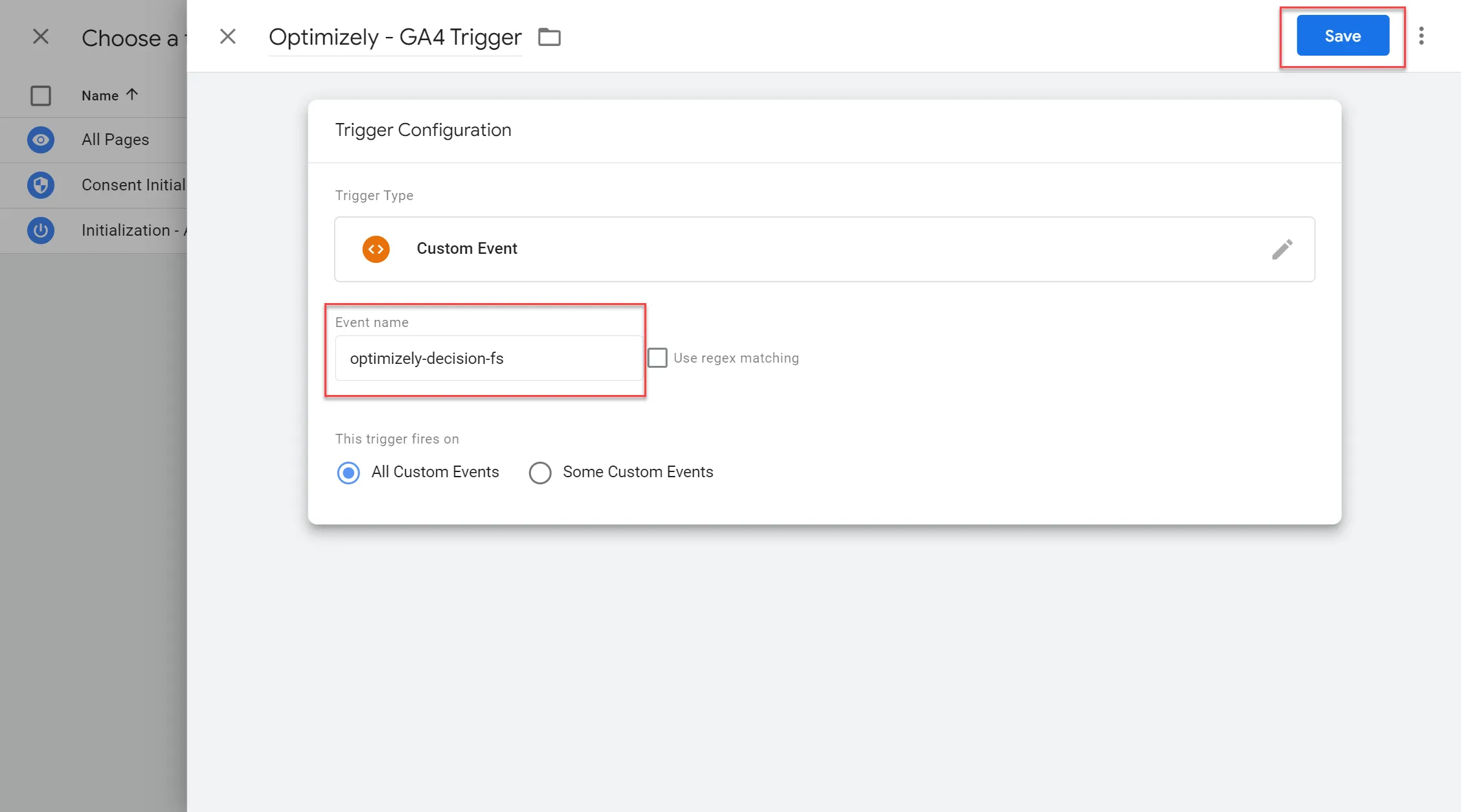
d) Then click Save again on the overall tag configuration page.
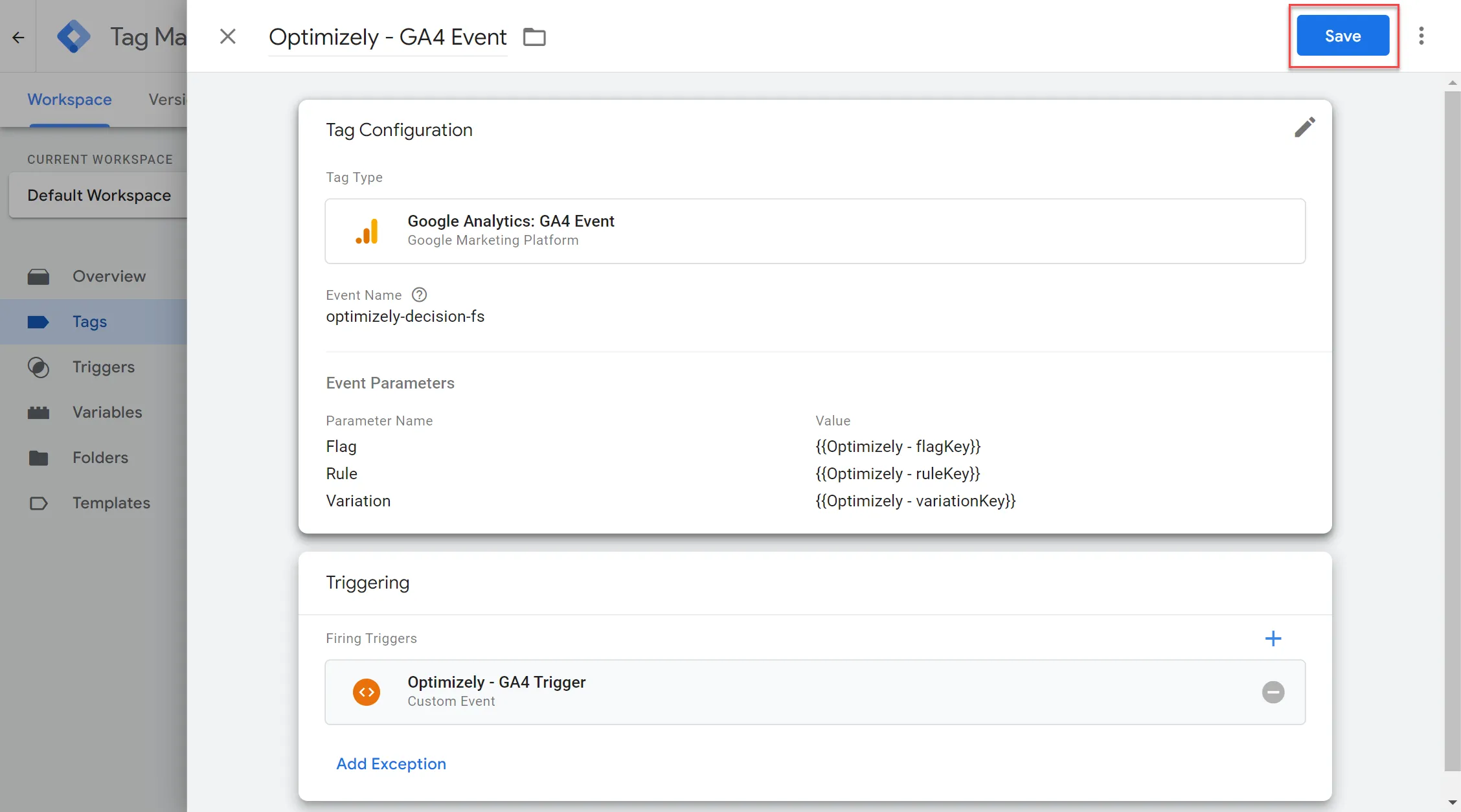
Match the event names in your code and GTM
Match the event names exactly so GTM sends every Optimizely decision to GA4. A GTM Custom Event trigger fires only when the event value in dataLayer.push equals the trigger Event name, including capitalization. When the names differ, the trigger does not fire. GA4 then reports (not set) for the Flag, Rule, and Variation parameters.
The following table lists the three event name settings and which ones must match:
Setting | Location | Must match |
|---|---|---|
event value | dataLayer.push code | Yes. Matches the trigger Event name, for example optimizely-decision-fs. |
Event name | GTM Custom Event trigger | Yes. Matches the event value in your code, for example optimizely-decision-fs. |
Event Name | GA4 Event tag | No. Sets the event name that GA4 reports display, so any name works. |
Verify the event in GTM preview mode
Test the setup in GTM preview mode before you publish. Preview mode catches a mismatched event name before data goes missing in GA4.
- In your GTM workspace, click Preview. Tag Assistant opens in a new tab.
- Enter the URL of a page that runs your Optimizely flag decision, and click Connect.
- Return to the Tag Assistant tab and click Continue.
- In the event timeline, select the optimizely-decision-fs event.
- Under Tags Fired, confirm that Optimizely - GA4 EventUpdate displays.
When the event is missing from the timeline, the dataLayer.push code did not run. Confirm that your notification listener runs when the SDK decides a flag.
When the event displays but the tag displays under Tags Not Fired, compare the names. The trigger Event name does not match the event value in your code.
Submit and publish GA workspace
Submit and publish your workspace changes by going to Workspace > Submit > Publish (adding any details you would like to the Submission Configuration).
You can then see results in GA, along with their sent values.
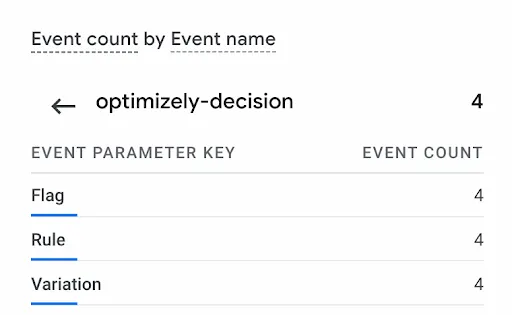
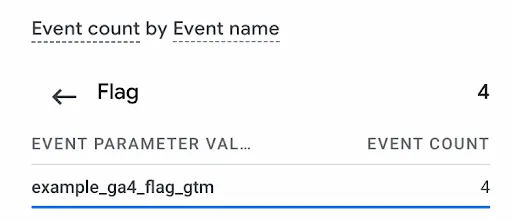
This can be verified by viewing the Realtime overview in the Reports tab of GA4.
Without GTM
You can directly push events to GA4 without using GTM, but tracking the events and variables sent by Optimizely is significantly more complicated.
To send Optimizely data to GA4, you use GA4’s Send events methods. For information, refer to GA4’s complete documentation on its send events methods.
Prerequisites
- Ensure that gtag is defined.
- Ensure you have GA4 initialized and ready to interpret variables returned by Optimizely.
For the JavaScript example, you would use the GA4 send events call. You would add the following sample call to your code base:
gtag("event", "optimizely-decision-fs", {
  Flag: decisionInfo.flagKey,
  Rule: decisionInfo.ruleKey,
  Variation: decisionInfo.variationKey
});
Within GA4, you can name your variables whatever you would like. You can remove or include any variables. But for a flag rule, you should use the following:
- flagKey
- ruleKey
- variationKey
Conclusion
The next step is to create segments in GA. Segments are a subset of your analytics data. Review the Create segments for Google Analytics 4 documentation for complete instructions.