Manage scheduled changes in Feature Experimentation
3 min
- Optimizely Feature Experimentation
- Turn a flag on or offon or off.
- Play or pausePlay or pause a rule.
- Update the percentage of traffic included in a rule.
- Update the targeted audienceaudience.
Note
If you intend to change the traffic's ramp percentage after running the experiment, you will need to implement a user profile service before starting the experiment.
For information, see Ensure consistent user bucketingEnsure consistent user bucketing.
Create a scheduled change
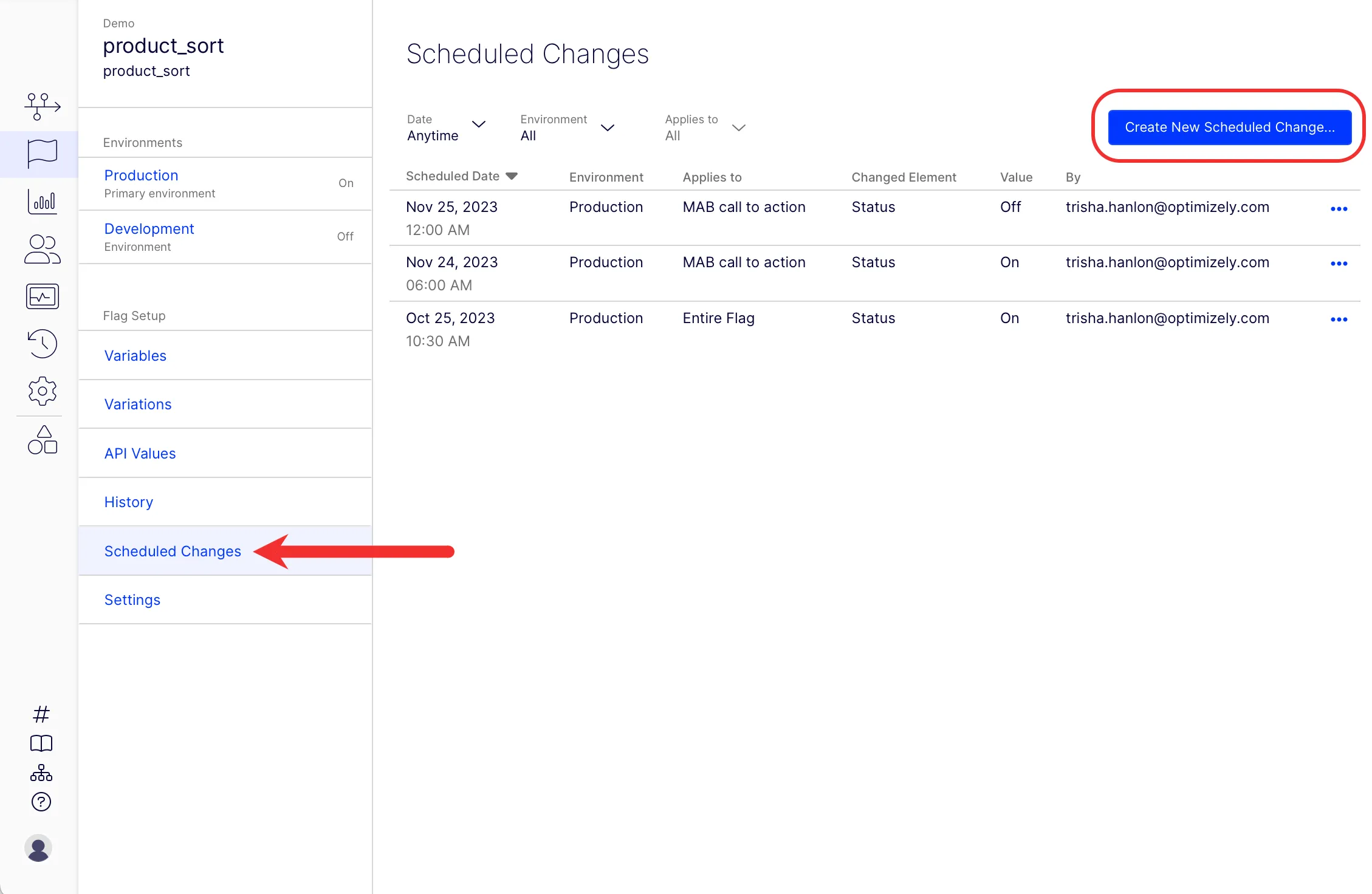
- Select a flag from the Flags list.
- Click the Scheduled Changes tab.
- Click Create New Scheduled Change.
- Select the Date, Time, Time zone, and Environment from the respective drop-down lists.
- Select if the Change applies to the entire flag or an individual rule.
- Select Changed element and add the changes you want to schedule.
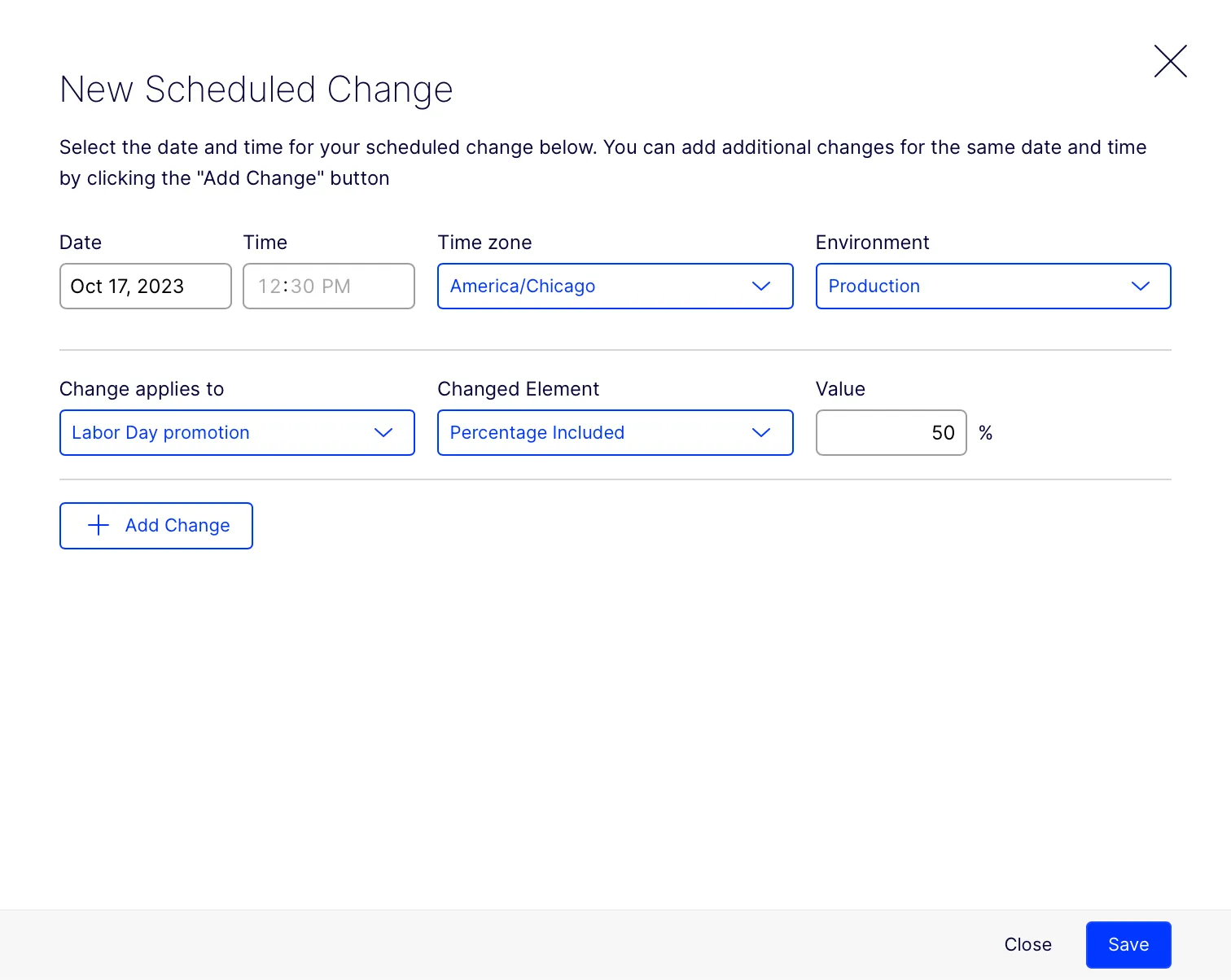
- (Optional) To add more changes, click Add Change and repeat steps 4-6.
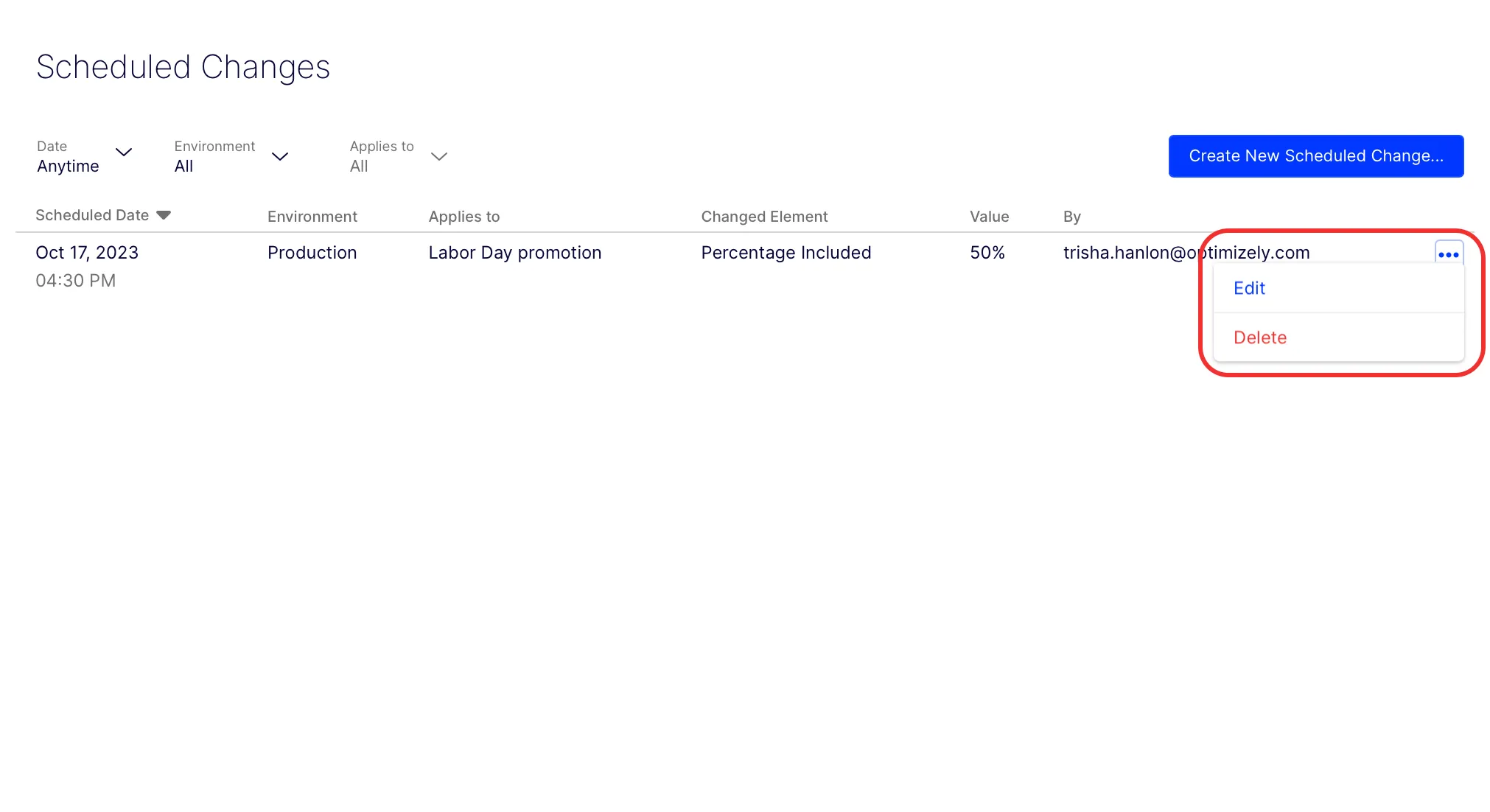
- Click Save. Your scheduled event displays in the scheduled events list.
Warning
You should not change your experiment while it is running. For information, see Why you should not change a running experimentWhy you should not change a running experiment.
Edit or delete a scheduled event
Click More options (...) next to the scheduled change you want to change or delete.
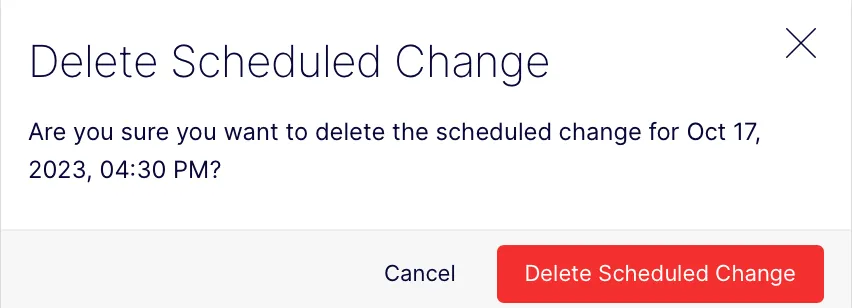
Click Delete Scheduled Change to confirm the removal of the scheduled change.