Idea builder for Optimizely Experimentation
Products
- Optimizely Web Experimentation
- Optimizely Feature Experimentation
Idea builder is a dedicated tool in Optimizely Experimentation that helps you generate experiment ideas using Mark, Optimizely's agent orchestration platform. Provide structured context about your page, goal, and research, and Mark returns specific, actionable test ideas you can save, refine, and act on. Mark can analyze a single page or a multi-step flow.
Idea builder works best when you also have additional context ready, such as a heatmap image, qualitative research documents, or notes from your analytics tool. These inputs are optional but improve the quality of generated ideas.
Access Idea builder
Click Ideas.
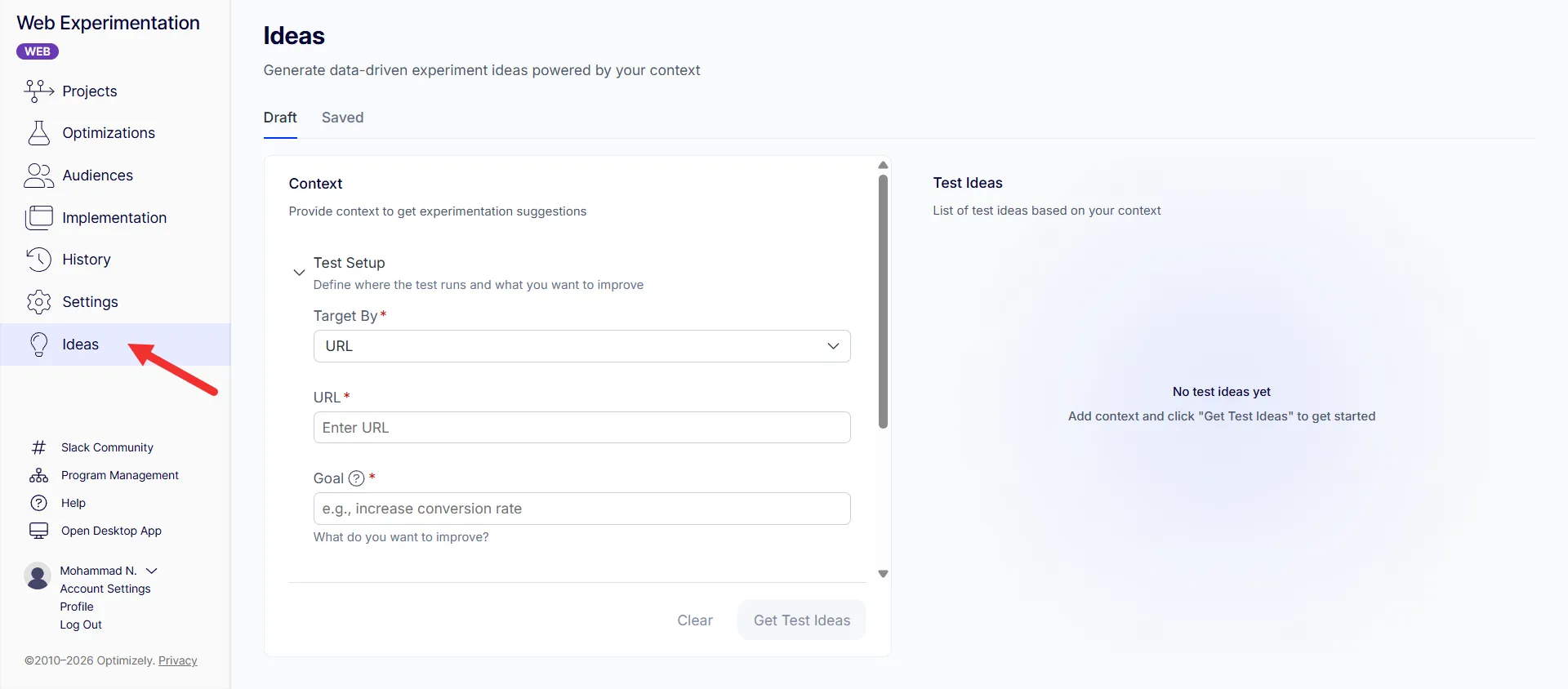
The Ideas page displays two tabs: Draft and Saved.
The context panel contains three collapsible sections: Test Setup, Research, and Sources.
Provide page context
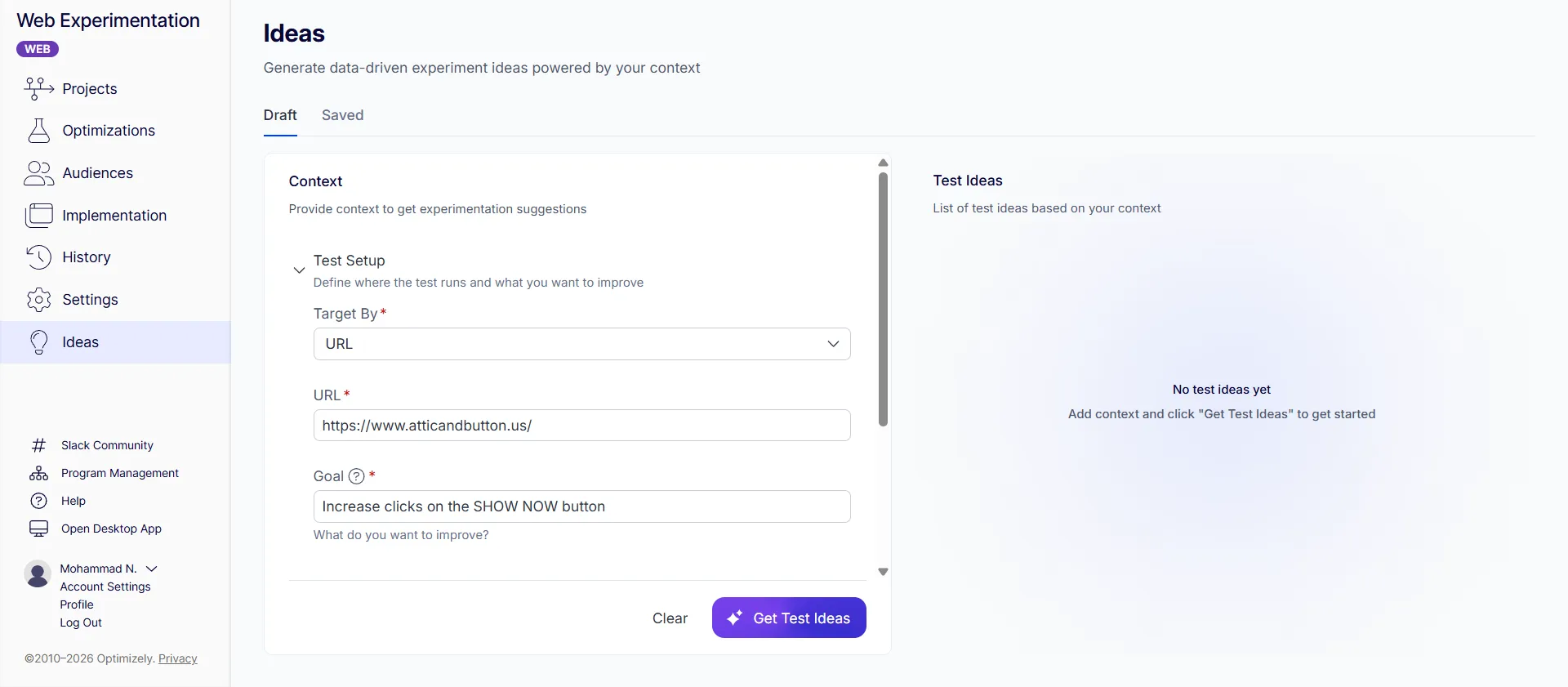
The Test Setup section is where you define where the test runs and what you want to improve.
Use the Target by drop-down list to select one of the following:
- URL – Enter a page URL for Mark to analyze. To analyze a multi-step flow, click + add up to four URLs, such as a product detail page, cart, and checkout page. Mark evaluates the full flow and suggests the best ideas across all the pages.
- Screenshot – Upload an image of the page you want to analyze. Drag and drop the image or click Add to upload.
In the Goal field, enter the primary outcome you want this experiment to achieve. For example, enter Increase demo bookings or Improve step 1 to step 2 conversion. A clear goal helps Mark focus ideas on the behavior you want to change.
Add optional context
The following sections are optional but improve the relevance of generated ideas:
Research
The Research section lets you add qualitative insights or files that explain user behavior and problem areas. Click Research to expand it.
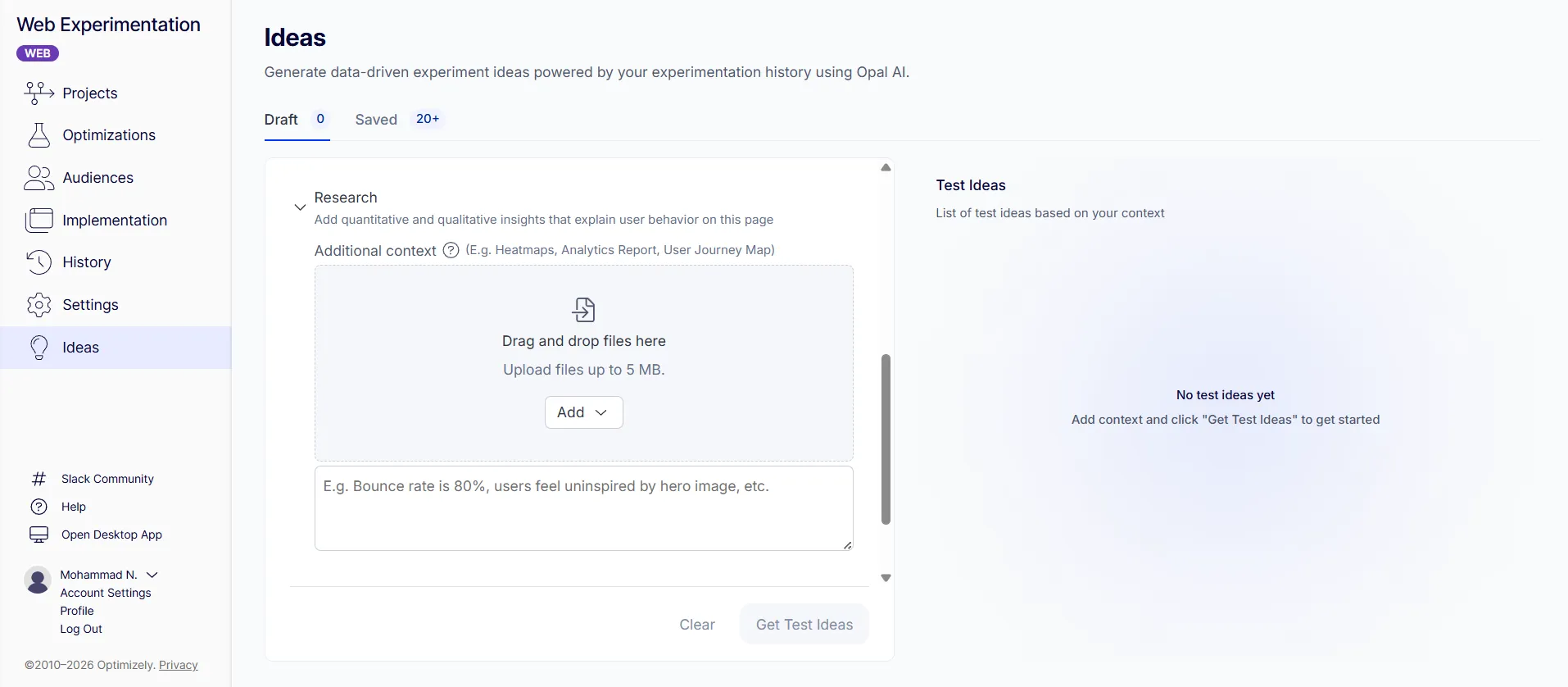
Upload files such as heatmaps, analytics reports, or user research documents to give Mark visual evidence of user interactions. Drag and drop files or click Add to browse. Each file must be 5 MB or smaller.
In the text field, enter analytics notes, data points, or observations not captured in an uploaded file. For example, enter Bounce rate is 80% for enterprise customers and 50% for small business customers.
Sources
The Sources section lets you reference past tests to inform new ideas and avoid duplication. Click Sources to expand it.
Use the Previous Tests search field to search for and select up to four past experiments. This helps Mark build on existing test results and avoid repeating experiments that did not work.
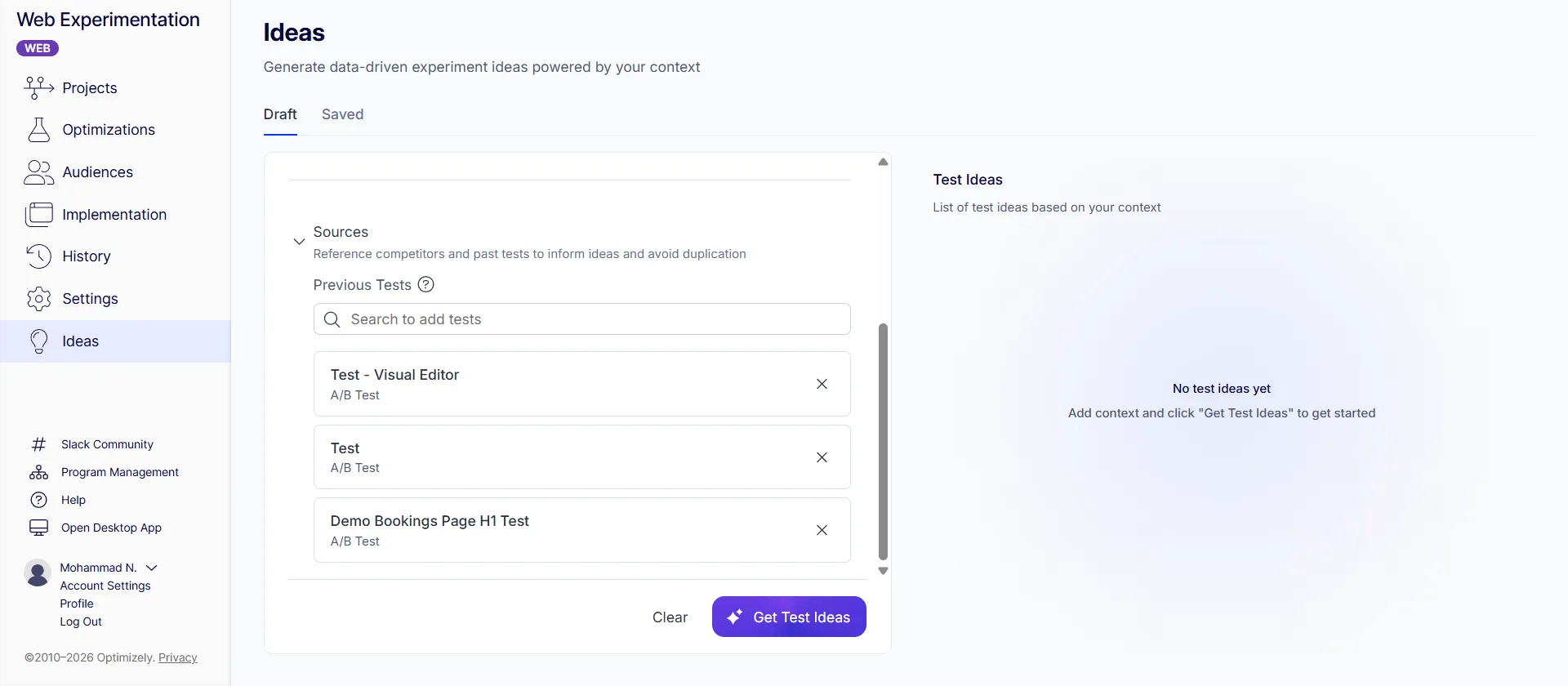
To remove a test, click X on each test card. To reset the entire context panel, click Clear.
Generate ideas
After providing your page context and any optional inputs, click Get ideas.
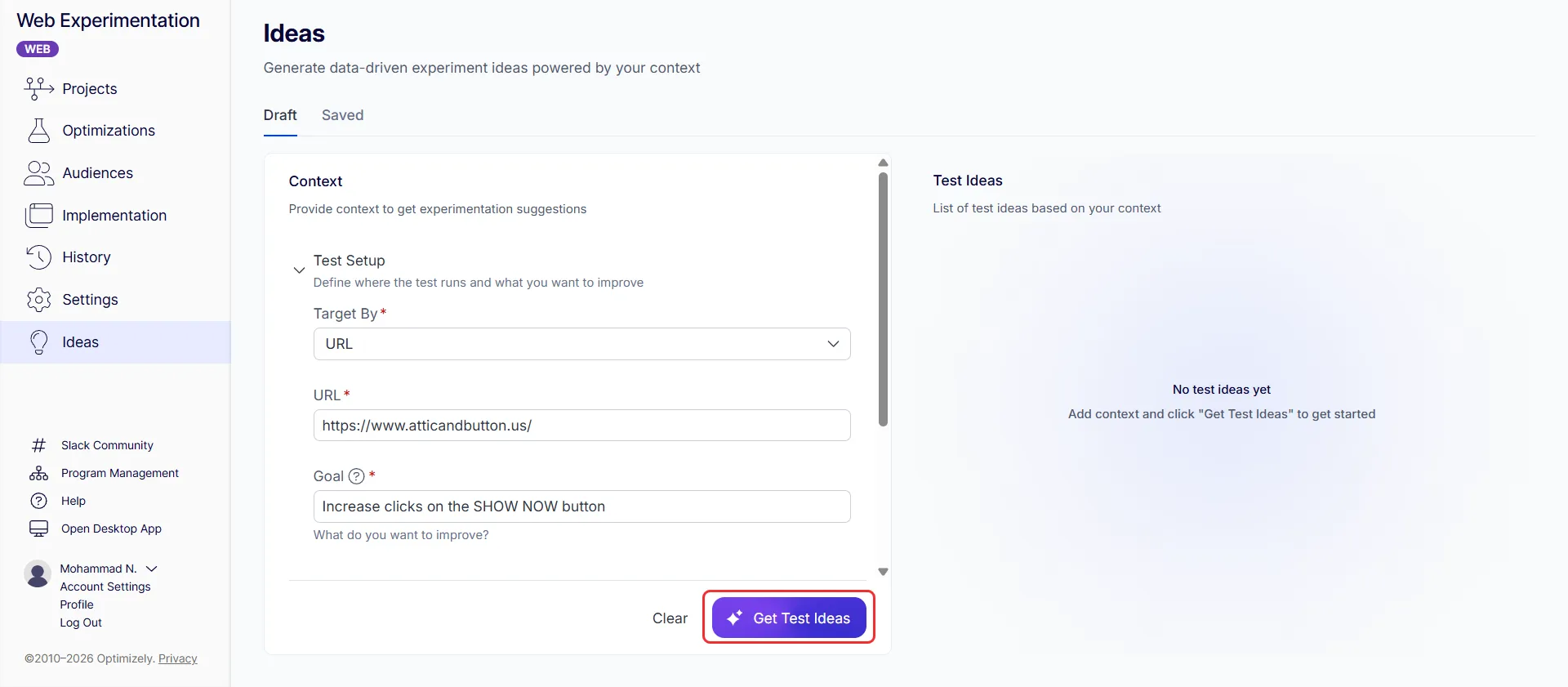
Mark analyzes the context you provided and generates experiment ideas. While ideas are generating, Mark displays its reasoning process.
Generated ideas display as individual cards.
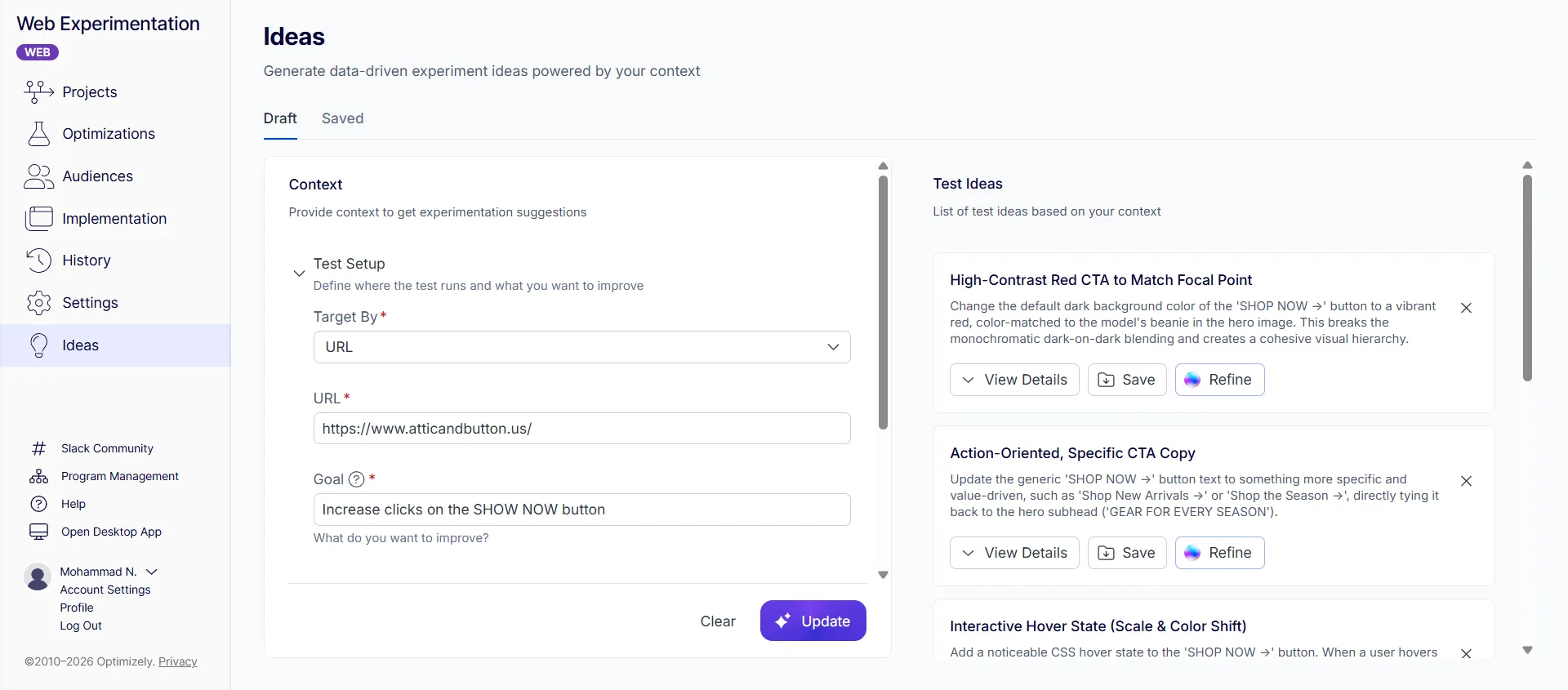
Click View Details to expand a card and see the full details.
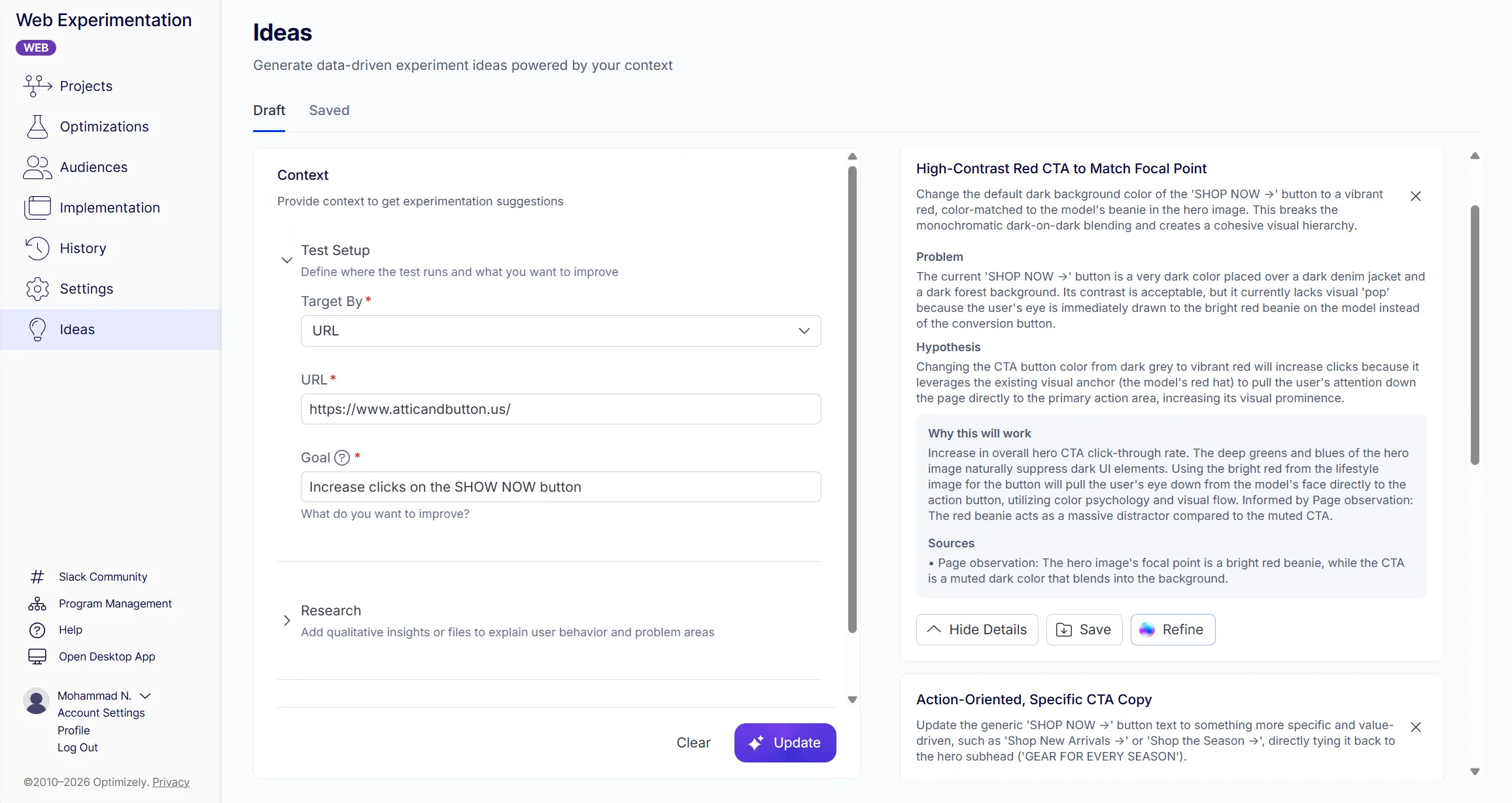
Each expanded card includes the following information:
- Title – The name for the experiment idea.
- Description – A summary of what the experiment would change.
- Problem – The user behavior or friction point the idea addresses.
- Hypothesis – A prediction of how the change will affect user behavior and the primary metric.
- Why this will work – The rationale behind the idea, including the conversion principle or heuristic that supports it.
- Sources – The page observations or principles Mark used to generate this idea.
To remove an idea, click X on the idea card. To regenerate ideas, adjust the fields in the context panel and click Update.
Refine an idea
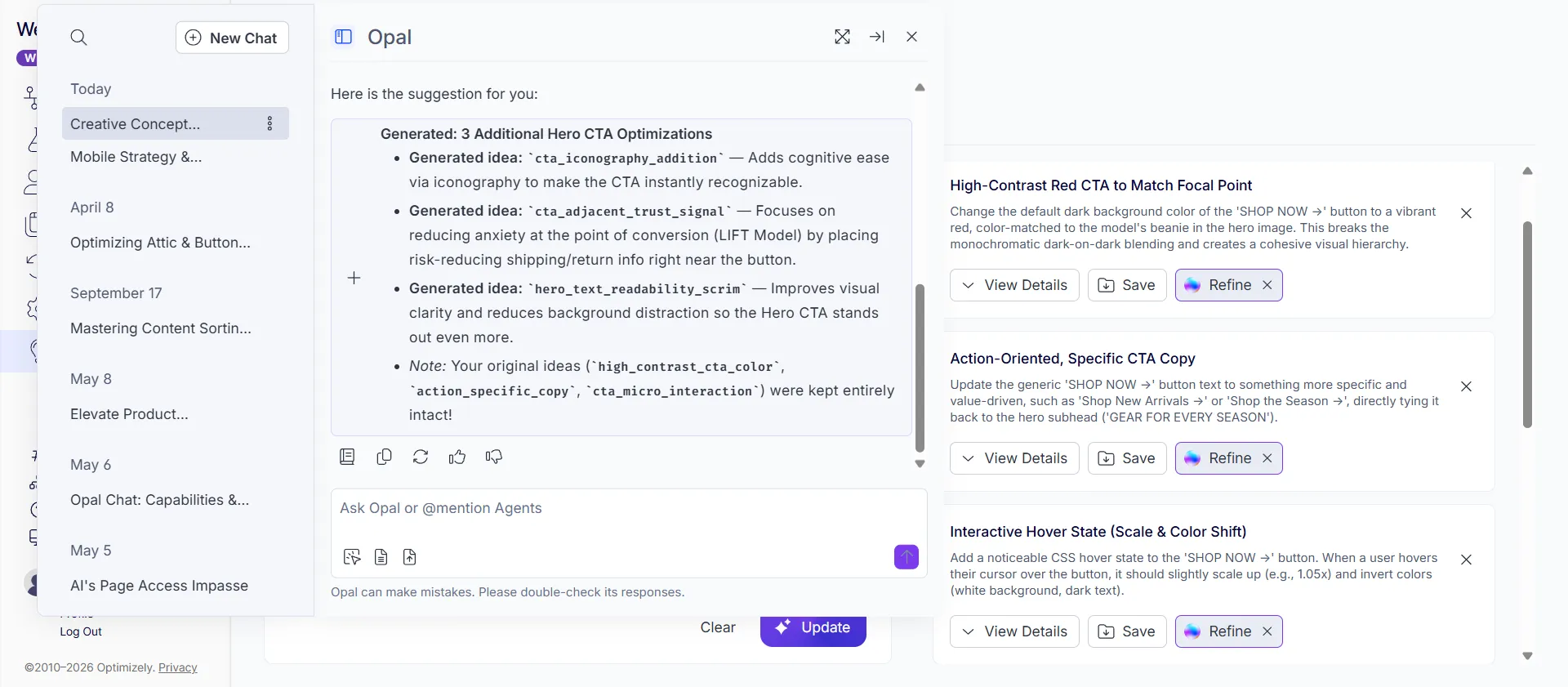
Click Refine on any idea card. Click Refine on multiple cards to refine several ideas in one conversation. To deselect a card, click X next to its Refine button.
The Mark chat panel opens with suggestions tailored to Idea Builder, such as Generate bolder ideas, more variations, or similar ideas.
Enter a natural language prompt to refine the selected ideas. For example:
- Make this more focused on mobile users.
- Generate three more ideas like this.
- Merge these two ideas together.
Click Submit.
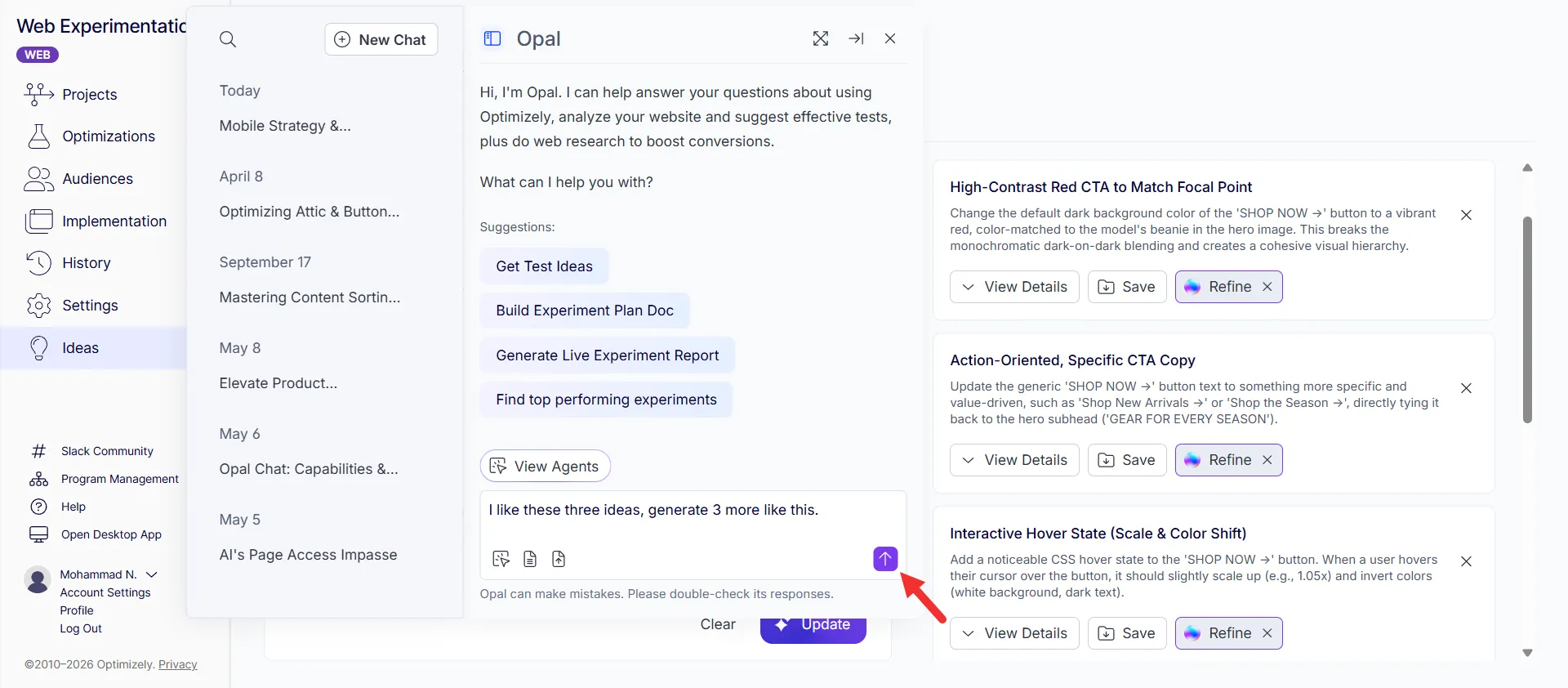
Mark generates updated or additional ideas based on your prompt. Refined ideas display at the bottom of the ideas list.
Save ideas
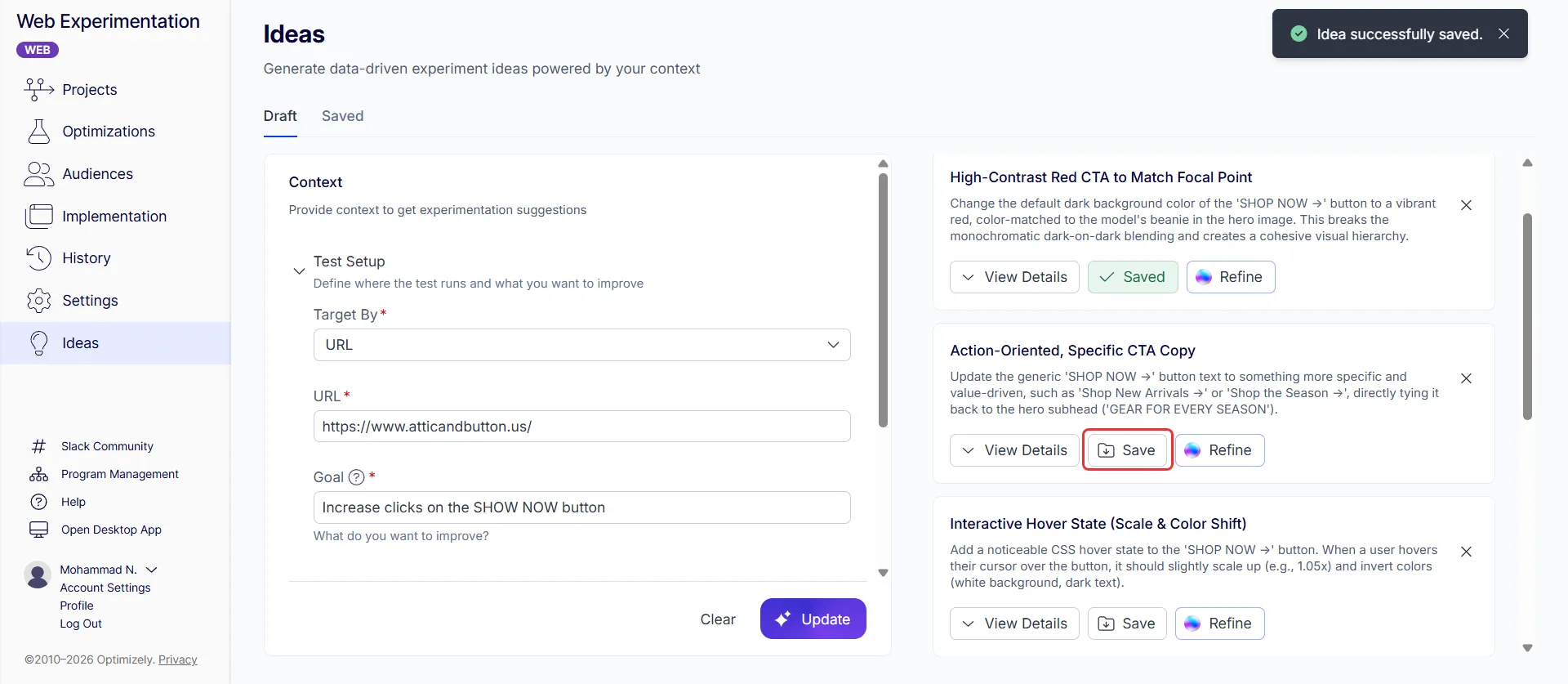
To save an idea for later, click Save on the idea card.
Saved ideas are available on the Saved tab.
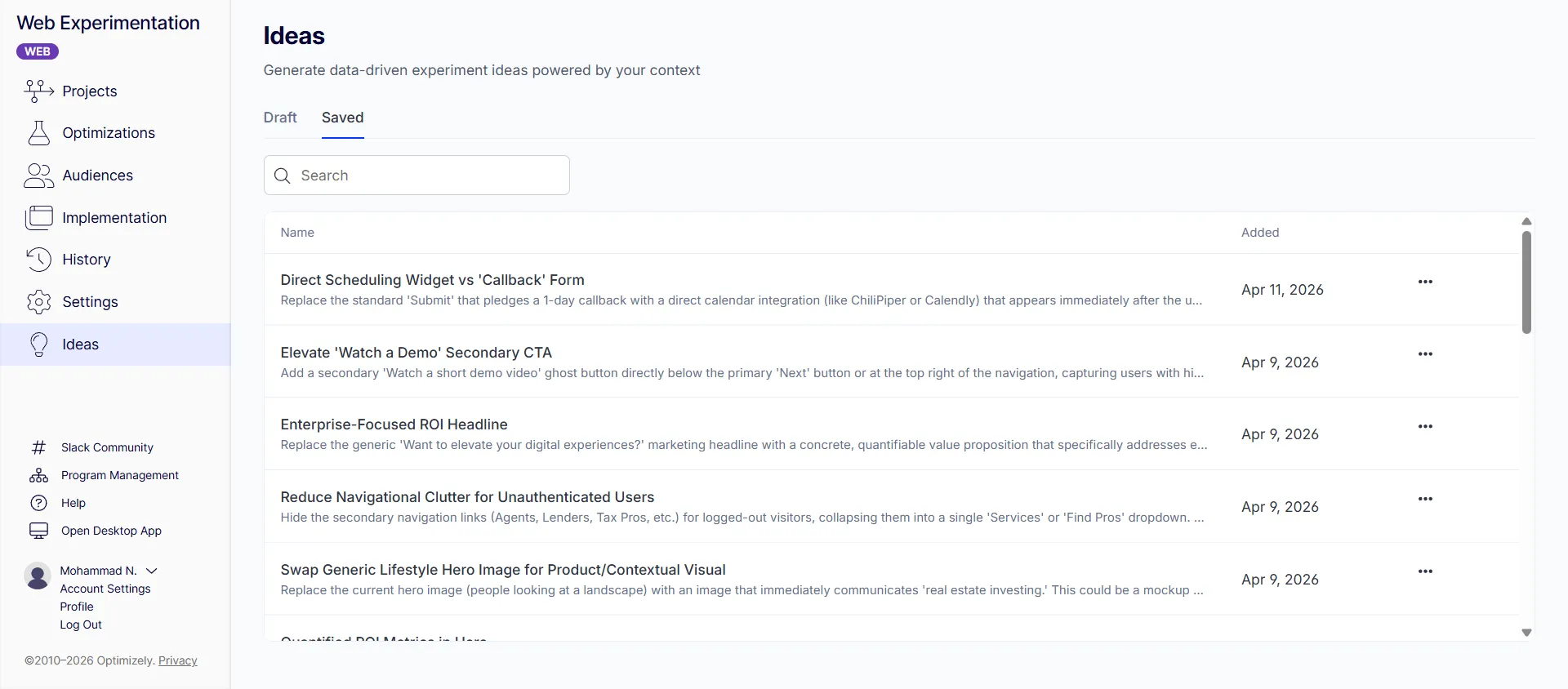
To delete a saved idea, click More (…) > Delete.
Generate a test plan from an idea
Beta This feature is currently in beta. Contact your Customer Success Manager or sign up for the beta on Optimizely.com.
Products
- Optimizely Web Experimentation
- Optimizely Feature Experimentation
A test plan turns an idea into a structured document you can review and edit before you build. Mark asks you a few questions, then fills in the plan from your answers.
Generating a test plan is optional. You can also build an experiment directly from an idea. Mark asks you the same questions in that flow.
Generate a test plan
- Go to the Ideas page and click the idea to open its details.
- Click Generate Test Plan. The Mark chat panel opens.
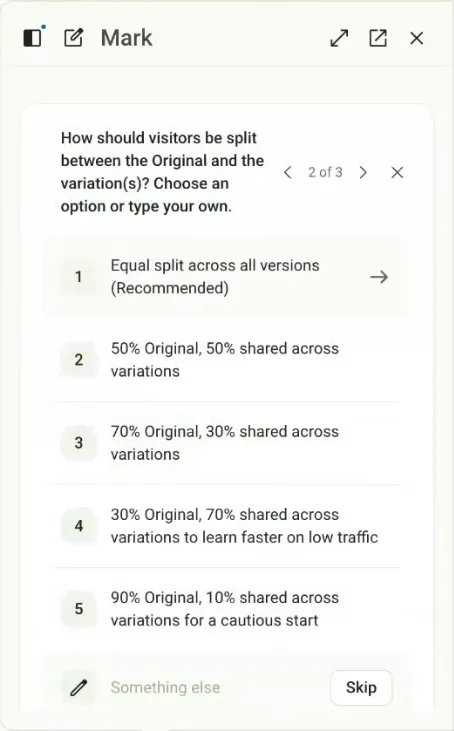
- Answer the three questions Mark asks, one at a time. Mark asks which variations to test against the original, how to split traffic between the original and the variations, and which primary metric to optimize. For each question, do one of the following:
- Select one of the options Mark suggests. Mark marks one option as recommended.
- Enter your own answer in the free-text field.
- Click Skip. Mark uses the first option.
- Wait while Mark builds the plan from your answers.
When Mark finishes, the idea shows View Test Plan instead of Generate Test Plan.
Edit a test plan
Click View Test Plan to open the plan. Mark fills it in for you.
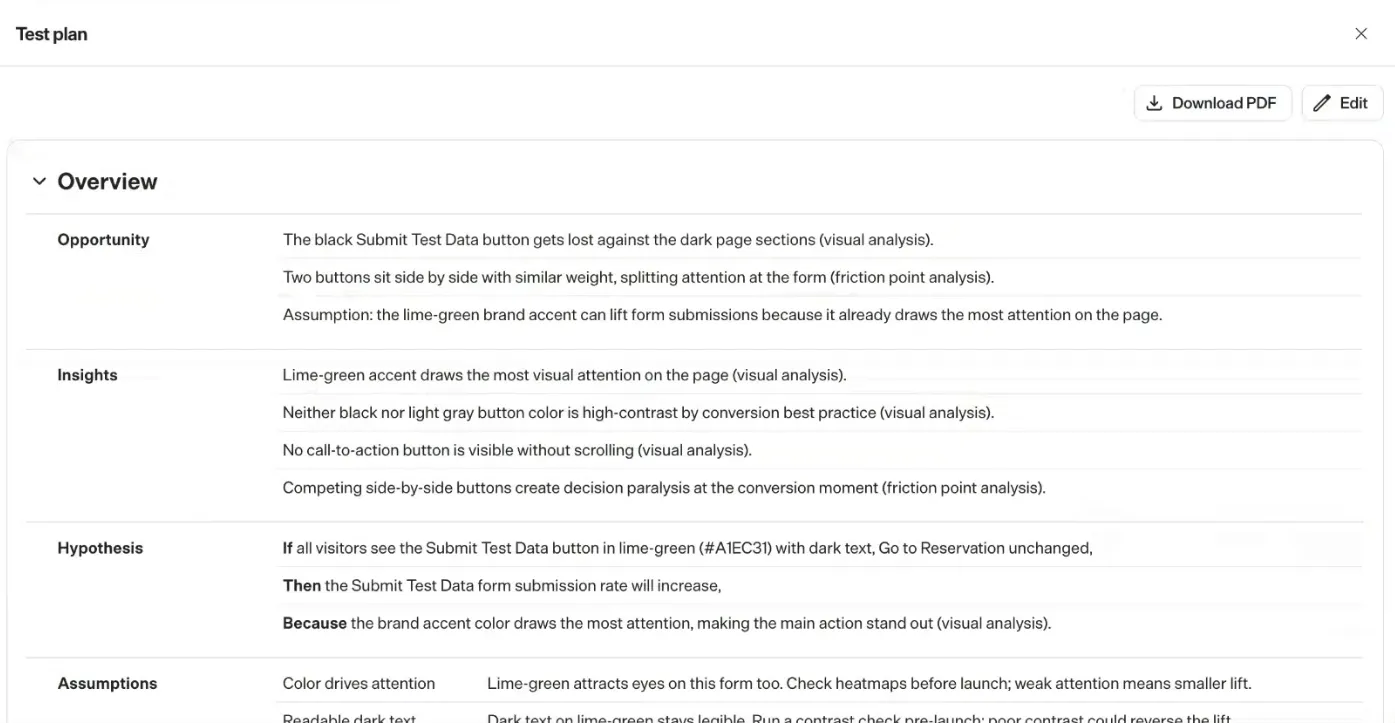
To change it, click Edit. You can do the following:
- Edit any field.
- Add a new section.
- Delete a section.
- Move sections and lines to change how the plan is laid out. Moving a section or line changes only the layout. It does not change priority.
- Upload an image for a variation.
Click Save to keep your changes, or Cancel to discard them. The plan keeps only your most recent save. There is no version history.
Download a test plan
To share the plan outside Optimizely, click Download PDF at the top of the test plan page.
Build an experiment from an idea in Feature Experimentation
Products
- Optimizely Feature Experimentation
Build an experiment from an idea to turn that idea into an A/B test rule on a flag. Mark finds or creates the flag, then sets up the variations, the primary metric, and the audience the rule needs. You act on an idea without configuring each component yourself.
Feature Experimentation does not use the Visual Editor. Mark builds the configuration only, so you add the code for your variations and event tracking yourself.
- Go to the Ideas page.
- On the Draft tab, click Build on the idea card. On the Saved tab, click More (…) > Build for the idea. The New Idea dialog opens.
- Review the Name, Description, and Hypothesis, which come from the idea. The target URL comes from the idea and you cannot edit it. Click Build Experiment.
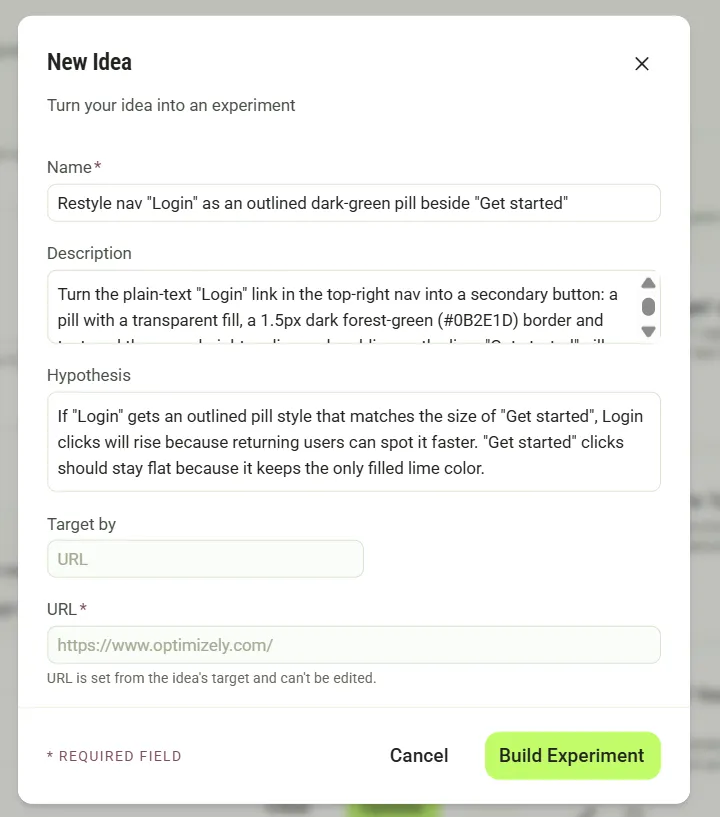
- Mark opens in a side panel and starts building. Mark receives the idea as a prompt, so you do not need to write a prompt yourself. Wait while Mark checks your project.
- Select a flag. Mark lists Create a new flag and matching flags in your project, and recommends one option. Select an option. To describe a flag in your own words, click Something else. To continue without a flag, click Skip.
- Answer the questions about the environment, the primary metric, and the audience. Mark asks the questions one after another. For each question, select an option, click Something else to describe your own, or click Skip.
- Environment – Mark lists environments from your project and recommends a non-production environment. Mark cannot create an environment.
- Primary metric – Select an existing event or Create a new metric. A new metric is a custom event.
- Audience – Select an existing audience, Create a new audience, or Everyone to apply no targeting.
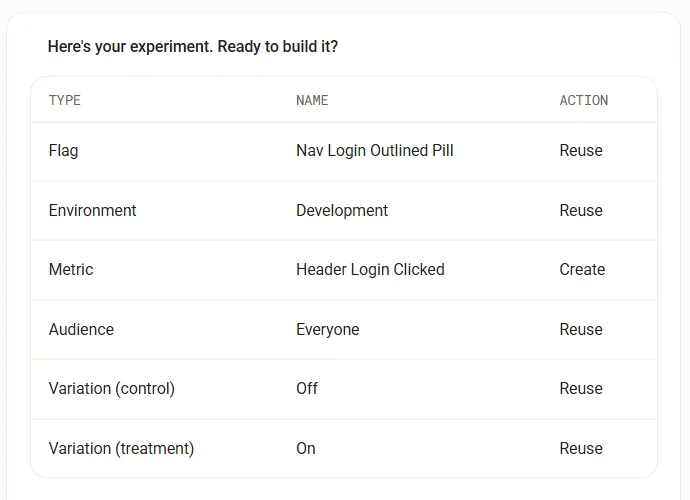
- Review the plan. A table lists the flag, environment, metric, audience, and variations, and marks each as Reuse or Create. The review also describes the A/B rule, including its name, traffic, split, primary metric, and audience. Click Build it to create the experiment, Not now to stop, or Something else to change the plan.
- Review the summary. The summary lists each entity with its type, name, key, and ID, and the details of the rule. Mark creates the rule with a Draft status and marks the idea as built.
- To check the rule, click Preview experiment. The flag's Ruleset page for the environment opens.
- (Optional) Click Generate another variation. Mark suggests three variations. Click Generate this variation on one. Mark adds the variation to the rule and splits traffic equally across all variations. After Mark adds a variation, check the rule's baseline. To change it, click More (…) > Set as baseline on the variation you want to measure against.
- Add the code for your variations and event tracking. In your application, render the change for the variation key that the flag decision returns, and send the custom event that the primary metric tracks.
- On the Ruleset page, click Run to run the ruleset in the environment. Select the rule, then click Run on the rule.
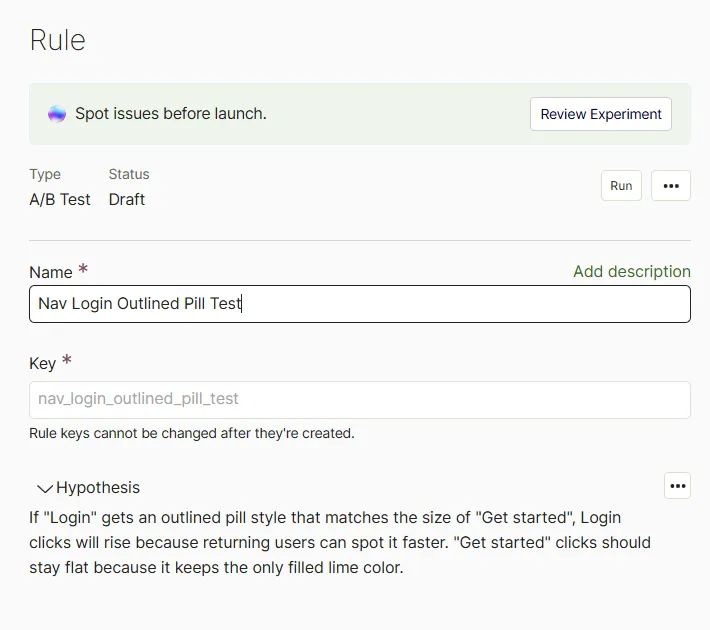
- In the Ready to launch? dialog, click Run Experiment. The rule goes live immediately. To check for setup issues first, click Review Before Launch. Mark reviews the rule and lists recommended actions, such as enabling the rule, confirming that the metric receives data, and checking the baseline.
If your project has no events or audiences, Mark skips those questions. Mark proposes a new metric and sets the audience to Everyone.
If you create a new flag, Mark creates it when you select Create a new flag, before you review the plan.
Important
If the flag already has an active rule in the environment, that rule can bucket visitors before the new rule. Mark notes this on the review card. Keep the existing rule in draft or pause it while the new test runs. See Interactions between flag rules.
Mark-generated configuration sometimes contains mistakes. Review the flag, variations, metric, and rule before you run the experiment. For more information about rule statuses and running a ruleset, see Flag and rule lifecycle management.
What Mark builds in Feature Experimentation
Mark creates or reuses each component the experiment needs to run:
- Flag – Mark reuses the flag you select or creates a new flag from the idea.
- Variations – Mark reuses the flag's Off and On variations, or creates new variations when the idea needs a distinct treatment.
- Metric – Mark sets the metric you select as the primary metric and reuses a matching event when one exists in your project. Mark adds one primary metric and does not add secondary metrics from the idea.
- Audience – Mark adds the audience you select, or applies Everyone for no targeting.
- A/B rule – Mark creates the rule with a Draft status in the environment you select. The rule serves 100% of eligible visitors and splits traffic equally across the variations.
You can change any of these from the flag's Ruleset page, the same way you would for a rule you create yourself.