Flag triggers in Feature Experimentation
- Optimizely Feature Experimentation
Flag triggers run or pause a flag automatically when an external monitoring tool reports a problem. Use a trigger to turn off a flag when errors spike after a release. No one has to log in to Optimizely and pause the flag by hand.
Triggers work with any monitoring tool that sends webhooks, including New Relic and Datadog. A webhook is a URL that receives a request when an event occurs in another system.
How flag triggers work
A flag trigger has two parts:
- Trigger source – A project-level connection to one external system. Optimizely generates a unique webhook URL for each trigger source.
- Trigger – A flag-level setting that links a trigger source to an environment and an action.
Your monitoring tool sends a POST request to the webhook URL. Optimizely then runs the action for each trigger linked to that trigger source.
Each action changes the ruleset. A ruleset holds the rules for a flag in one environment. Pausing a ruleset turns the flag off in that environment, and running a ruleset turns the flag on.
Prerequisites
Before you create a trigger, make sure you have the following:
- Administrator or project owner access. Only administrators and project owners create and manage trigger sources. Other users can view them.
- A monitoring tool that sends webhook requests, such as New Relic or Datadog.
Create a trigger source
Create a trigger source for each external system that sends events to Optimizely.
- Go to Settings > Trigger Sources.
- Click Create Trigger Source.
- Enter a Name.
- (Optional) Enter a Description.
- Click Create. Optimizely displays the webhook URL.
- Click Copy URL. The dialog confirms that Optimizely copied the URL to your clipboard.
- Click Close.
Optimizely displays the webhook URL only once. Copy and save the URL before you close the dialog. If you lose the URL, reset it.
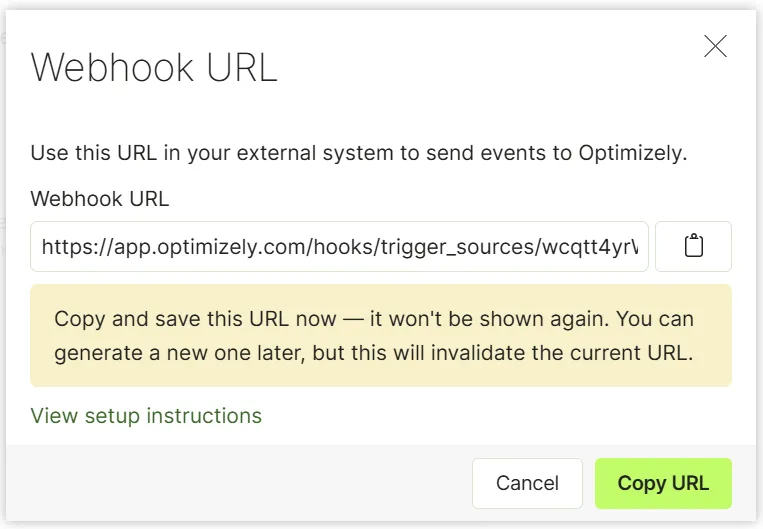
To see setup instructions for your monitoring tool, click View setup instructions in the dialog.
Paste the URL into the webhook settings of your monitoring tool. For steps, see the New Relic webhook documentation or the Datadog webhooks integration guide.
View trigger sources
Go to Settings > Trigger Sources to see every trigger source in the project. The list shows each trigger source with its system, the number of triggers that use it, its execution count, its created date, and the date it last triggered.
Use Search by name and the System drop-down list to narrow the list.
Edit or delete a trigger source
- Go to Settings > Trigger Sources.
- Open the menu for the trigger source.
- Click Edit to change the trigger source, or click Delete to remove it.
Reset a webhook URL
Reset a webhook URL when you lose the URL or need to replace it. Resetting generates a new URL and immediately invalidates the previous URL. Your monitoring tool stops triggering actions until you update its webhook settings.
- Go to Settings > Trigger Sources.
- Open the menu for the trigger source and click Reset Webhook URL.
- Copy the new URL.
- Paste the new URL into the webhook settings of your monitoring tool.
Add a trigger to a flag
Add a trigger to a flag to choose the environment the flag responds in and the action that runs. A trigger applies to one environment. Add one trigger for each environment that needs protection.
- Go to Flags and open the flag.
- Click Triggers.
- Click Create Trigger.
- Under Trigger Source, select the trigger source.
- Under Environment Targeting, select the environment.
- Under Action, select an action.
- Review the summary that displays below the fields. For example, for Run Ruleset: When the "custom 4" trigger source fires, this flag will turn ON in Development.
- Click Save Trigger.
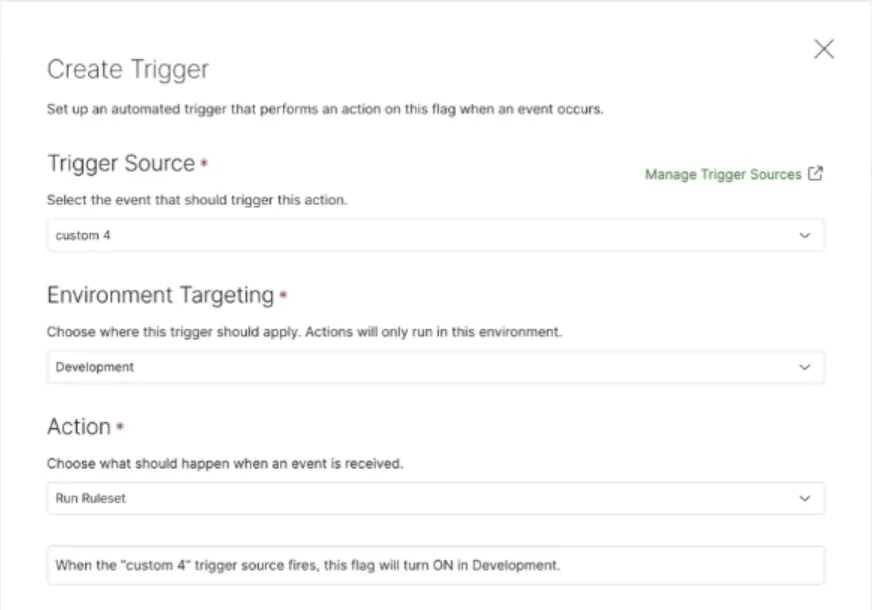
Select one of the following actions:
- Pause Ruleset – Turn the flag off in the selected environment. Use this action for automatic rollbacks.
- Run Ruleset – Turn the flag on in the selected environment.
The flag's Triggers page lists each trigger with its source, environment, action, execution count, and last triggered date. Use Search by name and the Source and Environment drop-down lists to filter the list.
To create or manage trigger sources while you add a trigger, click Manage Trigger Sources in the Create Trigger dialog.
Delete a trigger
Delete a trigger to stop a trigger source from changing the flag in that environment.
- Go to Flags and open the flag.
- Click Triggers.
- Open the menu for the trigger and click Delete.
Test a trigger
Test a trigger to confirm that the flag responds before you rely on the trigger during an incident. A test request runs the configured action, so test in a nonproduction environment first.
- Send a POST request to the webhook URL, for example from an API client such as Postman.
- Confirm that the response reports success. A successful request returns a 200 OK status. The response body includes an executed_at timestamp and succeeded set to true.
- Open the flag and refresh the ruleset page.
The environment status changes to match the action. For example, a Run Ruleset trigger changes the status from Paused to Running.
Restore a flag after a trigger fires
To return the flag to an earlier configuration after a trigger fires, see Restore a previous flag version.