Publish to the ODP sandbox
Before publishing and testing your app, you must first:
In Connect Platform for Optimizely Data Platform (ODP), each app is published with a specific version. This quickstart guide uses the -dev tag version, which is designed for internal testing and development of apps. To learn more about versioning in Connect Platform for ODP, see Update your app version.
Complete the following steps to validate, prepare, publish, and install the app to the ODP sandbox.
Step 1: Validate your app configuration
Before you publish the app, first validate that the app is configured correctly with the following command in the Connect Platform for ODP command-line interface (CLI):
ocp app validateNote If you are confident that there are no issues with your app's code or settings, you can skip this step. The prepare step runs the same validation.
Step 2: Prepare the app for publishing
After validating that your app is configured correctly, prepare the app for publishing with the following command, which packages the app's local files, uploads them to Connect Platform for ODP, and builds the publishable app:
ocp app prepareNote You can skip the next step (Publish the app) and automatically publish the app after it is prepared by adding the --publish flag to the prepare command.
ocp app prepare --publishIf a build fails, you can view the build logs to determine what caused the failure. Run the following command in the Connect Platform for ODP CLI, replacing [BUILD_ID] with the ID of the failed build to view the corresponding logs:
ocp app logs --buildId=[BUILD_ID]Step 3: Publish the app
Note If you added the --publish flag to the prepare command above, you can skip this step.
After you validate and prepare the app, publish it to the ODP App Directory with the following command:
ocp directory publish [email protected]After this step, the app version is available in the ODP App Directory and can take requests. For example:
ocp directory info ocp_quickstart
Active environment: production

  General

    id          ocp_quickstart
    name        OCP Quickstart
    created     2023-04-17T02:31:44Z

  Versions


    1.0.0-dev.1    PUBLISHED
Step 4: Install the app to ODP sandbox
After you publish the app, find your Tracker ID in ODP and install your app in the ODP sandbox with the following command, replacing [TRACKER_ID]:
ocp directory install [email protected] [TRACKER_ID]Now you can view the app in the ODP sandbox. In the ODP app, go to the App Directory and locate your newly installed app.
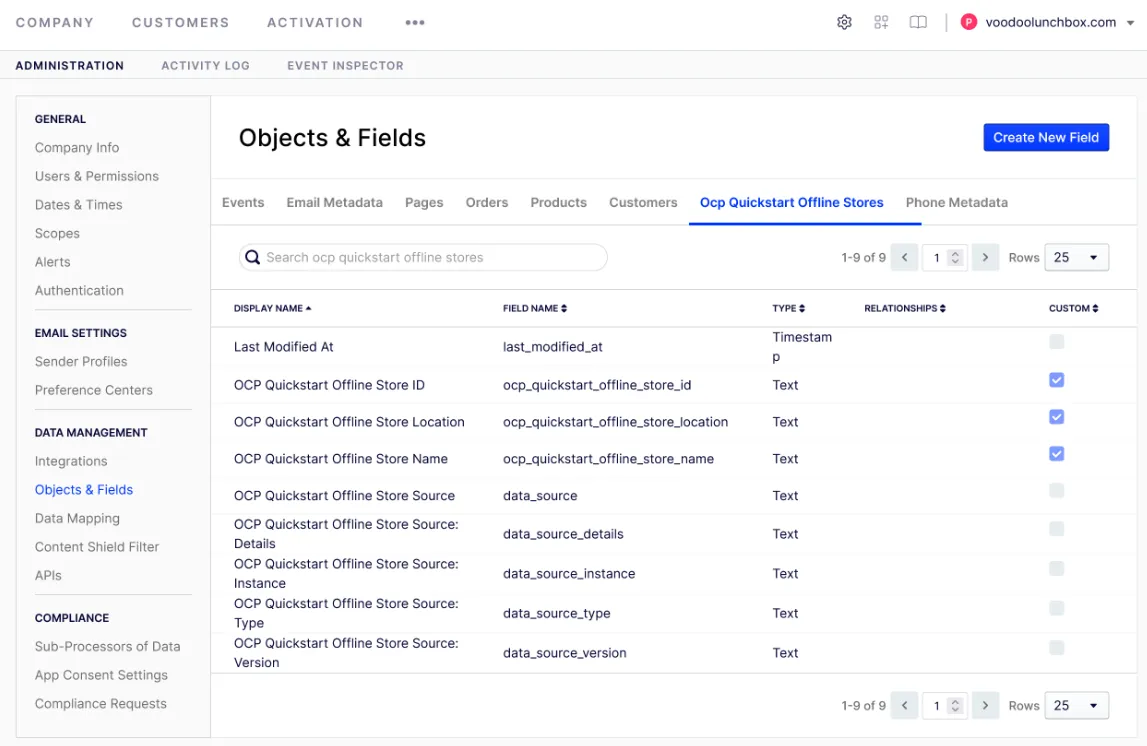
The app does not run any code yet, but you can see Connect Platform for ODP added the object schema you created in the previous section (Initialize an app and define its schema). To view this object schema, in the ODP app, go to Account Settings > Objects & Fields.