Save as blueprint
3 min
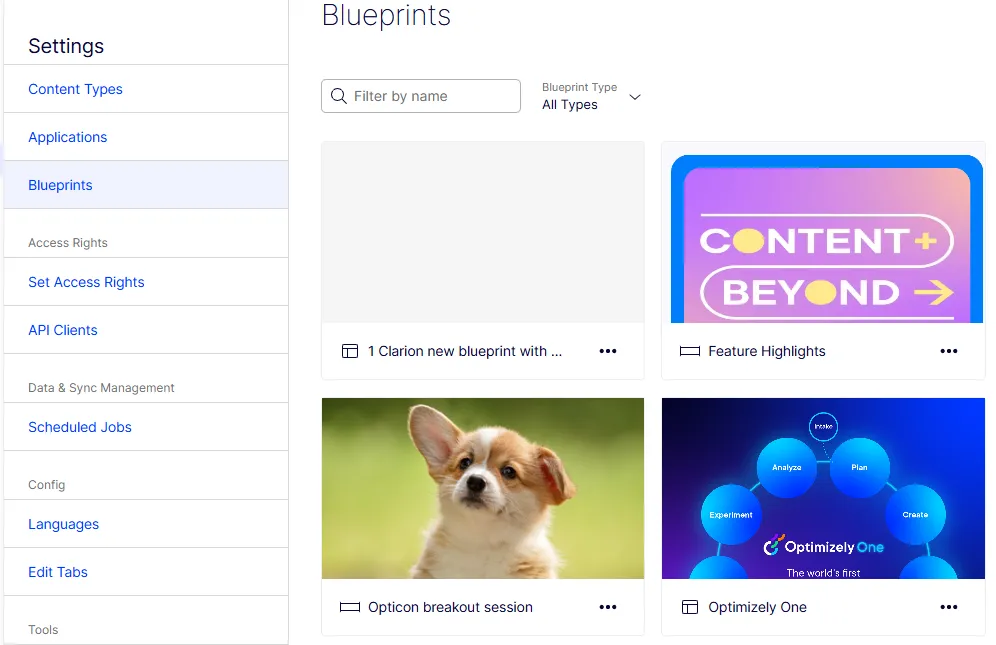
When you create an experience or section you want to reuse, you can save the experience or section as a blueprint. To rename or delete a blueprint, see Blueprints.
Save experience blueprint
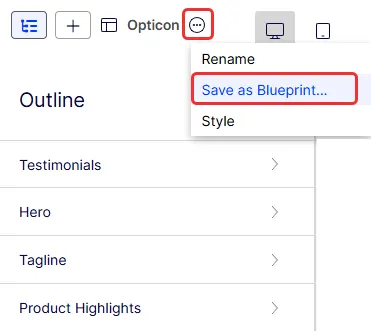
- At the experience title, select More (...) > Save as Blueprint...
- Enter a name for the blueprint.
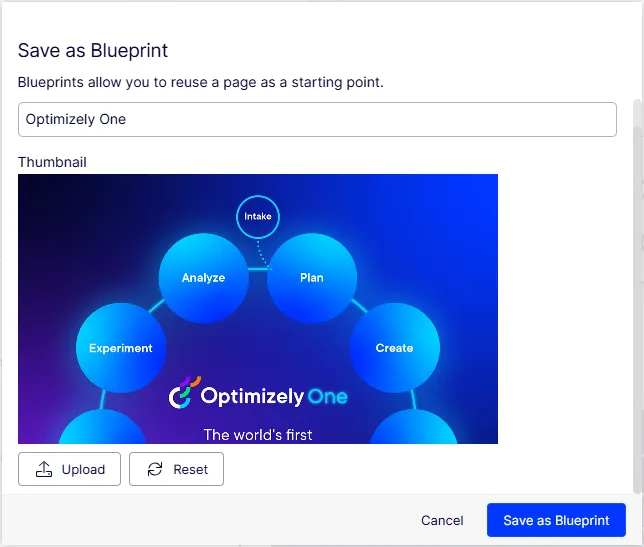
- Visual Builder creates a thumbnail image for the blueprint, but you can click Upload to change it with another image.
- Optionally click Reset to revert to the original thumbnail image.
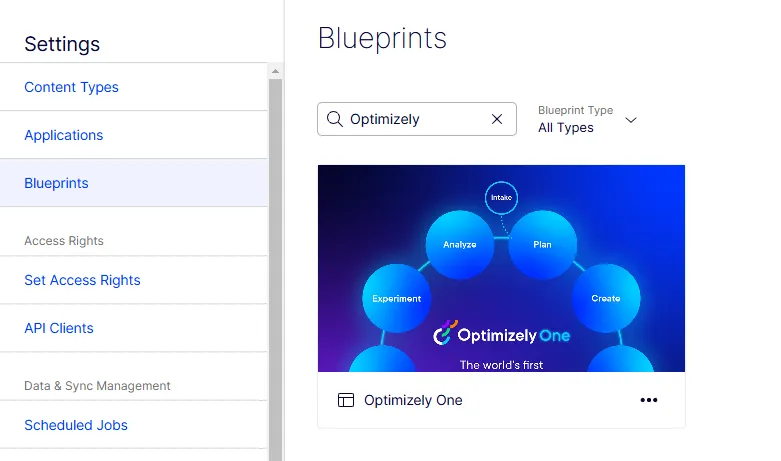
- Click Save as Blueprint and your blueprint displays in the list among the other blueprints when you create an experience. You can filter by entering a partial blueprint name in the search box, or filter by experience, section, or all types to find the blueprint you want.
Save section blueprint
- At the section title, select More (...) > Save as Blueprint...
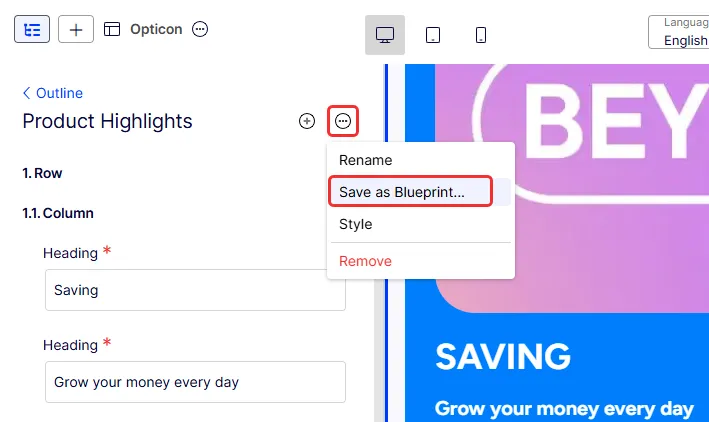
- Enter a name for the blueprint. You can also optionally upload an image to replace the thumbnail image. You can click Reset to revert to the original thumbnail image.
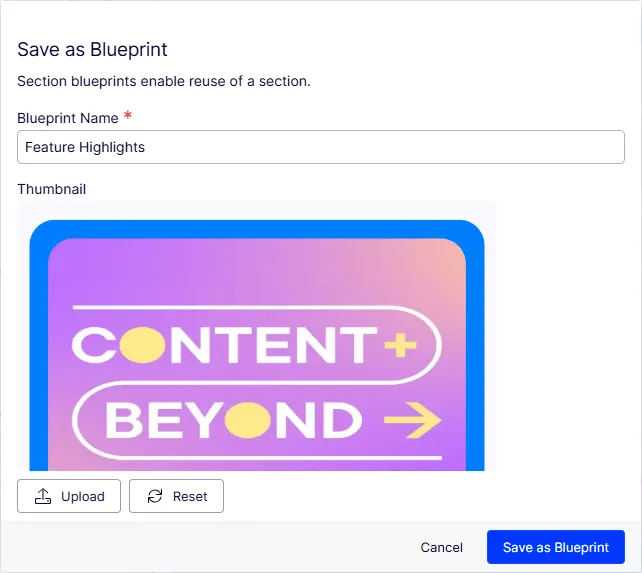
- Click Save as Blueprint and your section blueprint displays in the list among the other section blueprints when you create an experience.