Manage blueprints
Blueprints are reusable layout templates that you use with Visual Builder to create content directly in the UI. You can save sections and experiences as blueprints, such as a campaign landing page, a contest entry form, a masthead or hero image, column or grid content. See Save as blueprint.
To create, use, and manage blueprints, see also this interactive demonstration about blueprints.
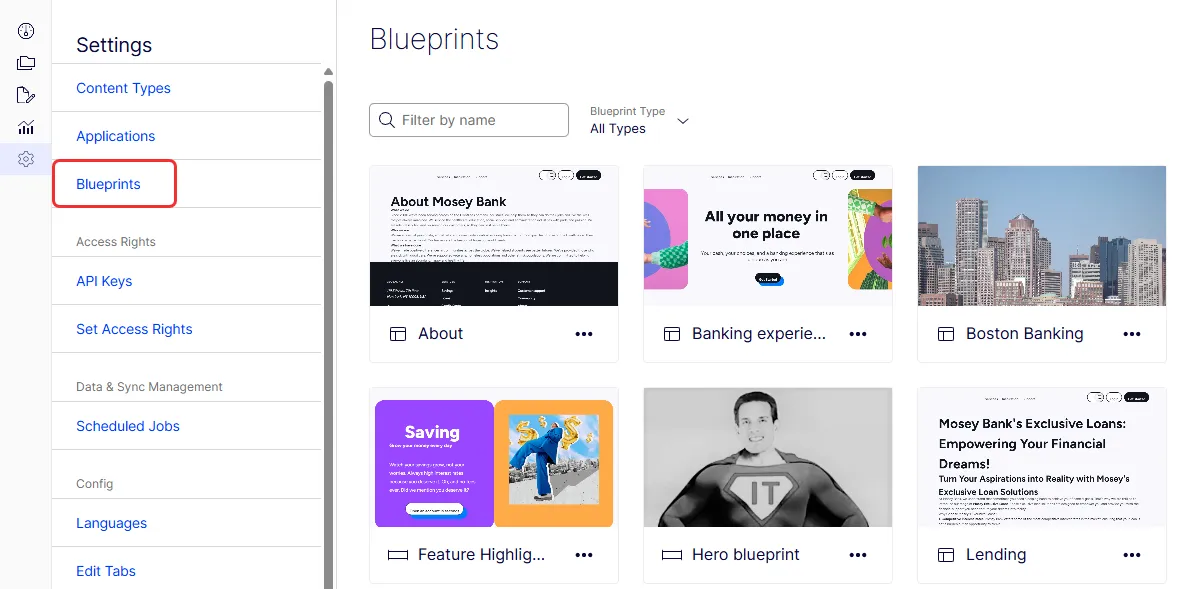
You can find, rename, or delete blueprints in Settings > Blueprints.
Find blueprints
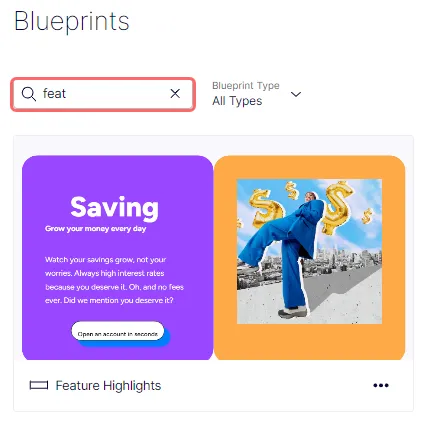
Type a full or partial blueprint name in the search field to filter the list and find the one you want.
Filter blueprints
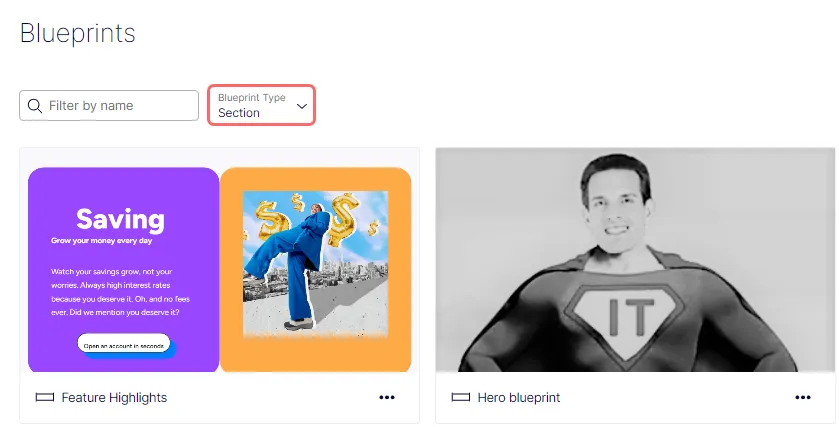
You can select the Blueprint Type (All, Experience, or Section) to filter blueprints.
Rename a blueprint
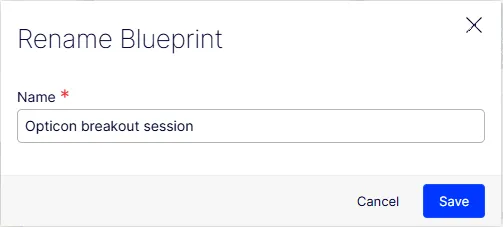
To rename a blueprint, select More (...) > Rename on the blueprint card. A Rename Blueprint window displays where you can enter a name and click Save.
Delete a blueprint
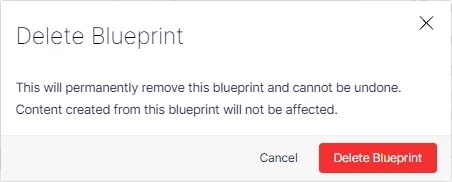
To delete a blueprint, select More (...) > Delete on the blueprint card. A Delete Blueprint window displays where you can confirm deletion.